Installer PCSX2
Before diving into the details, be aware that you may need a good understanding of the terminal and possibly even system administration regarding macOS. Finally, you will need to be an administrator on your Mac to complete this installation.
For some time now, zedr0n has been dedicating their time to provide us with a port of PCSX2, the Sony PlayStation 2 emulator, for our macOS platform.
As of this writing, versions 0.9.7 Alpha and 0.9.6 Beta are available.
First, we will attempt to install version 0.9.7 Alpha. To do this, in addition to the emulator installer and the PS2 BIOS, we need to install X11 and more specifically XQuartz, as well as the NVIDIA framework as specified in the official guide (dead link).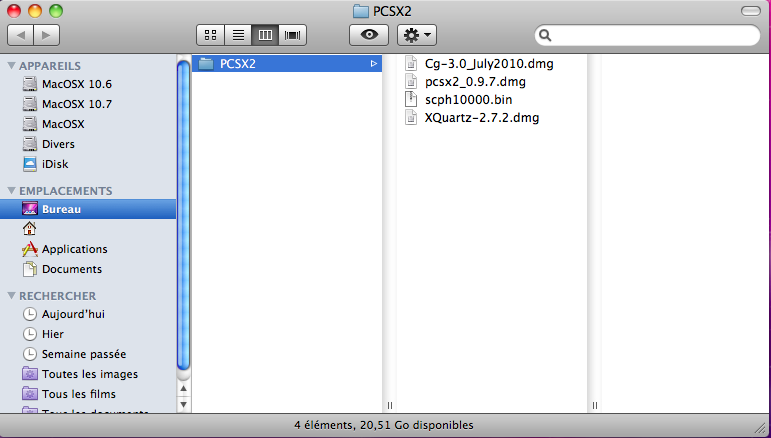
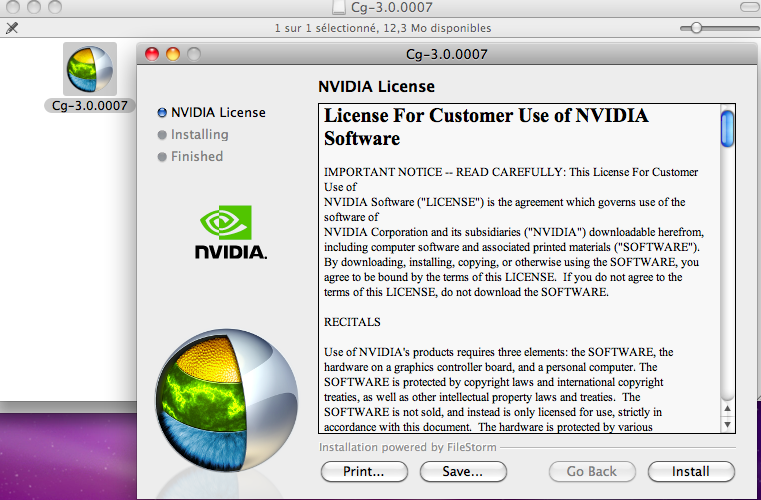
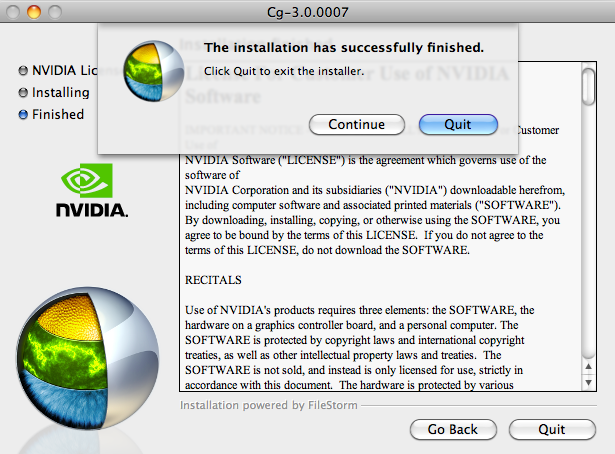
We will start by installing the NVIDIA framework, make sure to install the correct one for your macOS version.
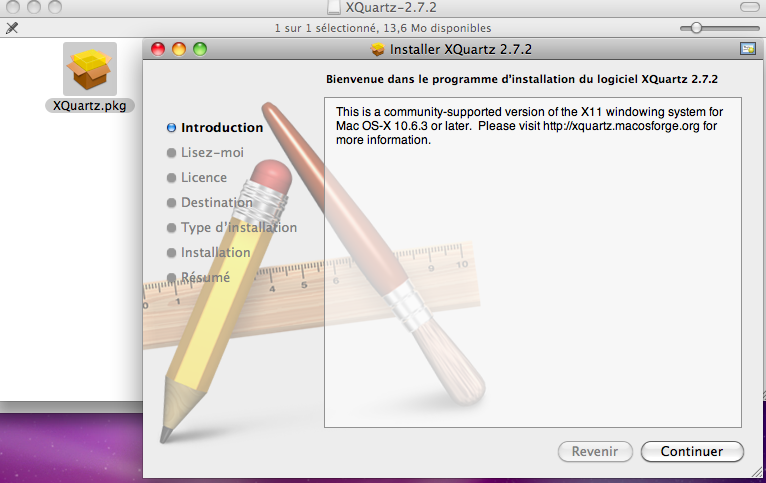
Then, install the XQuartz version corresponding to your OS X version.
The essential utilities installed, we open the PCSX2 disk image which contains, in addition to the application, three packages.
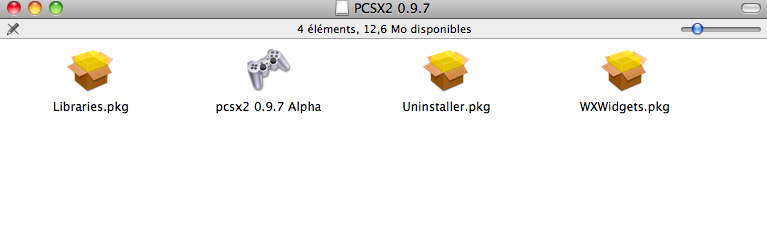
The package named "Uninstaller.pkg" should be used first if you already have an older version of PCSX2 installed.
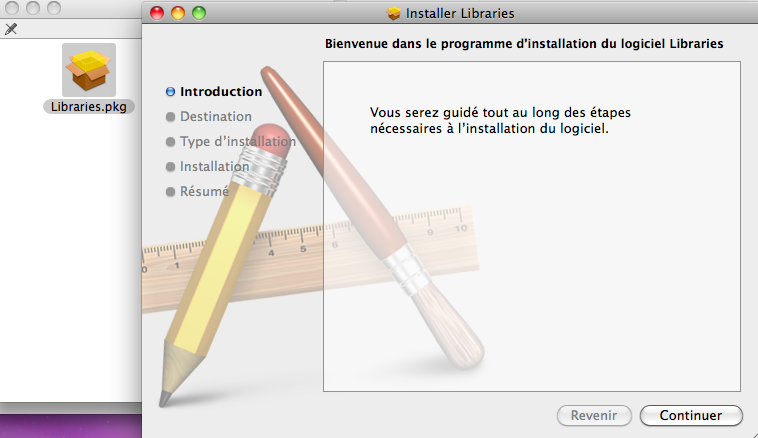
First, you will need to install the libraries by launching "Libraries.pkg".
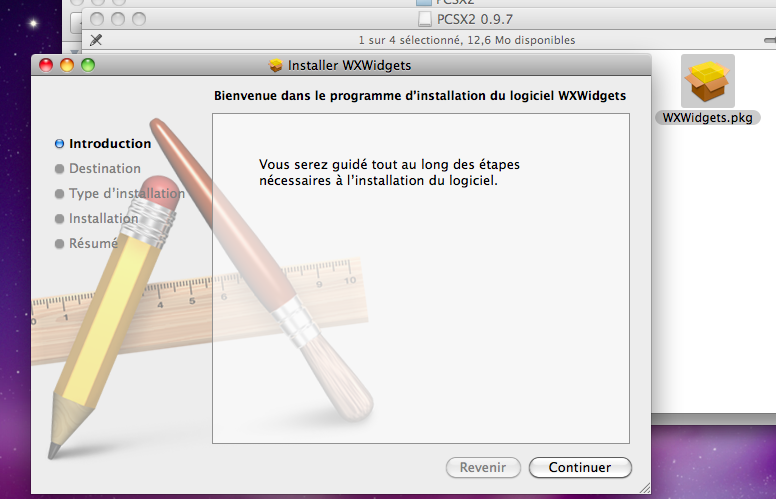
Then, "WXWidgets.pkg".
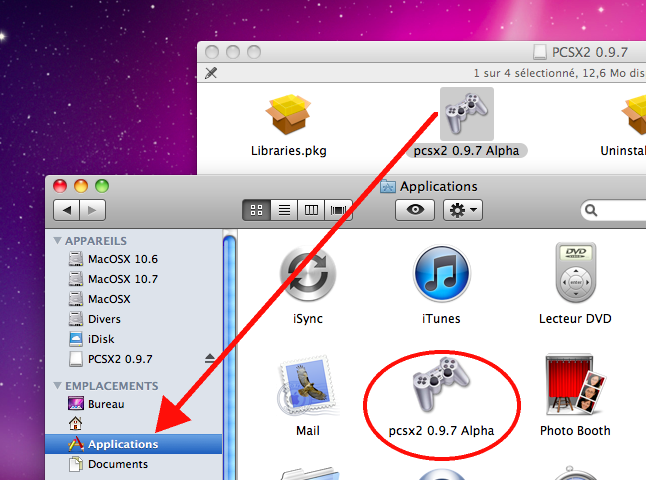
Finally, you just need to copy the PCSX2 binary into your "Applications" folder.
All these repeated installations require a logout and a new login to take the changes into account.
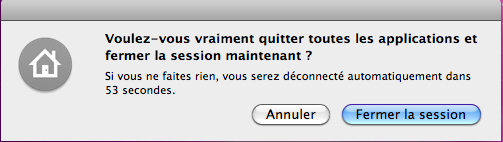
If you had an old X11 version previously installed, you may encounter an error similar to this one.
At this point, there's not much else to do except manually uninstall all your X11 components before restarting the installation.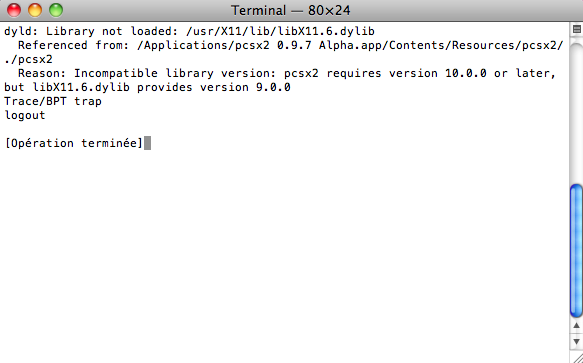
WARNING: Uninstalling X11 requires enabling the "root" user and manually deleting via the terminal, using the `rm` command, the various elements installed in system folders. We won't provide the procedure as it can be very dangerous for the integrity of your OS if you are not experienced in this matter, but you should know that this procedure (with some basic English knowledge) can be found online.
We also remind you that version 0.9.7 is currently an Alpha version, meaning it is still in development and prone to numerous bugs and high instability. This seems to be the case on our MacBook as well, since it crashes immediately upon initialization.
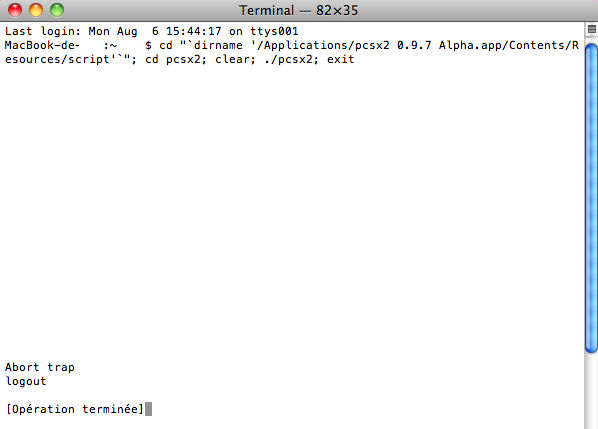
Note that this 0.9.7 Alpha version was tested under 10.7 by its developer, and our 10.6.3, which is the minimum required to use PCSX2, is clearly not supported. A dead end then.
We tried it anyway, with the same MacBook under a 10.7.4 system, and it starts without any issues.
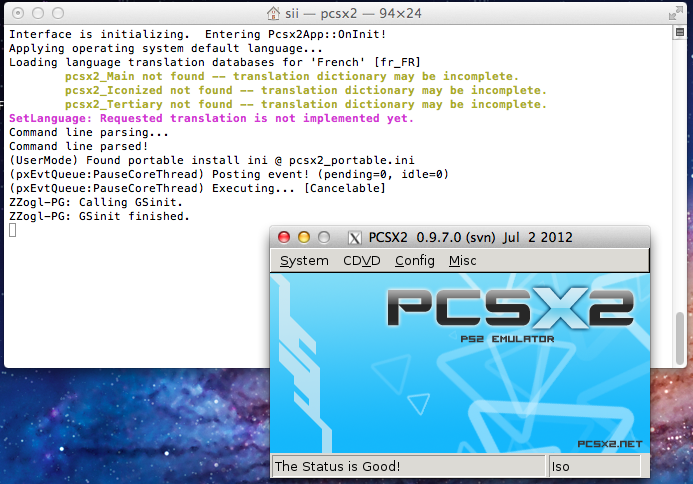
You now need to specify where the BIOS is located.
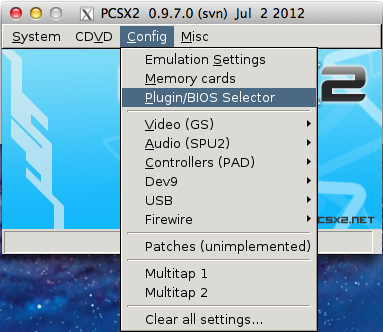
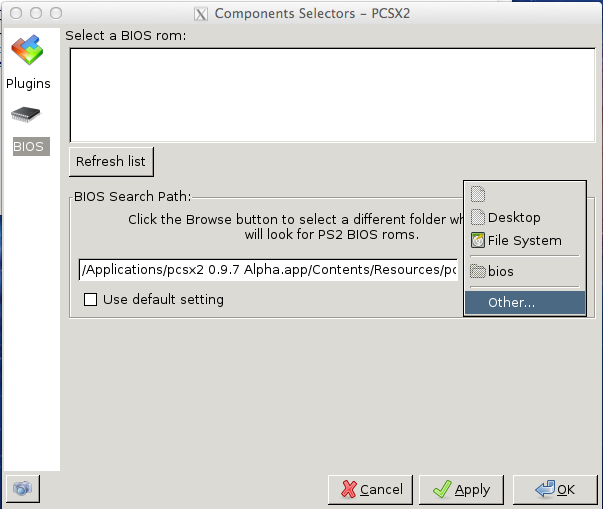
To do this, uncheck "Use default setting" and select "Other" to choose the folder containing the BIOS.
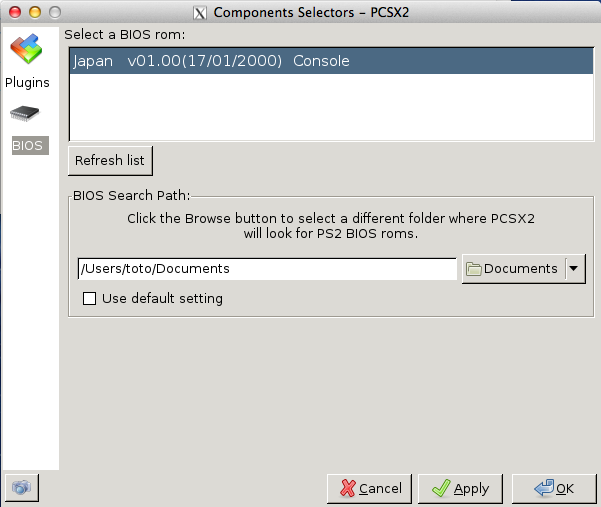
All you have to do now is click on the BIOS you want to use and confirm.
If you also have Mac OS X 10.6.8, don't give up. Let's try the 0.9.6 Beta version after removing the versioned executable 0.9.7 Alpha from our "Applications" folder.
Once done, you should find the correct version of PCSX2 in the same folder.
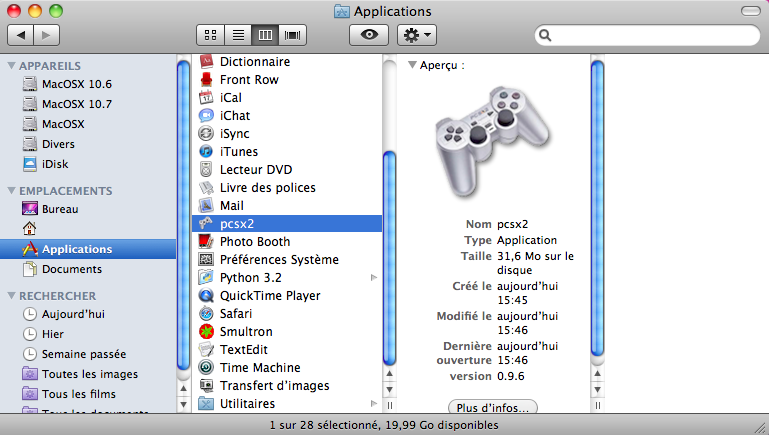
Slightly more stable, launching the emulator should proceed without too many issues.
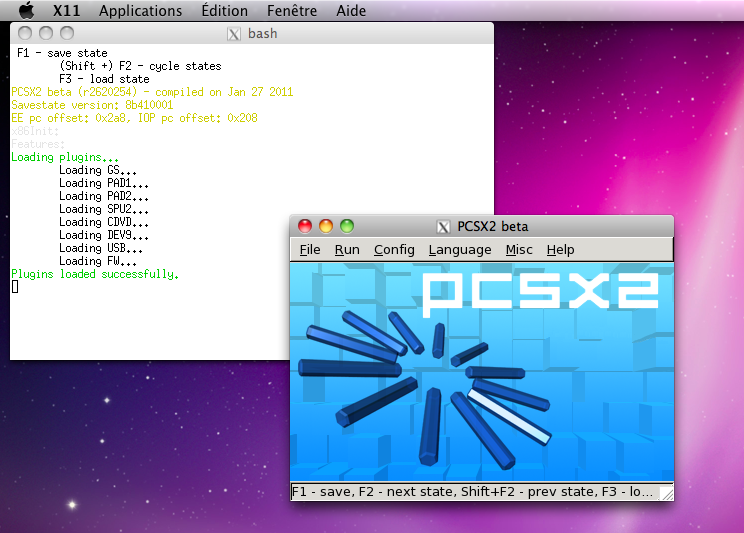
However, the installation is not yet complete, so let's proceed with the configuration.
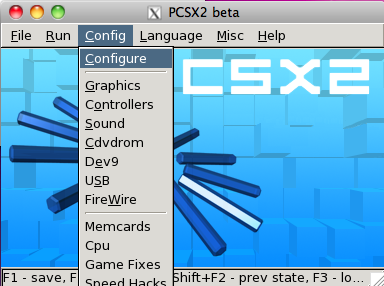
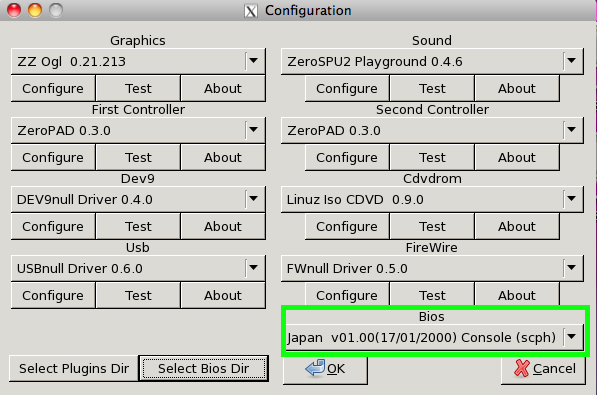
As you can see, we still need to configure the BIOS. To do this, specify the folder containing your BIOS file by clicking on the "select Bios dir" button.
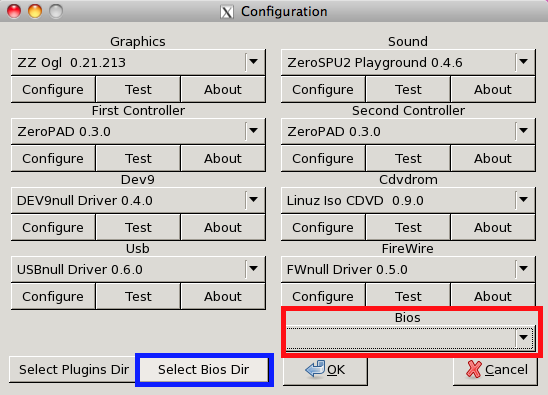
Select the folder where your BIOS file is located and add it using the "add" button.
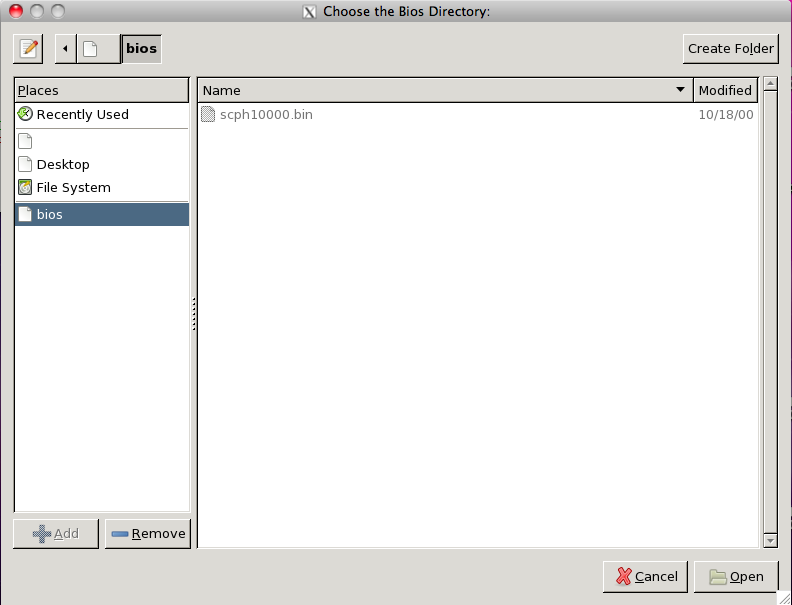
Your BIOS is now properly accounted for by the emulator.
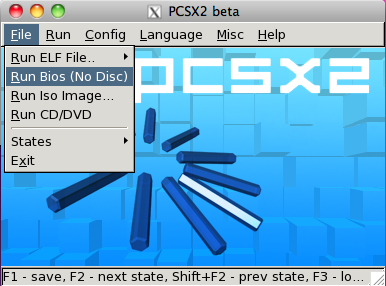
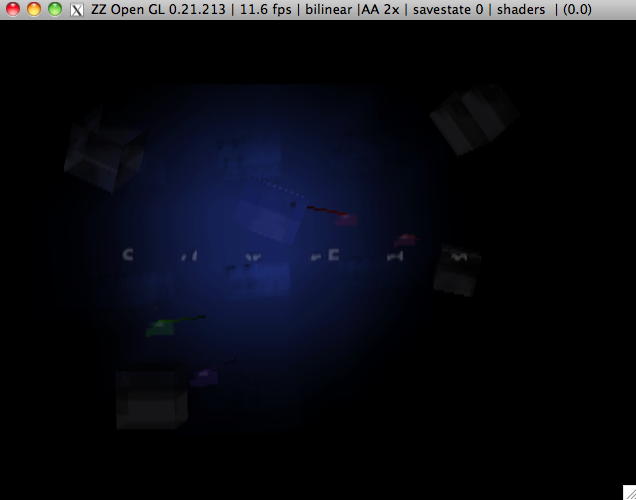
To confirm this, you can launch the emulation of it via the menus.
Your PCSX2 is now properly installed.
Keep in mind that this emulator is still in its early stages and under heavy development. You will likely need to adjust the emulator's configuration significantly to achieve acceptable results, and it is clear that most games will not even work. This port can still be considered an experimental version, so there is no point in expecting proper support for any game.
As for that, you have at your disposal an excellent compatibility list, and your kind contributions with information will be greatly appreciated.
⚠️ This guide is flagged as obsolete.
Related software
Reply on the forum
A question or a hands-on report? Open the discussion on the forum.