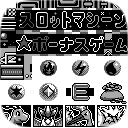
Pokémon Trading Card Game 2 : The Invasion of Team GR!
Portage natif de Pokémon Trading Card Game 2 : The Invasion of Team GR! pour macOS.
Pokémon TCG 2 Native Port est un portage natif de Pokémon Trading Card Game 2 : The Invasion of Team GR! pour macOS, distribué en binaire dans ses releases.
Architecture
 Mac OS X - macOS
 Apple Silicon
 64 bits
Jeu d’origine
Pokémon Trading Card Game 2 : The Invasion of Team GR! Game Boy Color
Téléchargement et liens
- Télécharger Pokémon Trading Card Game 2 : The Invasion of Team GR!
- Code source 2 étoiles sur GitHub
Historique des versions
0.1.3
Changelog complet
Welcome to Pokémon Card GB2 native port v0.1.3! Pick the download for your computer, phone or tablet below.
New here? The read-me covers the controls, settings, saves and how the port works.
Installation
You'll need your own dump of the Japanese cartridge, Pokémon Card GB2 - GR Dan Sanjou! (2 MiB, SHA-1 a7e12bcc5f514e3aad8de570fd511aab0a308822). The downloads contain no game data: the app reads it from your ROM.
- Windows: Download the Windows ZIP, extract it into a folder you can save files in, put your ROM in its
romfolder, and openpokemon-tcg2.exe. Keep the included DLLs beside it. - macOS: Download the ZIP for Apple Silicon or Intel, extract it, put your ROM in its
romfolder, and openPokémon Card GB2.app. It is ad-hoc signed, not notarized: the first time, right-click it and choose Open. - Linux: Download the archive for most PCs (x86-64) or ARM devices (AArch64), extract it into a folder you can save files in, put your ROM in its
romfolder, and runpokemon-tcg2. It runs on any distribution from 2020 on (glibc 2.31) with your system's own graphics drivers. - Android: On your phone or tablet (Android 8 or newer), download the APK and open it to install, allowing your browser or file manager to install apps if Android asks. Start Pokémon Card GB2 and choose your ROM when it asks; the app keeps a copy. The console's buttons are on the screen, and a gamepad or keyboard works too.
The app keeps everything beside itself: battery saves in saves/ (the same .sav format emulators use, so an existing save can be copied in), save states, screenshots and settings.ini. On Android they are in the app's folder, Android/data/io.github.pokemon_card_game_2_native_port/files, which a computer can open over USB.
Steam Deck & Steam Machine
Using SteamOS? You can launch the Linux app straight from your Steam library:
- Switch to Desktop Mode and create a folder for the game inside your home folder.
- Extract the Linux x86-64 archive into that folder (right-click it and choose Extract), and put your ROM in its
romfolder. - In Steam, choose Games → Add a Non-Steam Game to My Library, browse to
pokemon-tcg2in the extracted folder, and add it. - Return to Gaming Mode and open the game from your library's Non-Steam tab.
Updating
Updating an existing installation? Replace the app and its included files, and keep rom/, saves/ and settings.ini. On Android, install the new APK over the old one; uninstalling would delete the app's folder. Battery saves carry over between versions; save states may need the version that created them.
Need a hand? The installation guide has more setup help and the current limitations.
What's new
Here's what's changed since v0.1.2:
- Pokémon Card GB2 runs on Android phones and tablets (Android 8 or newer) as a native app, the same as on the desktop: download the APK, open it to install, and choose your ROM when the app asks. The console's buttons are drawn on the screen, below the picture in portrait like a Game Boy and beside it in landscape; a gamepad or keyboard works too. Battery saves, screenshots and settings are in the app's folder, which a computer can open over USB to copy a save in or out.
3 commits since v0.1.2
0.1.2
Changelog complet
Welcome to Pokémon Card GB2 native port v0.1.2! Pick the download for your computer below.
New here? The read-me covers the controls, settings, saves and how the port works.
Installation
You'll need your own dump of the Japanese cartridge, Pokémon Card GB2 - GR Dan Sanjou! (2 MiB, SHA-1 a7e12bcc5f514e3aad8de570fd511aab0a308822). The downloads contain no game data: the app reads it from your ROM.
- Windows: Download the Windows ZIP, extract it into a folder you can save files in, put your ROM in its
romfolder, and openpokemon-tcg2.exe. Keep the included DLLs beside it. - macOS: Download the ZIP for Apple Silicon or Intel, extract it, put your ROM in its
romfolder, and openPokémon Card GB2.app. It is ad-hoc signed, not notarized: the first time, right-click it and choose Open. - Linux: Download the archive for most PCs (x86-64) or ARM devices (AArch64), extract it into a folder you can save files in, put your ROM in its
romfolder, and runpokemon-tcg2. It runs on any distribution from 2020 on (glibc 2.31) with your system's own graphics drivers.
The app keeps everything beside itself: battery saves in saves/ (the same .sav format emulators use, so an existing save can be copied in), save states, screenshots and settings.ini.
Steam Deck & Steam Machine
Using SteamOS? You can launch the Linux app straight from your Steam library:
- Switch to Desktop Mode and create a folder for the game inside your home folder.
- Extract the Linux x86-64 archive into that folder (right-click it and choose Extract), and put your ROM in its
romfolder. - In Steam, choose Games → Add a Non-Steam Game to My Library, browse to
pokemon-tcg2in the extracted folder, and add it. - Return to Gaming Mode and open the game from your library's Non-Steam tab.
Updating
Updating an existing installation? Replace the app and its included files, and keep rom/, saves/ and settings.ini. Battery saves carry over between versions; save states may need the version that created them.
Need a hand? The installation guide has more setup help and the current limitations.
What's new
Here's what's changed since v0.1.1:
- English text is drawn a letter to a tile, 8×8 like the original Japanese, wherever it has the room: all the dialogue and the story, the duel messages and questions that fit their box, the duel's menu and a card's Flee, Weak and Res. labels, the start, pause, rules, lab, Gift Center, mailbox and Play/Check menus, Yes/No, choosing your hero and your name, the Coins screen and the settings' animation choices, a card's text where it fits its page, letters, the glossary, the special rules, and the name tags over the dialogue box that fit (Dr. Mason's, and the shorter book titles). A few menu items take shorter words to fit (Flee, Fight, Power, Stats, Setup, Resume, Lesson, End; All, Some, Off), and coins go by their names alone (Chansey, GR Lightning). The name you type, and the default names, now match the dialogue around them. The decks the game gives you and the Auto Deck Machine's decks no longer show garbled names: they are 8×8 too, with shorter names where the save's 10 letters required them (Volt Fire, Bug Hunt, Beat GR-1!), and Card Pop!'s partners fit the save's 6 letters (Imakuni? is recorded as "Imakun"). Card names, longer card text, Pokédex entries, lists and most labels keep the smaller two-letters-to-a-tile font, which they need to fit.
20 commits since v0.1.1
- Languages: deck names the game saves are full-width and fit its 10 letters (
426f711) - Languages: the hero's Name and Gender share a size again (
2619148) - Languages: the credits measured; Music, Koji Arai and Creatures full-width (
9b55ca6) - Languages: 34 more full-width outside their old groups; books' titles keep a page (
067a677) - Languages: docs point at the places measured by hand (
c5eec35) - Languages: every remaining text's place measured; 127 more full-width (
1bedebd) - Languages: the test measures the duel's and the deck screens' menus (
c1d7c93) - Languages: docs name card text, letters and the glossary at 8×8 (
ecd7290) - Languages: three more texts full-width within the Japanese lines (
a06a9ba) - Languages: every effect command's reason prints in the wide box (
2f2f469) - Languages: the naming screen, the mailbox and more duel messages 8×8 (
25eb1a2) - Languages: card text, the duel's other boxes, letters and the glossary 8×8 (
07e6e65) - Languages: the Coins screen, the coin box and settings' animation rows 8×8 (
3c5e29d) - Languages: docs name the known inserts and the new menus (
0efd737) - Languages: the Gift Center chain of menus 8×8, Exit Setup (
576934f) - Languages: messages and tutorials name the Flee command (
7931c2b) - Languages: the change note names the rules menu (
8791b27) - Languages: Sam's rules menu 8×8 (
8efbcd6) - Languages: the duel menu and a card's labels 8×8 too (
8496f40) - Languages: English 8×8 wherever it fits, like the Japanese (
89f4ab5)
0.1.1
Changelog complet
Welcome to Pokémon Card GB2 native port v0.1.1! Pick the download for your computer below.
New here? The read-me covers the controls, settings, saves and how the port works.
Installation
You'll need your own dump of the Japanese cartridge, Pokémon Card GB2 - GR Dan Sanjou! (2 MiB, SHA-1 a7e12bcc5f514e3aad8de570fd511aab0a308822). The downloads contain no game data: the app reads it from your ROM.
- Windows: Download the Windows ZIP, extract it into a folder you can save files in, put your ROM in its
romfolder, and openpokemon-tcg2.exe. Keep the included DLLs beside it. - macOS: Download the ZIP for Apple Silicon or Intel, extract it, put your ROM in its
romfolder, and openPokémon Card GB2.app. It is ad-hoc signed, not notarized: the first time, right-click it and choose Open. - Linux: Download the archive for most PCs (x86-64) or ARM devices (AArch64), extract it into a folder you can save files in, put your ROM in its
romfolder, and runpokemon-tcg2. It runs on any distribution from 2020 on (glibc 2.31) with your system's own graphics drivers.
The app keeps everything beside itself: battery saves in saves/ (the same .sav format emulators use, so an existing save can be copied in), save states, screenshots and settings.ini.
Steam Deck & Steam Machine
Using SteamOS? You can launch the Linux app straight from your Steam library:
- Switch to Desktop Mode and create a folder for the game inside your home folder.
- Extract the Linux x86-64 archive into that folder (right-click it and choose Extract), and put your ROM in its
romfolder. - In Steam, choose Games → Add a Non-Steam Game to My Library, browse to
pokemon-tcg2in the extracted folder, and add it. - Return to Gaming Mode and open the game from your library's Non-Steam tab.
Updating
Updating an existing installation? Replace the app and its included files, and keep rom/, saves/ and settings.ini. Battery saves carry over between versions; save states may need the version that created them.
Need a hand? The installation guide has more setup help and the current limitations.
What's new
Here's what's changed since v0.1:
- The game now speaks American English, and it starts in English by default: all the dialogue, menus, duel messages, books and every card's name, attacks, rules and Pokédex entry, translated for the port and drawn in a new, easier-to-read font, with the duel's banners, the win and lose stamps, the slot machine's signs, the booster packs' names and the Card Pop! screens redrawn in English. Press F9 to switch to the original Japanese and back at any time; the choice is kept in
settings.ini(language = en-USorja).
4 commits since v0.1
- Languages: booster pack names, special rules, Card Pop! in English (
f718ca0) - Languages: "Pokémon left" reads Yes or No; --call takes registers (
c95f11f) - Languages: the result stamps and the slot machine's signs in English (
b8aa3be) - Languages: American English, the new default, switchable with F9 (
790a869)
0.1
Changelog complet
Welcome to Pokémon Card GB2 native port v0.1! Pick the download for your computer below.
New here? The read-me covers the controls, settings, saves and how the port works.
Installation
You'll need your own dump of the Japanese cartridge, Pokémon Card GB2 - GR Dan Sanjou! (2 MiB, SHA-1 a7e12bcc5f514e3aad8de570fd511aab0a308822). The downloads contain no game data: the app reads it from your ROM.
- Windows: Download the Windows ZIP, extract it into a folder you can save files in, put your ROM in its
romfolder, and openpokemon-tcg2.exe. Keep the included DLLs beside it. - macOS: Download the ZIP for Apple Silicon or Intel, extract it, put your ROM in its
romfolder, and openPokémon Card GB2.app. It is ad-hoc signed, not notarized: the first time, right-click it and choose Open. - Linux: Download the archive for most PCs (x86-64) or ARM devices (AArch64), extract it into a folder you can save files in, put your ROM in its
romfolder, and runpokemon-tcg2. It runs on any distribution from 2020 on (glibc 2.31) with your system's own graphics drivers.
The app keeps everything beside itself: battery saves in saves/ (the same .sav format emulators use, so an existing save can be copied in), save states, screenshots and settings.ini.
Steam Deck & Steam Machine
Using SteamOS? You can launch the Linux app straight from your Steam library:
- Switch to Desktop Mode and create a folder for the game inside your home folder.
- Extract the Linux x86-64 archive into that folder (right-click it and choose Extract), and put your ROM in its
romfolder. - In Steam, choose Games → Add a Non-Steam Game to My Library, browse to
pokemon-tcg2in the extracted folder, and add it. - Return to Gaming Mode and open the game from your library's Non-Steam tab.
Updating
Updating an existing installation? Replace the app and its included files, and keep rom/, saves/ and settings.ini. Battery saves carry over between versions; save states may need the version that created them.
Need a hand? The installation guide has more setup help and the current limitations.
What's new
Welcome to our first release!
- Pokémon Card GB2 runs as a native app on Windows, macOS and Linux: the game's own program translated to native code, no emulator. It reads your own ROM, fills any window or screen with crisp scaling, follows any display's refresh rate, and sleeps between frames for very little battery use. Battery saves work with emulator
.savfiles; save states, screenshots, gamepads, pause and fast-forward are built in.
Réagir sur le forum
Une question, un retour d’expérience ? Ouvrez la discussion sur le forum.