Yabause - Installation
Note: Misusing the Terminal can be disastrous for the stability of macOS, all the features provided in this article are safe for your computer if you follow the article step by step. Neither the authors nor Mac-emu.net will be held responsible for any system malfunction caused by improper Terminal usage.
The installation of this emulator is almost identical to that of GnGeo. If you successfully installed this emulator, you will quickly go through this article and the application will be functional in no time. Otherwise, make sure to follow the instructions to the letter.
We successfully compiled Yabause on a MacPPC and on a MacIntel; the application launched in both cases.1. Installation Preparation
Before starting the actual emulator installation, you will need to install some development tools. If these elements are not already installed on your Mac, you will have to add them.
The first is Xcode, the complete development environment for macOS. Rest assured, you will not need to know all the tools contained in this package; everything will be explained in the article. You will find Xcode on your Mac's installation CDs or in the downloads section of the Apple Developer Connection on Apple's website. You will need to create a free Apple Developer Connection account to download Xcode (980MB). Once downloaded, start the default installation.
Next, you will need X11, a terminal for macOS, slightly more advanced than the default Terminal available in macOS. It is located on your Mac's installation CD.
Once installed, open System Preferences, go to the Software Update section, and launch the X11 update.The last tool you will need is fink, an extremely useful tool for installing libraries and command-line software:
Make sure to take the version that matches your Mac (Intel or PPC).
You will find more information about fink on the official website.
2. Installing the required libraries.
Two libraries are essential for the software to function properly. It is possible that you already have them; in that case, there is no need to reinstall them. If in doubt, you can reinstall them—they will simply be updated.
In a terminal, type:
fink install sdland confirm. A lengthy calculation will run; once finished, type:
fink install sdl_soundand confirm. Another calculation will execute. Both libraries are now installed.
3. Compilation and installation of Yabause
Extract the software archive to the location of your choice; this location will not affect the final placement of the application on your disk.
Still in a terminal, type `cd` followed by the path to the folder resulting from the extraction (you can drag & drop the folder into the terminal to retrieve the full path).
With the folder on my desktop, I have:
cd /User/sky/Desktop/yabause/Then type:
./configureYour password will normally be requested. Let your Macintosh work on its own once more.
Then type:
makeYour computer will continue working automatically.
If it ends with:
cp yabause Yabause.app/Contents/MacOS
Making all in doc
make[1]: Nothing to be done for `all'.make[1]: Nothing to be done for `all-am'.
This means the compilation was successful. Go to the yabause/src/carbon folder, where you will find a functional yabause.app.
If not, an error occurred. Feel free to visit the forum for assistance.
4. Usage
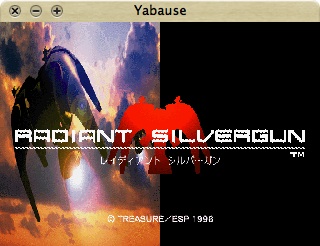
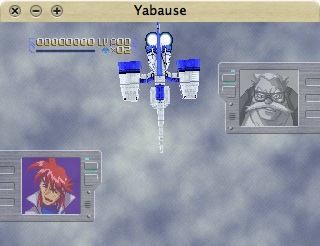
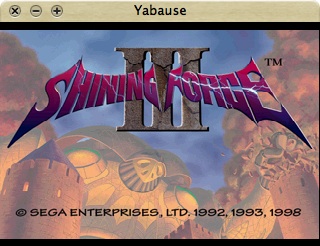
The author created a simple graphical interface, so there's no need to deal with the terminal any longer. Additionally, the compiled "binary" file is directly placed into the .app bundle for immediate use.
⚠️ This guide is flagged as obsolete.
Related software
Reply on the forum
A question or a hands-on report? Open the discussion on the forum.