USB Overdrive : mode d'emploi
First, download USB Overdrive and install it.
Once done, go to 'System Preferences…' (Apple menu at the top left of your screen) and select the 'USB Overdrive' tab. Either register or wait a few seconds to test this software.
The following window appears:
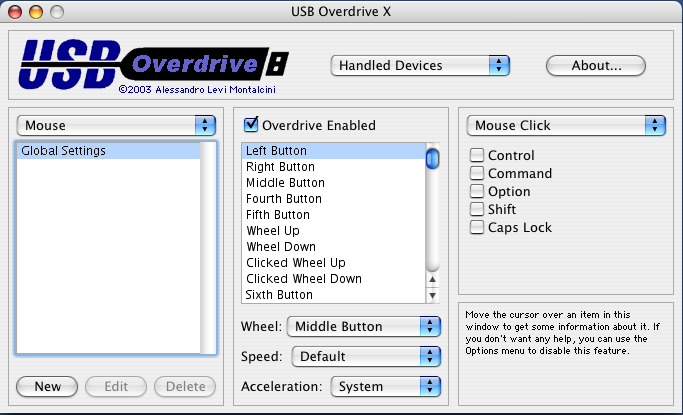
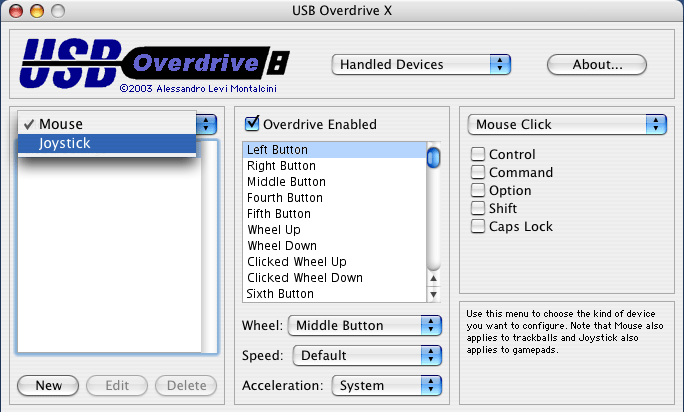
Choose 'Joystick' from the dropdown menu on the left.
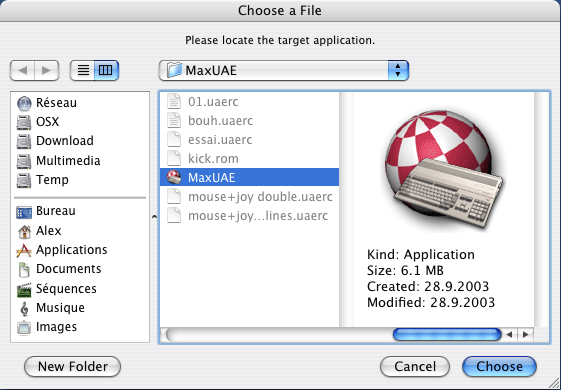
Next, click on 'New' at the bottom left and search and select the emulator you want to use with USB Overdrive to make your joystick work (in this example, it is MaxUAE).
A window then appears telling you that nothing is configured; click 'OK' and proceed to fix this. In the left window, your emulator has been added. You can now start configuring USB Overdrive to emulate keyboard keys on your joystick.
For this example, MaxUAE uses the numeric keypad by default:
Left → 4
Right → 6
Up → 8
Down → 2
Fire → 5
We select 'Stick Left' (=Left) in the middle window, then click in the fill zone on the right (under Keystroke) and enter '4'.
The same procedure applies to 'Stick Right' (=Right), except you enter '6', for 'Stick Up' (=Up) you enter '8', for 'Stick Down' (=Down) you insert '2', and for 'Button 1' (=Fire) you type '5'.
This configuration is specific to MaxUAE and differs for other emulators.
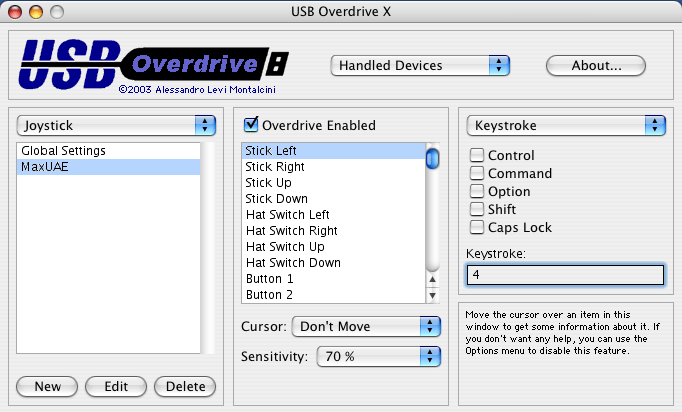
If your emulator uses, for example, the 'control' key on your keyboard to fire, simply check the 'control' box instead of filling the Keystroke field and you're done.
All that remains is to quit USB Overdrive and launch your emulator along with your game to now use your joystick.
Have fun…
Reply on the forum
A question or a hands-on report? Open the discussion on the forum.