Sideloading: Installing Delta on iOS with AltServer

Delta is an iOS emulator developed by Riley Testut that can emulate NES, Super Nintendo, Nintendo 64, Game Boy, Game Boy Color, Game Boy Advance, Nintendo DS, and Mega Drive (find the odd one out). It is likely the most popular on the platform and installs relatively easily via AltStore.
Installing AltStore
Here’s how to install AltStore on your iOS device:

- Download AltServer (macOS 11 or later) or AltServer 1.6.2 (for 10.14 or 10.15)
- Copy AltServer.app to your Applications folder
- Launch it; you’ll see a rounded diamond appear in the menu bar
- Connect your iPhone or iPad to your Mac via USB and unlock it
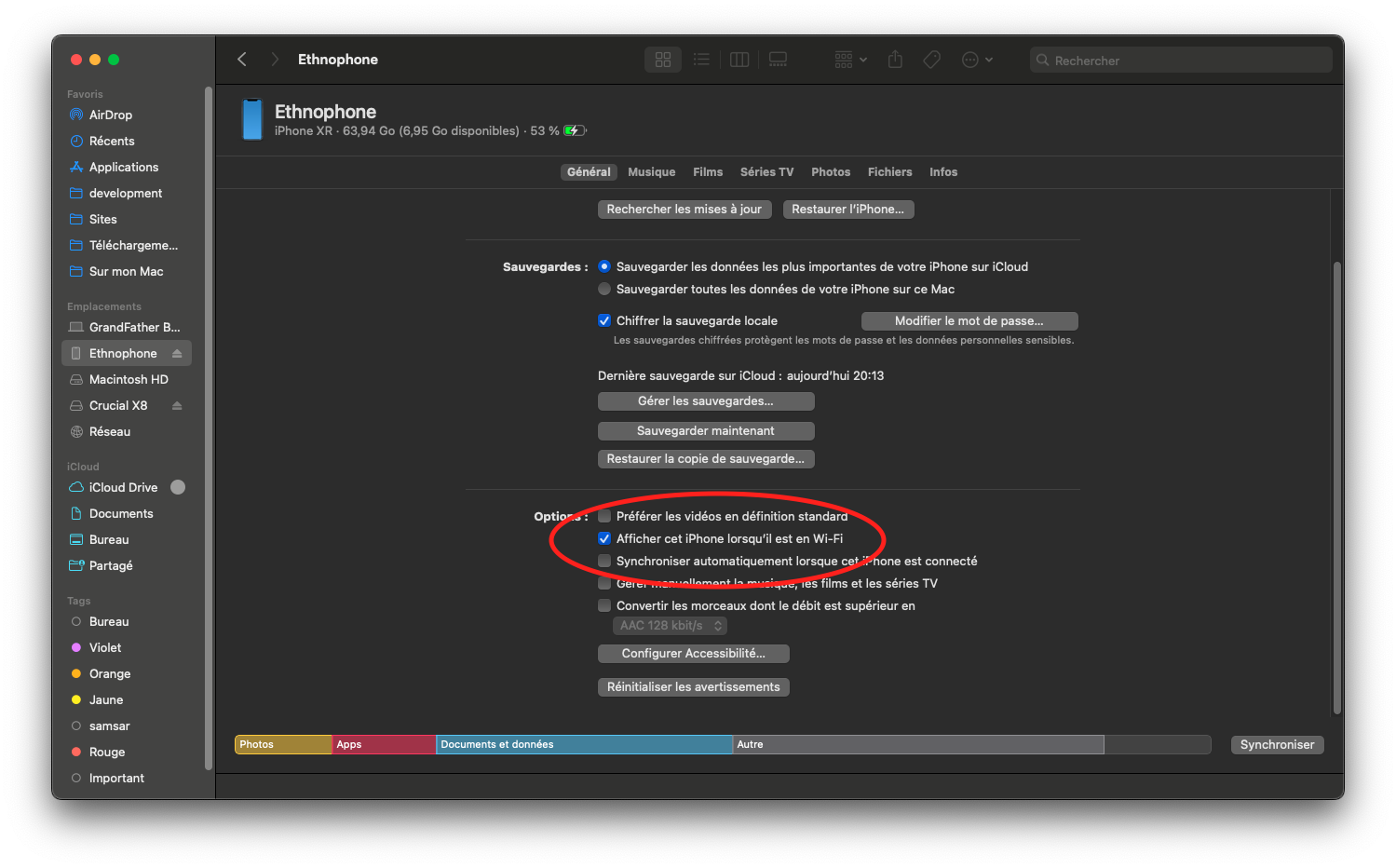
- Click on your iPhone in Finder and check the option "Show this iPhone when on Wi-Fi" (for 10.14 or earlier, it’s the "Sync with this iPhone over Wi-Fi" option)
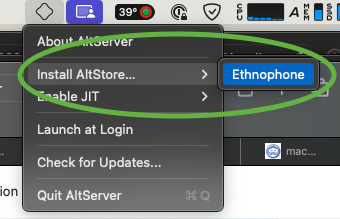
- Click the AltServer icon in the menu bar, then select "Install AltStore," followed by your iPhone/iPad
- Enter your Apple ID and password to configure your account and allow "sideloading"
- After a few seconds, a notification confirms the installation of AltStore on your iOS device.
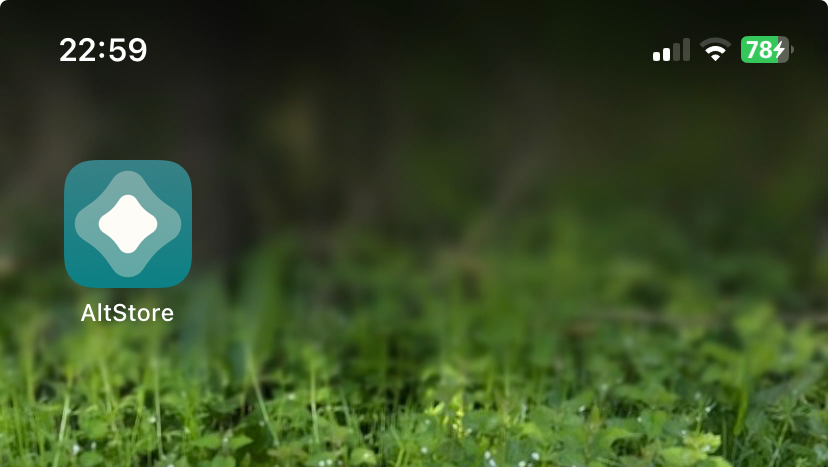
Once AltStore is installed, you’ve done the hardest part.
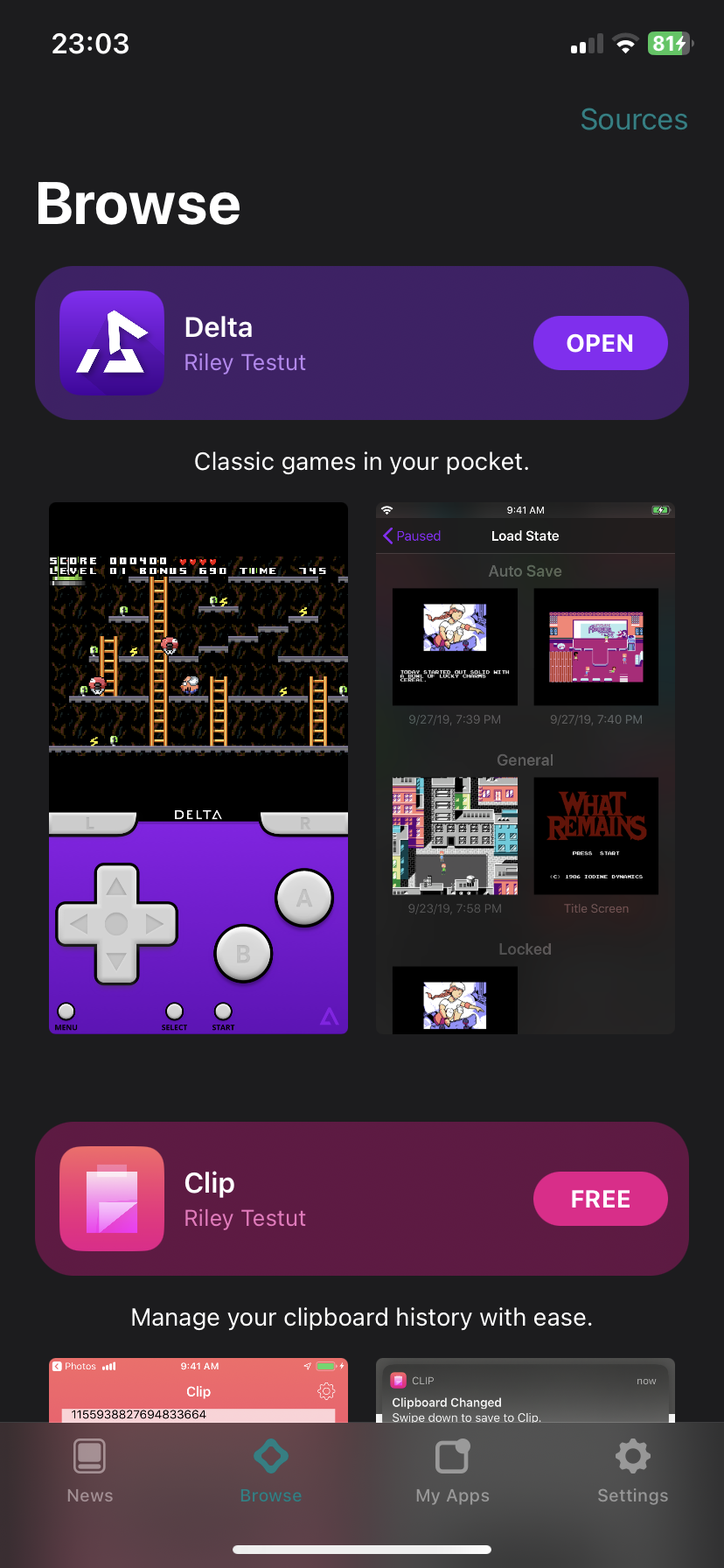
All you have to do is launch it and install Delta, which is available directly and for free in the Browse section.
Related software
Reply on the forum
A question or a hands-on report? Open the discussion on the forum.