Parallels Desktop, a "NextGen" Windows emulator
1. Getting Started with the Software
After downloading version 2.5 of the software from Avanquest's online store (now available on parallels.com), you will receive a disk image containing the installer in "Package" format along with several manuals in PDF format. The installation is quick and simple. The software is ready to use in just a few minutes.
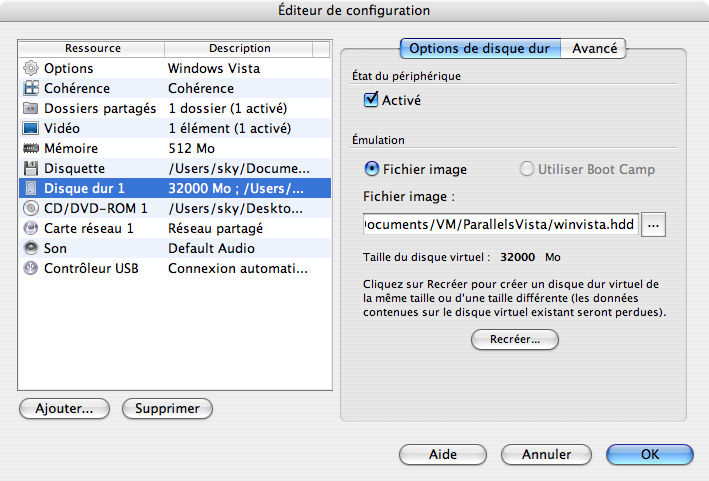
Users familiar with PC emulation software such as Guest PC or Virtual PC will not be disappointed, as there are many similarities in configuration options both at the software level and at the virtual machine level.
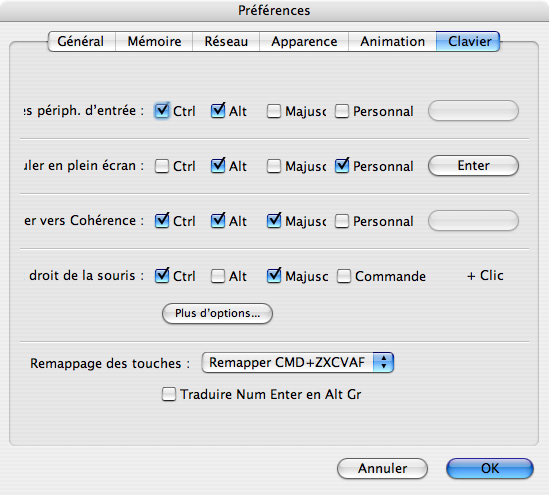
However, Parallels Desktop offers slightly more advanced options, for example at the processor instruction level.
2. Installing Windows Vista
After reviewing the available settings, we finally proceed with the installation of Vista. The wizard is simple and clear, guiding you through the process without any questions.
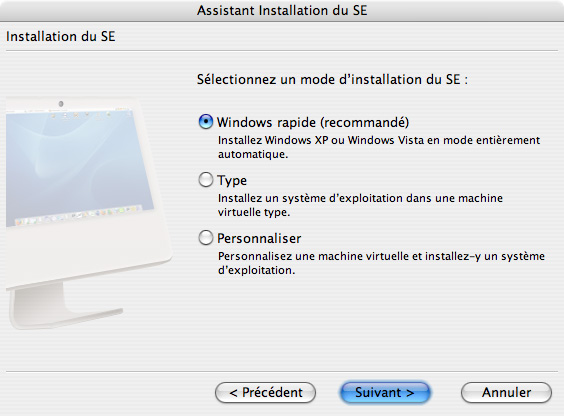
The "Quick Windows" mode allows you to install, or more precisely to start the installation of an XP or Vista with just a few mouse clicks.
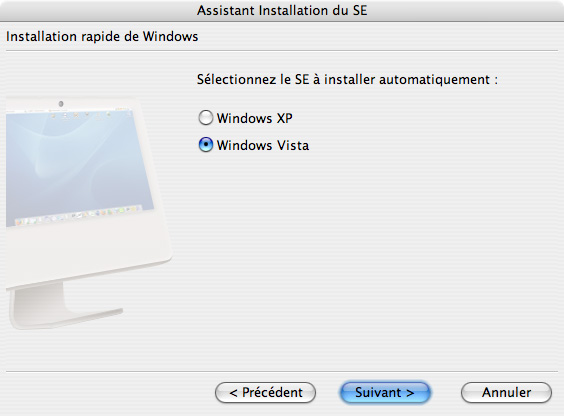
In most interfaces, the main settings are accompanied by additional, more detailed optional settings hidden in a "More Options" section, a well-thought-out ergonomics for both "beginners" and "pros".
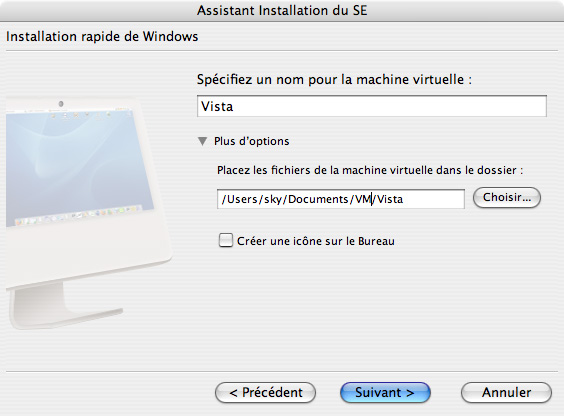
The installer allows you to install your operating system from a CD/DVD or an ISO file. This last option can be extremely practical for companies wishing to set up a Windows server accessible remotely by employees.
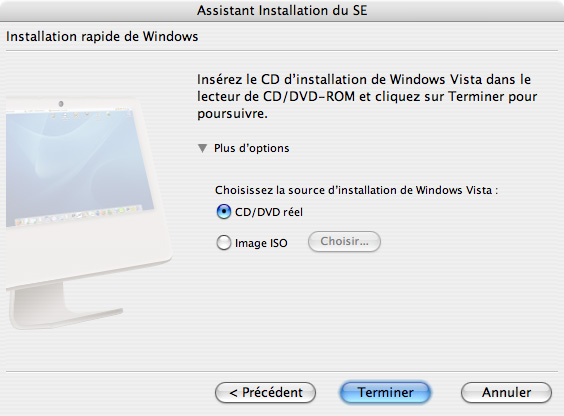
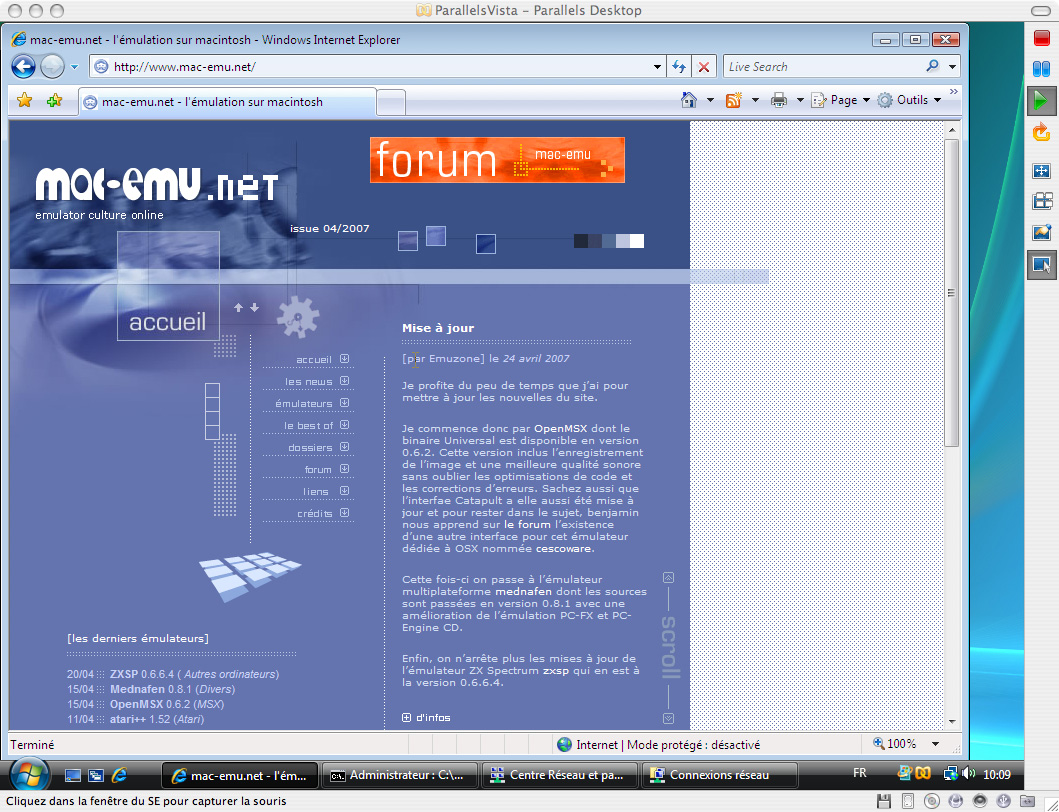
The Parallels Desktop interface gives way to Windows in a windowed mode, and the installation begins.
3. Integration with macOS
3.1 Icons in the Dock
Here is the first proof of the intention to integrate the virtualized system into macOS. Each of the icons of the applications opened in Windows appears in the macOS Dock. Simply click on one of them to bring the virtualizer and the selected Windows application to the foreground.
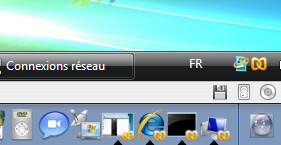
The Parallels Desktop icon also displays the content of the Windows window, similar to QuickTime. Although the animation, for optimization reasons, may not be as smooth as in the latter, it remains an excellent way to check if the work launched in Windows is completed.
3.2 3 Display Modes
The first is the "classic" windowed mode. As mentioned in the introduction, users of Virtual PC or Guest PC will not be out of place. You will find the same information, roughly organized in the same way, to avoid losing habits.
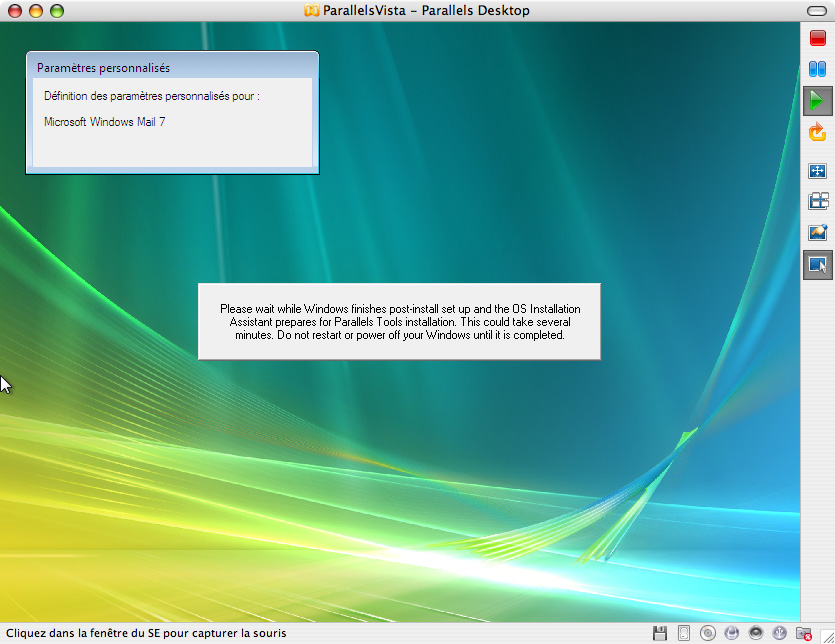
The second is the full-screen mode, which, as its name suggests, puts Windows in full-screen. You will need to adjust the resolution so that Windows takes up all available space. A simple solution when you have to spend several hours on the virtual system.
The last one is a somewhat particular mode that could be more useful if it were better implemented. This so-called coherence mode allows "merging" the host and virtual systems. The Parallels Desktop window disappears, as does the Windows desktop, and the Windows windows blend with those of macOS. The famous taskbar appears in macOS to control the PC.
This solution is quite pleasant and user-friendly in concept, but it was quite buggy during our testing. It is highly likely that this stems from its recent compatibility with Vista, which was recently released. With a Functional Consistency mode, it would come closer to the spirit of Darwin, meaning opening and using a Windows application directly within macOS without having to consider which operating system to use. Of course, Windows remains running in the background to make all this work. If you want to test this consistency mode, we recommend setting Windows to the same resolution as your Mac and avoiding having both the macOS Dock and the Windows taskbar on the same side of the screen; instead, separate them for easier use.3.3 Software
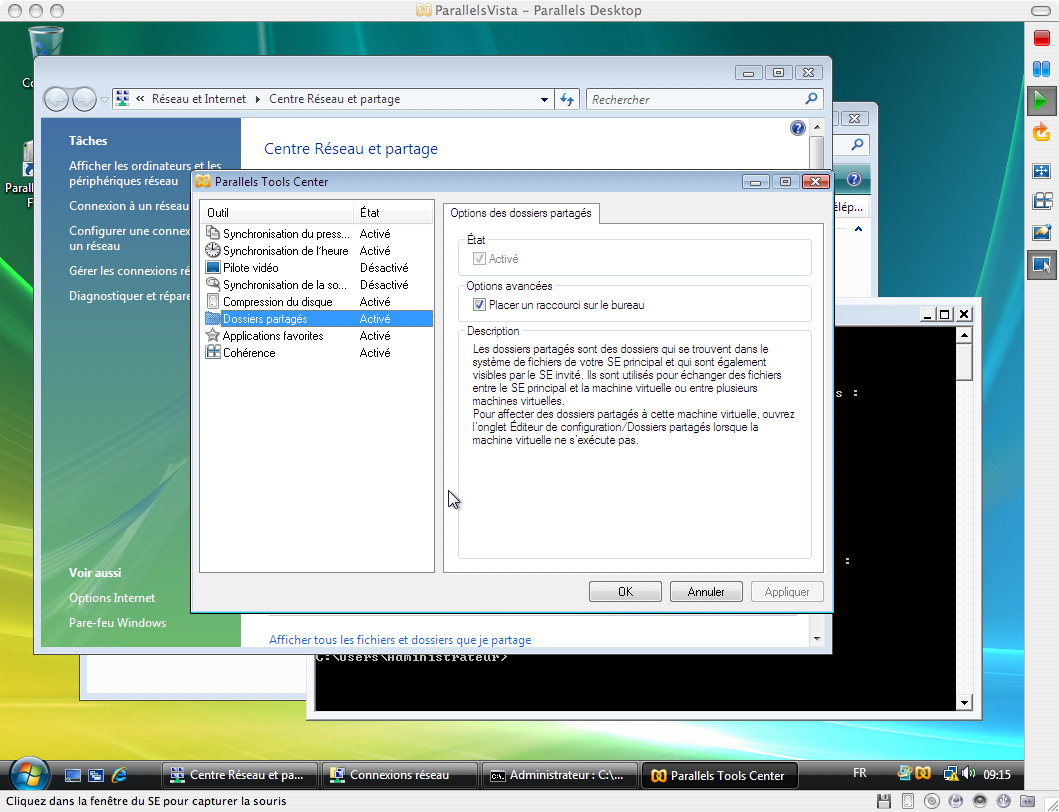
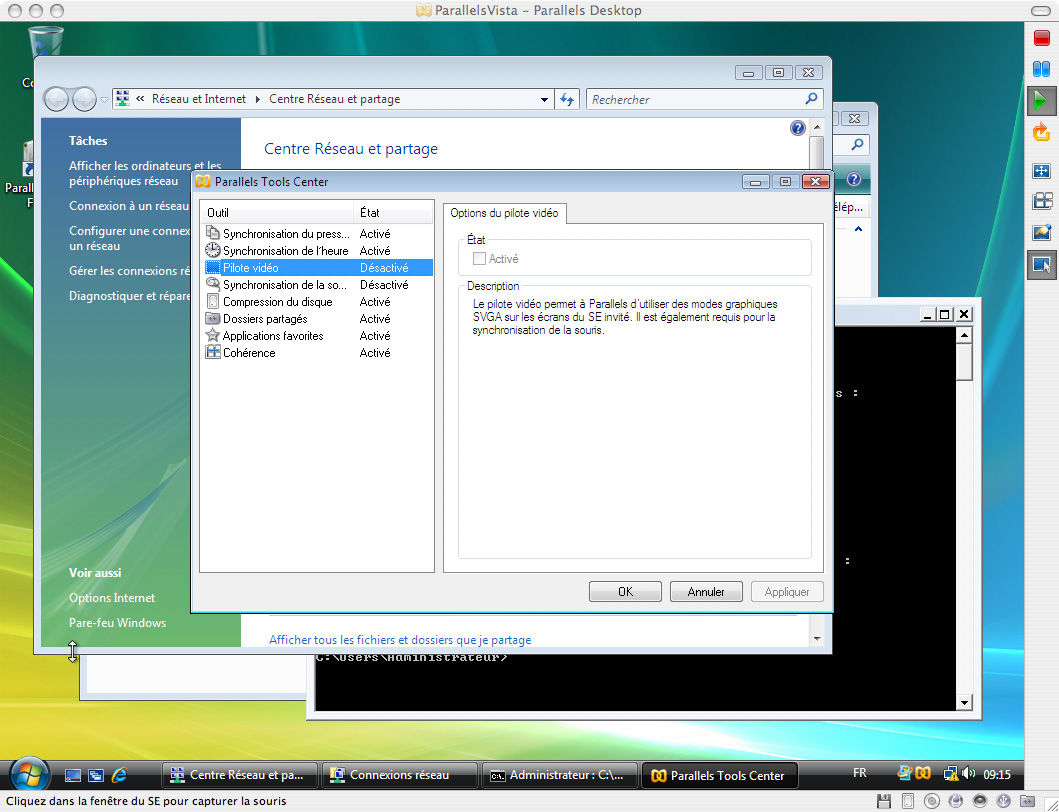
During the installation of Windows, Parallels Desktop installs an additional tools center to enhance compatibility between macOS and the virtual system.
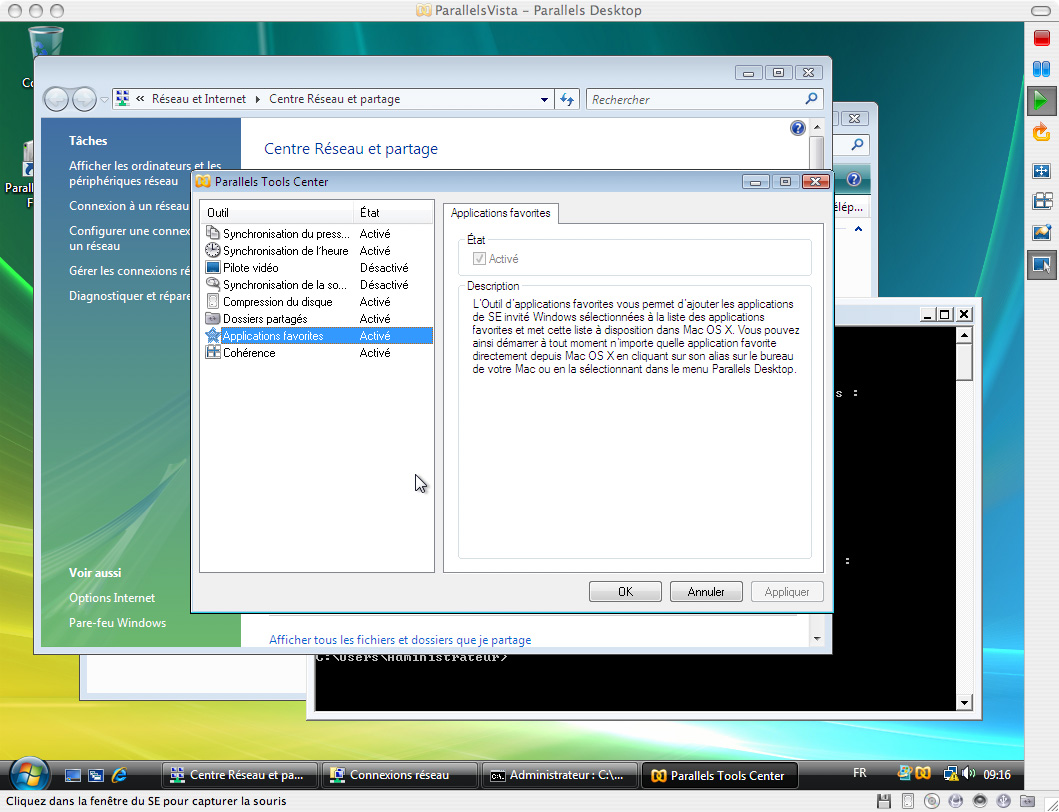
You will have several options to configure as well as system information. You will find it near the clock in the taskbar.
3.4 Networking
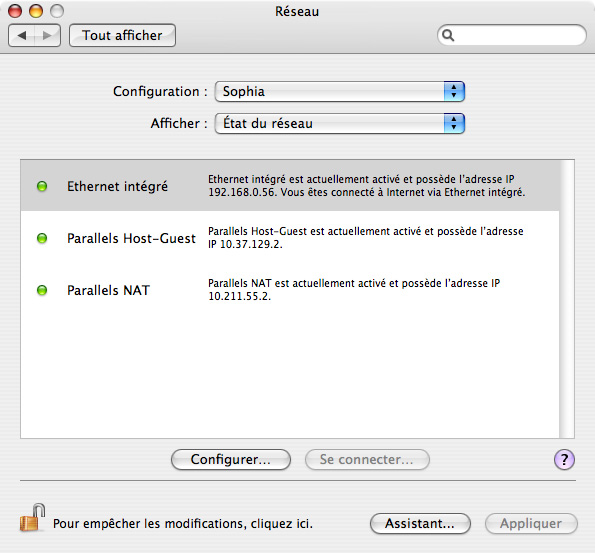
In our opinion, the weak point of Parallels is the networking of Windows, which was a real ordeal. It would have been wiser to follow the documentation provided with the emulator. But who reads documentation? ;) Even if it eventually works, we unfortunately don’t fully understand why.
You still have the option to share a folder to transfer files from your Mac to Windows.
4. Performance & Stability
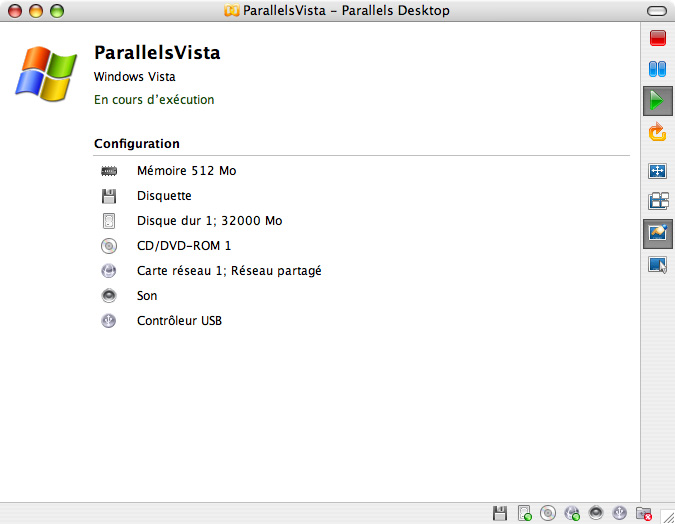
With emulators, we were used to disastrous performance. With virtualizers, it is supposed to be an entirely different story. The processor is no longer emulated, so performance gains should be noticeable.
4.1 Processor Performance
The power is indeed there. While we couldn't compare it with a real PC, the system's responsiveness was surprising for someone used to emulators. From this perspective, there's nothing to say.
4.2 Memory Performance
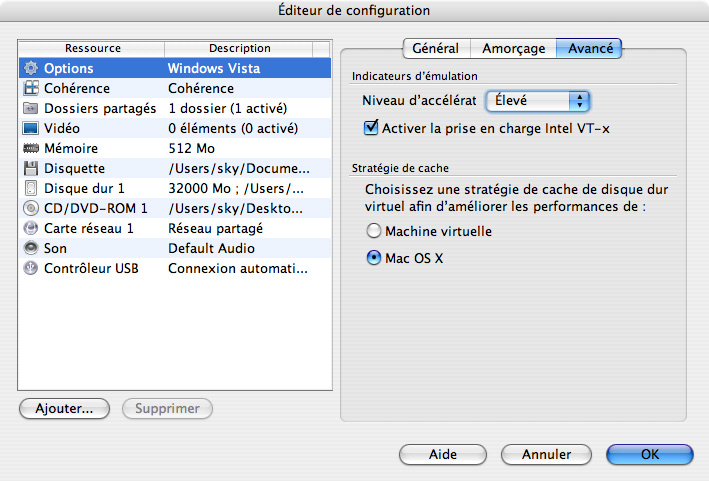
This is where performance can drop the most. macOS and Windows share all available memory. Despite Parallels Desktop optimizations to limit Windows' memory usage, the well-known heaviness of Windows is ever-present. Vista consumes all available RAM upon launch. The test machine, with its 1GB of RAM, quickly struggled under Vista's demands. With macOS X running along with some basic applications (Safari, Mail, iTunes, etc.), 350 MB of memory were used; upon launching Vista, all memory was exhausted. We therefore recommend adapting the Windows version you want to install to the available RAM capacity. With 1GB of RAM, Windows 2000 would likely be the most suitable. With 1.5GB of RAM, Windows XP may start to be feasible. Vista seems truly usable only with 2GB installed to prevent macOS from being "stifled". You'll have to find the right balance between your needs and the required performance. If you really need Vista but are limited by RAM, prefer Boot Camp.
Similarly, if you have two hard drives (or more), install the virtual operating systems on the least used drive (usually the one where macOS X is not located). Overall performance will be significantly improved.
From a disk space perspective, Parallels Desktop uses an ingenious data compression system, which prevents your hard drive from being unnecessarily filled with Windows data.
4.3 Graphics Performance
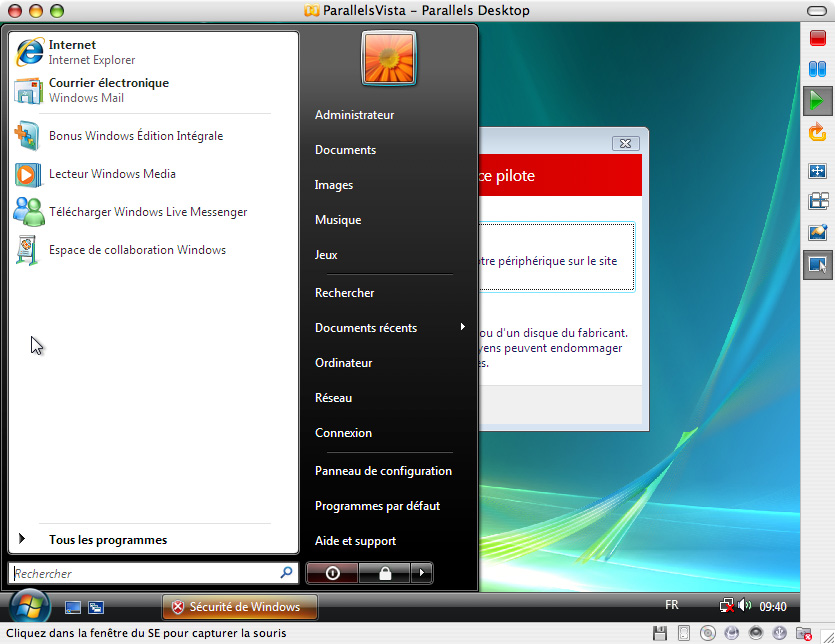
No graphics card is currently recognized. We say "for now" because many clues suggest that support for the Mac's graphics card will be added in a future version of the software.
In the meantime, this spared us the Aero effects of Vista, which was a blessing in disguise.
However, this does not prevent support for high resolutions in Windows. The only potential drawback may come from games and 3D software. For everything else, it is really not a problem.
4.4 Stability
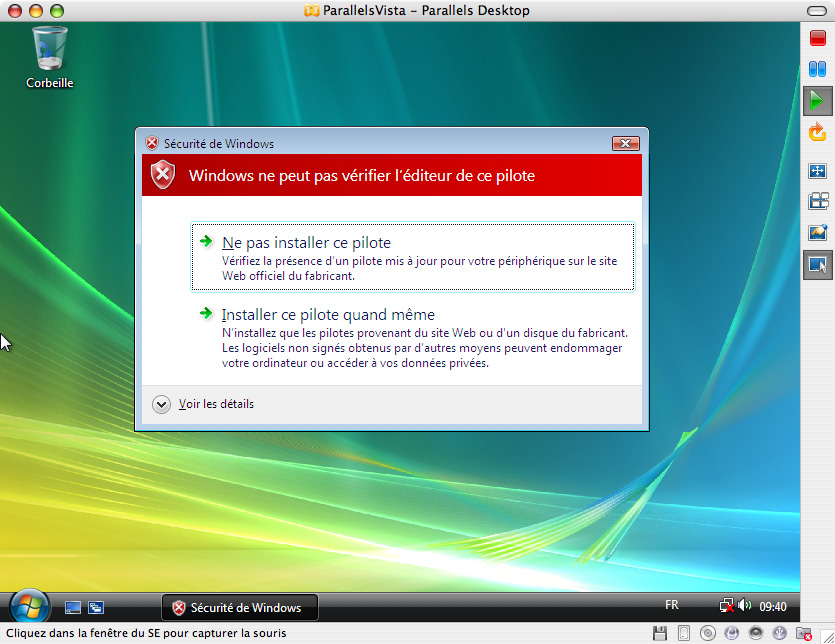
In this regard, we were pleasantly surprised; the tested version appears to be well-developed, with no software crashes occurring throughout the hours of use. Ignoring the minor quirks of Windows, the usage was smooth. Professional use can be imagined without issues.
5. Updates
This type of product could become essential in the Mac world, and the developers at Parallels know it. There are still a few options to implement or finalize (such as graphics card support), and updates seem frequent and always polished.
6. Price
At the price of 79.90€, it is around the price of PC emulators for Mac PPC. This is a very fair price, given the quality of the software. Of course, like with emulators, operating systems are not included.
[UPDATE] : It is now a subscription at 99€/year.
7. Conclusion
Unfortunately, we only had time to test one OS. If we find the time, we’ll try out Windows XP and Linux as well, which will allow us to check if the coherence mode is functional and to verify network management. Still, Parallels Desktop remains stable, functional, and very well designed. It is already a "Must Have" for occasional or dedicated Windows users on macOS who don’t want to reboot their Mac.
Related software
Reply on the forum
A question or a hands-on report? Open the discussion on the forum.