Installing Emulators on iOS

This procedure does not rely on any hacks, but requires not being afraid of a bit of English or clicking on a few Xcode menus.
Addendum
Since the publication of this article, Apple has changed the rights of free developer accounts: previously, a certificate was valid for 90 days on iOS, now it is only valid for 7 days. Thus, every week, you have to redo the last step of compiling and installing the software on iOS (clicking on the small triangle). This does not erase the ROMs and other files, but it is much more cumbersome...
The first step is to obtain the essential tools: a developer account and Xcode.
You first need to create your developer account. To install software, we only need the base version, which is free: https://developer.apple.com/account/
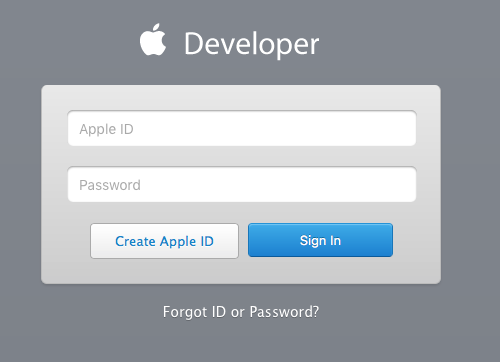
You go to "Create Apple ID" and provide the required information, particularly a valid email address.
Next, you download Xcode:
https://developer.apple.com/xcode/download/
It takes a while.
Second step: choosing software sources suitable for iOS. I managed to install Provenance, MeSNEmu, Gba4ios, iMame4All, and RetroArch.
With varying degrees of difficulty.
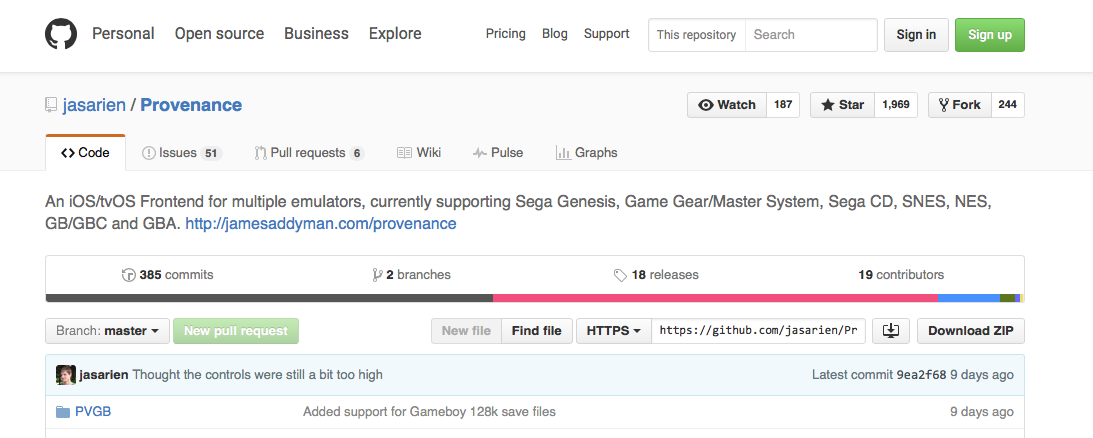
You click on «Download ZIP», unzip it, and place the resulting folder in a location of your choice.
Third step: compile and install the program on your device.
In the folder you just downloaded, you double-click the file ending with «xcworkspace» if it is present, or otherwise «xcodeproj».
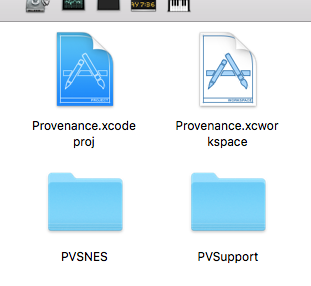
Xcode opens the file and lets it work.
Sometimes you will see yellow triangles: don't worry. Just let it proceed.

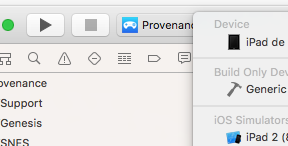
You connect your iOS device and select it as the «device» in the top-left menu of the main window after the stop button.
But before compiling the program, you will need to associate it with your Apple ID account, which will allow it to start on your device.
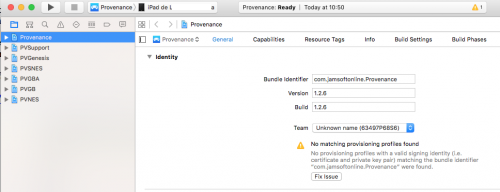
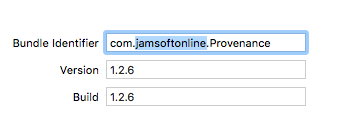
For now, the source is associated with «jamsoftonline» in the Provenance example, so we will take it over in two phases: First, we will set your «team».
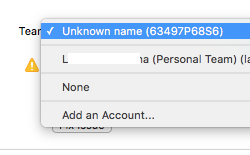
The first time, you choose «Add an Account…»
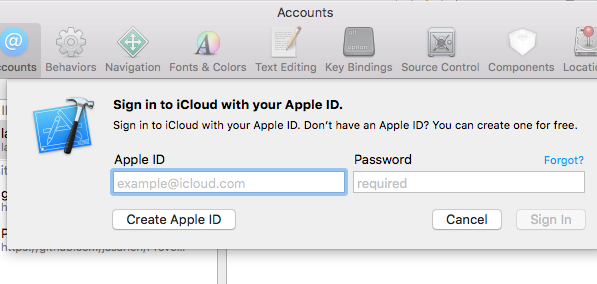
And enter your developer ID credentials.
Your identifier should now appear in the "team" menu, and you can select it.
Then you "fix the issues"
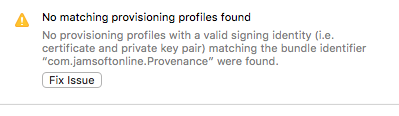
You will also need to change the "Bundle Identifier," which is the name used by iOS to manage the program. I suggest replacing "jamsoftonline" with a nickname, but anything is acceptable as long as it uniquely identifies this software for your iOS device.
You can finally compile the program by clicking on the small triangle...
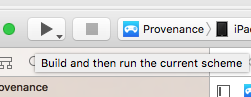
This takes some time, and the software will attempt to launch on your device.
You will need to go to "Settings," "General," "Device Management" to allow your device to run programs installed by your developer account.
And the ROMs?
ROM installation varies: sometimes through iTunes manager. Sometimes it's better to use the software itself, like in Provenance, where it's safer to use the "+" button at the top right...
And the others?
Well, others pose compilation issues that are more or less difficult to resolve. I therefore provide you with the modified sources that are supposed to install without problems.
- gba4ios (dead link)
- iMame4All-Xcode (dead link)
The difficulties often come from their age:
GBA4iOS is mainly interesting for older devices where the Provenance GBA emulator is too heavy...
And RetroArch?
It installs, but the emulators don't load under iOS: you'll have to wait for a debugged version...
The updates?
I admit I kept it simple by indicating to download the zip file for the sources.
Git has update procedures, but that goes beyond the scope of this article.
And the controllers?
If your iOS device and emulator aren't too old, you can try MFI pads; anything iCade-related no longer works, based on my personal experience. There are also pads that attach to the touchscreen: after trying several, the most effective ones, in my opinion, are suction-cup joysticks.
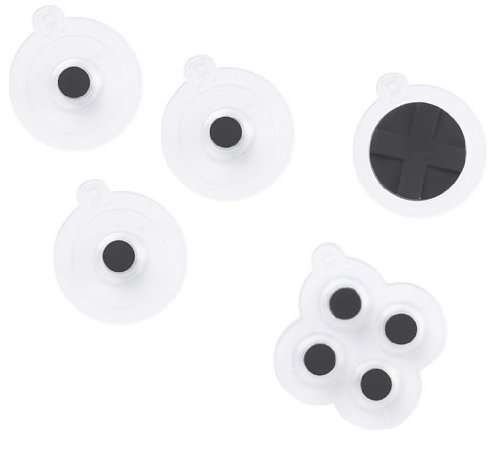
However, the size of the virtual pad on iPad may not be suitable depending on the emulator.
Reply on the forum
A question or a hands-on report? Open the discussion on the forum.