Internet on macOS 7/8/9 via Basilisk and Sheepshaver
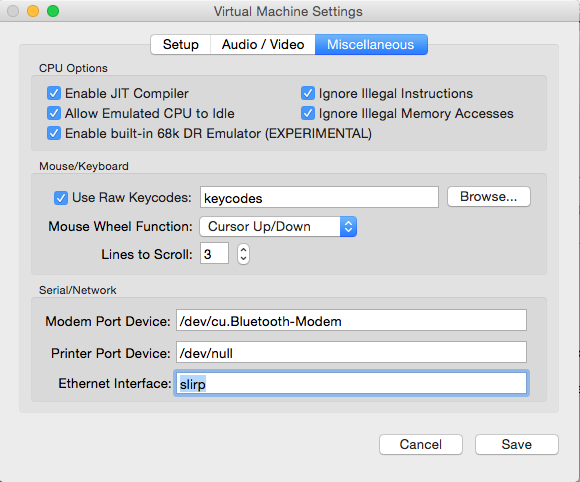
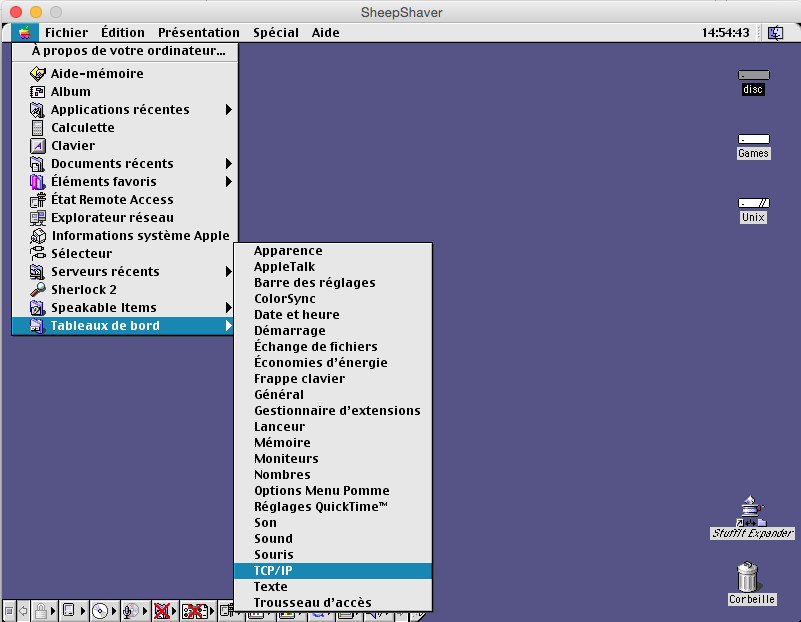
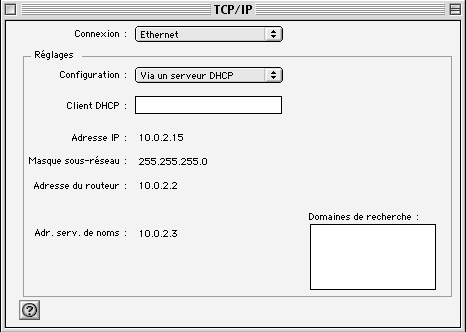
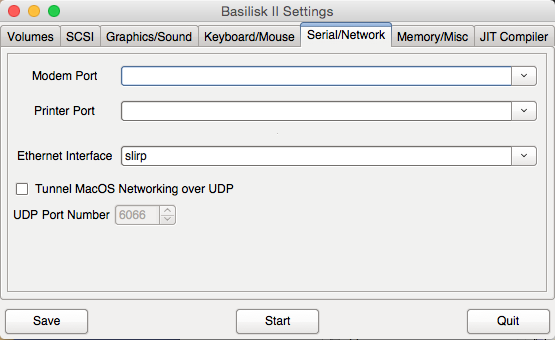
For Mac OS 8, we will use Basilisk II, and again, this is not complicated if you use the latest version of the program, as the "Ethernet Interface" parameter in the "Serial/Network" tab should already be set to "slirp". If it is not, set it and start the emulator.
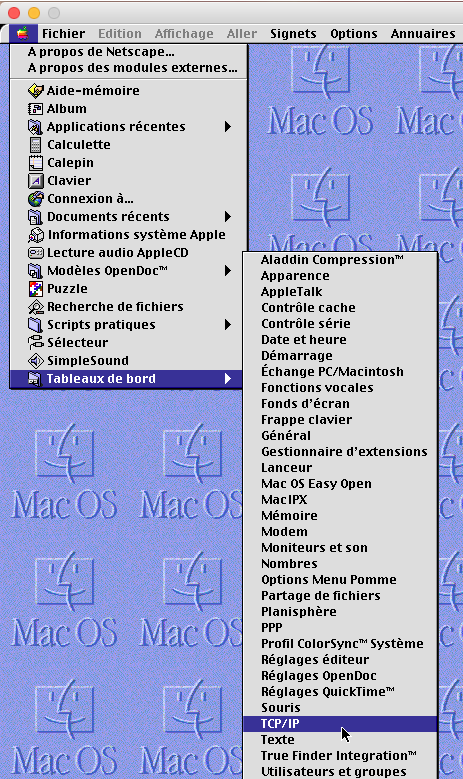
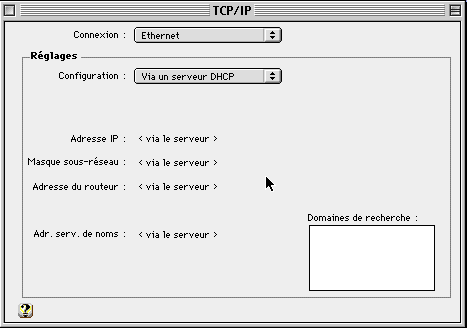
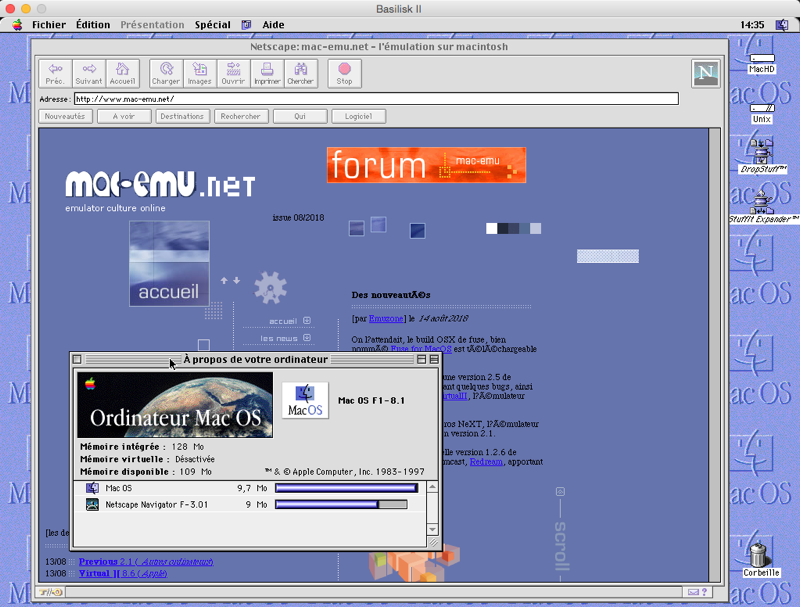
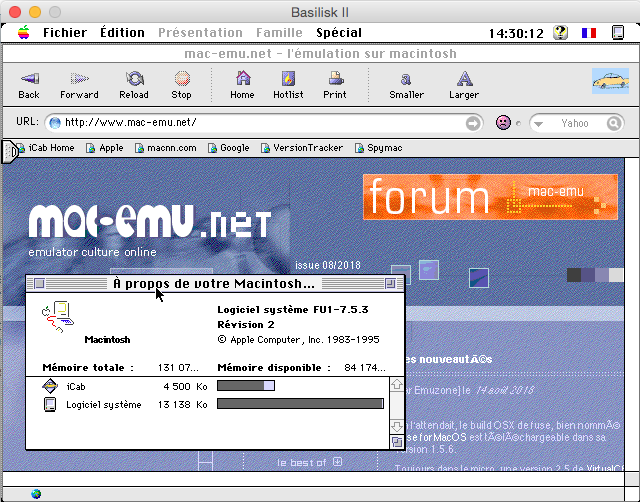
We conclude this small guide with a Mac OS 7 system running on Basilisk II as well. No need to remind you that you must configure the "Ethernet Interface" to "slirp" in the "Serial/Network" tab of the emulator and start it. The most complex part is configuring the system itself, and the minimum tested version is 7.5.3. You will need to enable Open Transport via the "Network Settings" application located in the "Apple Utilities" folder. Do not restart immediately and disable "AppleTalk" via the "Chooser" found in the Apple menu. This may not be mandatory, but strangely, I couldn’t access the network as long as AppleTalk was active. You can now restart and open the TCP/IP Control Panel. You will be prompted to enable it, which you must do. Again, and you’re starting to get used to it, you’ll need to open the TCP/IP Control Panel and select an "Ethernet" connection with a "Via DHCP Server" configuration before saving the settings. And as incredible as it may seem, your OS 7 should be able, depending on the technology used by different websites, to browse part of the web. Indeed, most sites are no longer compatible with these old versions of macOS, and having access to the internet on emulated Macs may seem more of a technical feat than a practical use. However, this little networking trick could potentially save you if you’ve found a private server for an old multiplayer game you still want to enjoy.
Related software
Reply on the forum
A question or a hands-on report? Open the discussion on the forum.