Guest PC Review
Recently entering the highly coveted world of x86 emulators for Mac OS X, Guest PC is trying to carve out its place alongside Microsoft's Virtual PC or the open-source emulators such as Bochs or QEMU. This new software is published by Lismore SoftWare System, which previously developed an x86 emulator for Mac OS in its Classic versions: Blue Label.
Lismore SoftWare System agreed to send us a version of Guest PC, so we couldn't resist the urge to test it for you.
1 / Software Installation
The software installation is done very simply via a Mac OS X package, which for security reasons asks for an administrator password. In less than a minute, the software is installed and ready to use. The installation consists of just one application file that can be deleted to uninstall Guest PC; no other files are installed, and no reboot is required to launch the application.
The test machine is a 1.4 GHz G4 with a 100 MHz bus, 1.5 GB of RAM, a 7200 rpm hard drive with Mac OS X 10.3.7, and Guest PC 1.0.1.
2 / Windows Installation
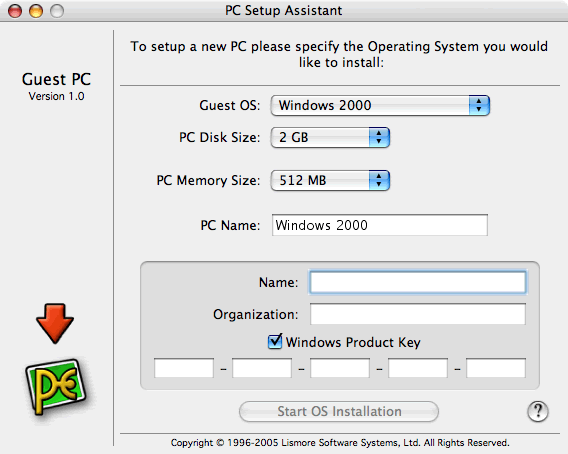
Upon its first launch, Guest PC directly offers to install your PC. From simple DOS to the latest Windows XP, all Windows versions are supported; a final choice of OS is available: "Other...". We will see later what this selection corresponds to. When choosing the Windows version, Guest PC offers a default configuration. For example, for DOS, 300 MB on the hard drive and 32 MB of RAM are recommended; for Windows 2000 or Windows XP, 4 GB and 128 MB are suggested. For all systems except DOS, Guest PC requires you to enter the name and organization you work for, which can be inconvenient for a regular user, and proposes to insert your CD-KEY. This allows you to save time during installation and, most importantly, avoids having to monitor the installation for the code insertion. Like VPC or any other emulator, the amount of memory allocated to the PC will greatly affect performance.
Indeed, just like on macOS, the more RAM the PC has, the better its performance will be. However, you should not allocate more RAM than your Mac has available, otherwise the Mac will "swap" and performance will be drastically reduced.
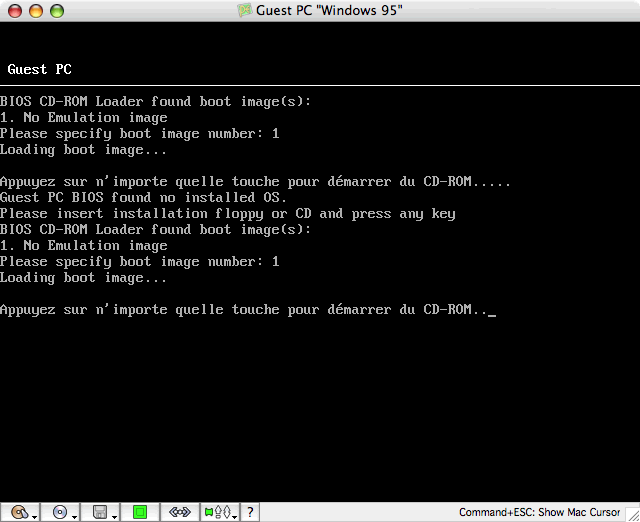
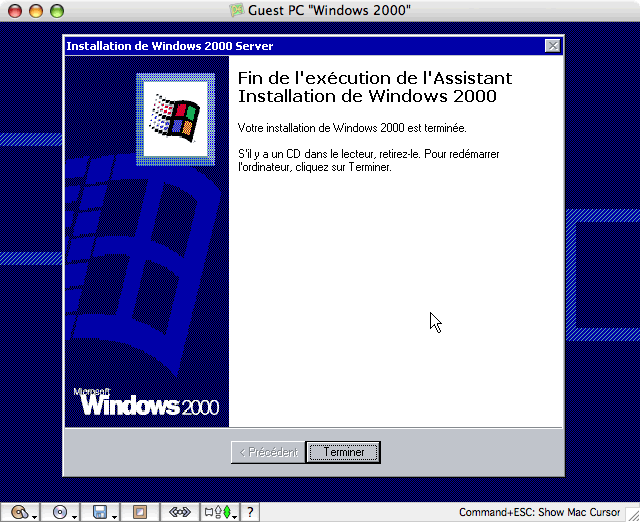
The Mac used for the test has 1.5 GB of RAM, with 700 MB free, so we will allocate 512 MB of RAM to our selected Windows 2000 for testing. Once the operating system is chosen, the two settings are made, and the Windows CD is inserted into the drive, the system installation can begin. Note: the BIOS created by Lismore Software System for Guest PC can be briefly seen in case of installation errors and later during the PC boot.
3 / Using Windows
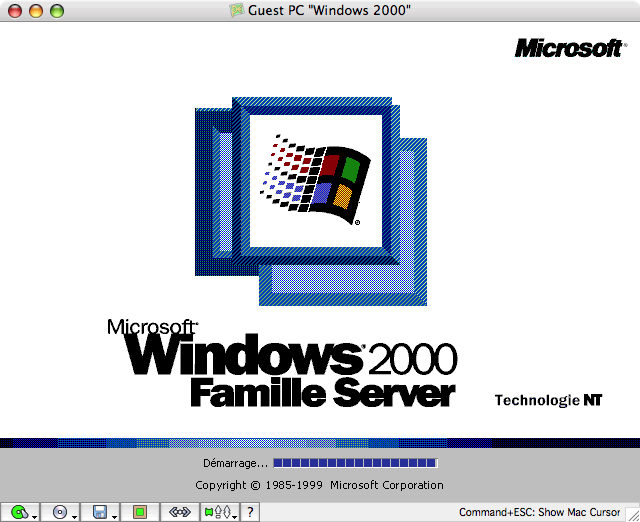
Regarding the mouse, Guest PC perfectly handles both buttons and the mouse wheel.
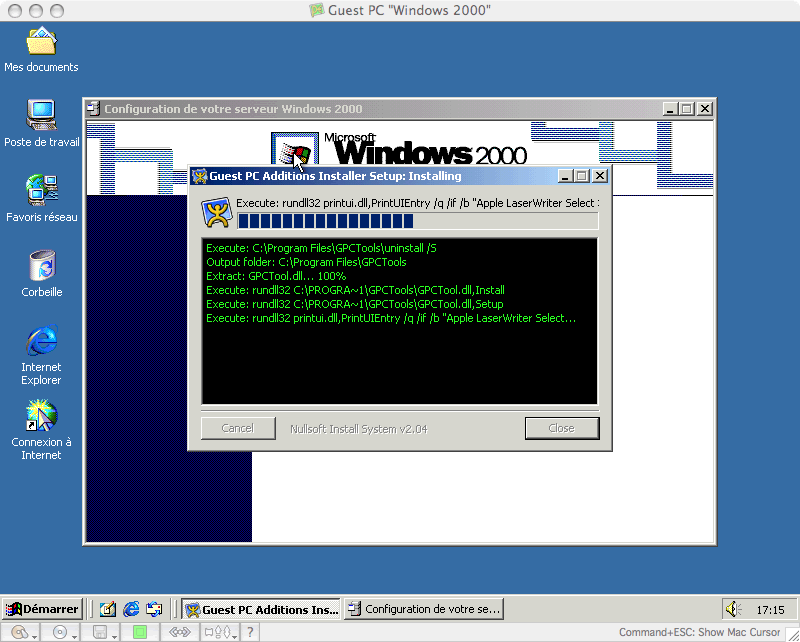
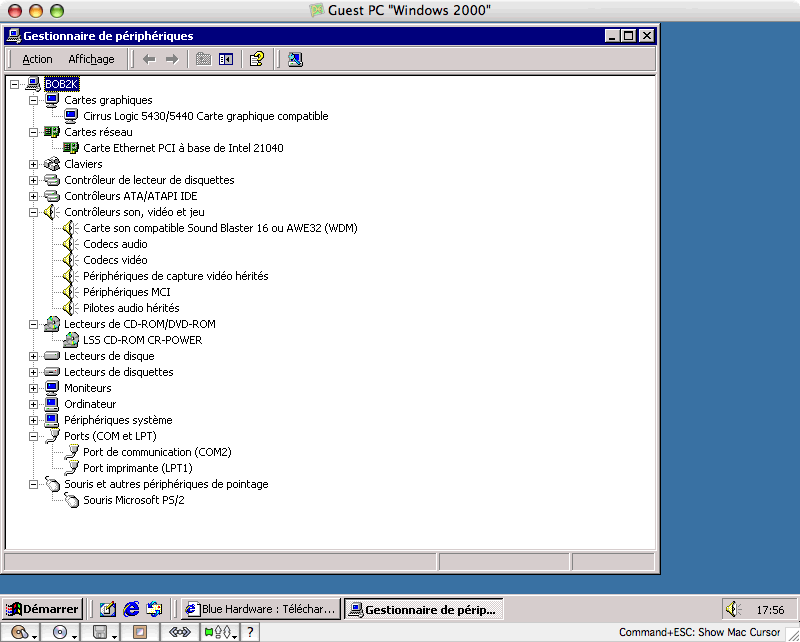
As on any decent Windows PC, the first thing to do is to change the PC's resolution. You'll learn that the emulated card is a Cirrus Logic 5430/5440 with 2 MB of VRAM. Resolutions range from 640x480 to 1280x1024. The latter will likely be the most used given the size of current Apple screens; full-screen display will change the Mac's resolution. Owners of 23" or 30" screens will not be able to use the full screen with their virtual PCs in full-screen mode.
In use, it appears that the emulation speed is more than sufficient to navigate files easily and use simple applications. Classic programs like Notepad and Internet Explorer open quickly and without issues; file transfers are smooth. Only CPU-intensive tasks are slowed down compared to other emulation systems: running a search-and-replace operation on a 1 MB text file in Notepad seemed endless.
File exchange is certainly the most tedious aspect: unlike with VPC, there is no drag&drop option from the Mac to the PC. The simplest solution is to configure both the Mac and the PC to be on the same subnet and access files using the file sharing feature from one system to the other. The Mac, in its client version, does not allow choosing mount points, so you will rather create the share on a folder of the virtual PC and access it from the Mac using its "Connect" function (Apple+k) by typing smb://<pc_ip>. This way, there is no risk of accidentally accessing shared files. Of course, don’t forget to eject the volume on the Mac before disconnecting the PC.
Don’t expect miraculous performance here either; the copy rate did not exceed 300 kb/sec from the Mac to the PC and 1.5 Mb/sec from the PC to the Mac, which is far from the network performance of the Mac in 100 BaseT or the 10 BaseT emulated by the PC.
After retrieving a small WMV video file, we launch the Microsoft-provided player. The video codec downloads quickly and easily. The issues arise during playback: the player displays the first frame perfectly, but that’s all—audio is correct for one second before turning into unbearable static. Ultimately, the video appears unreadable on the emulated PC. With VLC, the video is just as unplayable, but the result is reversed: no sound comes out, and only the last frame is shown.
After several attempts with videos, let’s move on to a more interesting topic: gaming. Indeed, the number of games available for PC far exceeds that for Mac, making emulation very tempting. Having roughly gauged the software’s raw power potential, we’ll only test old games. Installing these games—even old ones—is a bit slow, and decompression of files, once again, is not the emulator’s strong point.
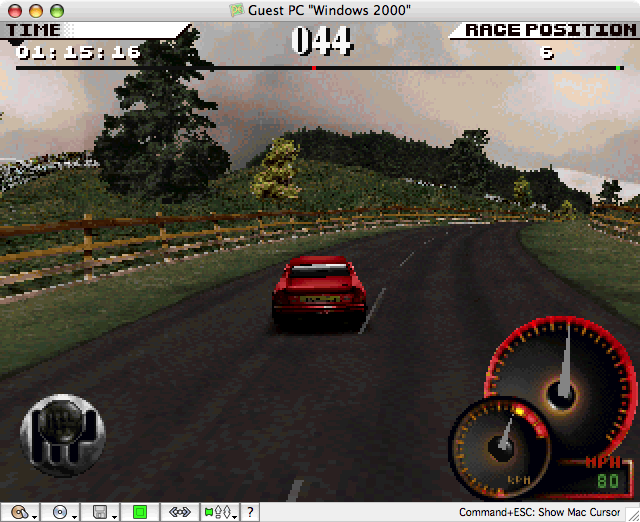
While Lotus 3 freezes at startup, Test Drive 4 launches perfectly. Everything seems fine, except the game runs slowly—or very slowly—and no significant bugs appear on-screen. Audio works but remains choppy due to emulation speed.
4 / Linux Installation
The next two chapters may prove tedious for those unfamiliar with Linux—only read them if it interests you!
As everyone knows, there’s more to a PC than just Windows, which is why installing and using Linux is part of this test.
But using Linux on an emulator offers little interest, since most distributions are already available directly for our PowerPC processors: the only advantage is the ability to have two machines in one, even if the emulated one is slower.For the test, the new Debian distribution: Sarge will be used, supposedly easier to install for novice Linux users, which is the opportunity to test all of this.
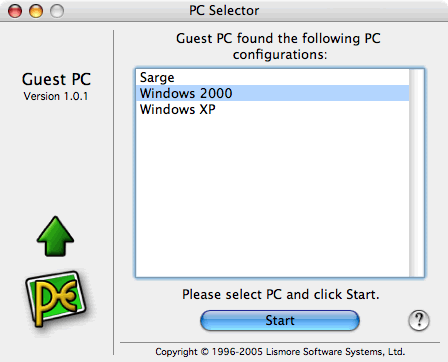
Once the disk image of the first Sarge CD has been downloaded and memory and hard drive settings chosen, we proceed with the actual test. A first good point during this installation is the unnecessary need to burn the CD, as Guest PC allows the use of ISO disk images, the format in which Linux distributions are provided. The CD mounted, press the space bar to force the PC to read from the CD and the first screen of the future Linux appears.
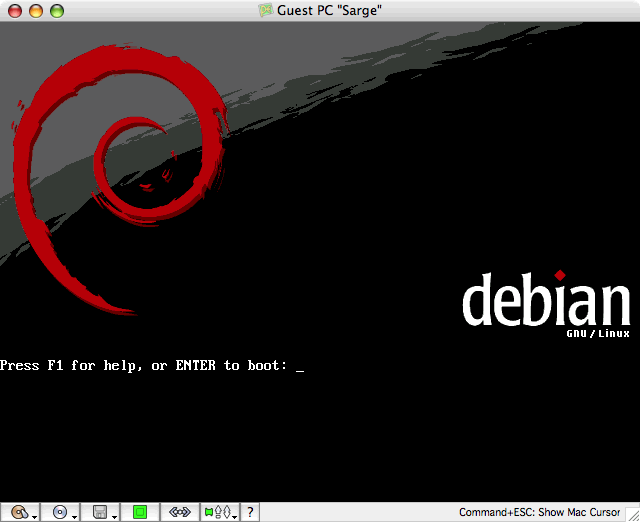
The installation proceeds without issues; the network hardware is perfectly detected, the system even found the local network server and set default settings for using the name server (DNS).
Like installing Windows, the installation appears quite slow, with the processor heavily loaded for GZIP decompression of Linux packages. During the minimal configuration of Linux, the time is automatically detected based on the Mac's time. Then, just like on macOS (but less visually appealing), you need to add the first user along with their password, and, most importantly, the root user's password. After about an hour of installation and minor configuration, our Debian is ready for use.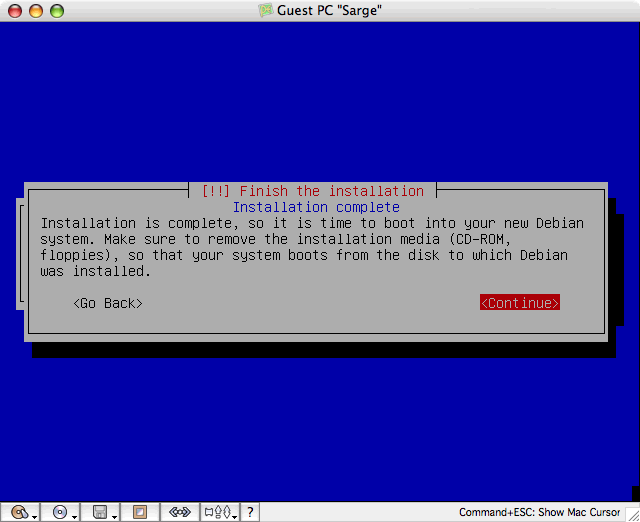
5 / Using Linux
The startup process works without issues; the emulated system sends a DHCP request and receives its IP from the local network server.
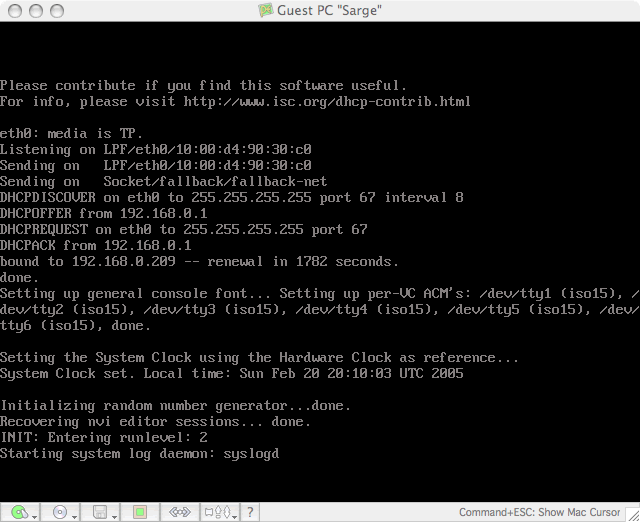
Using the "lspci" command, you can observe the emulated hardware configuration of the machine, identical to that provided by Windows.
Having installed no additional packages beyond the system itself, usage initially relies on a simple shell, where you configure apt-get to install all necessary packages via the web.
Then, the process of installing software begins, which will make the test more interesting than a simple installation. You start with classic sudo, without which no Linux user can be truly happy. Next, a graphical interface is added; to avoid the heavyweight options like Gnome or KDE, you opt for Fluxbox, which, with proper settings, is quite well optimized for small machines.
Issues arose during the X server configuration. When launching Fluxbox, many colors were incorrect. This does not hinder system usage, it's just even less visually appealing than usual, especially for users accustomed to macOS. Once the graphical interface is installed, it will load at every startup; there will be no need to load it manually.
It is in Linux that one truly understands the interest of the additional packages provided by Lismore Software System in Windows: the mouse no longer automatically switches from macOS X to PC; you must use the Command+Escape key combination.
The use of Linux is even smoother than that of Windows; the difference in interface management is strongly felt on this small emulated machine.
We also install a monitoring tool, recommended by a confirmed "linux-user": GKrellM, simple, complete, and lightweight, it works perfectly. As you can see in the screenshots, it provides a lot of information about the machine's status, such as processor usage, memory, swap, hard drive, network, etc. (Note: this little software works perfectly under OS X!). Unlike the Fluxbox interface, there are no display bugs, whether in the main display or in the options window.
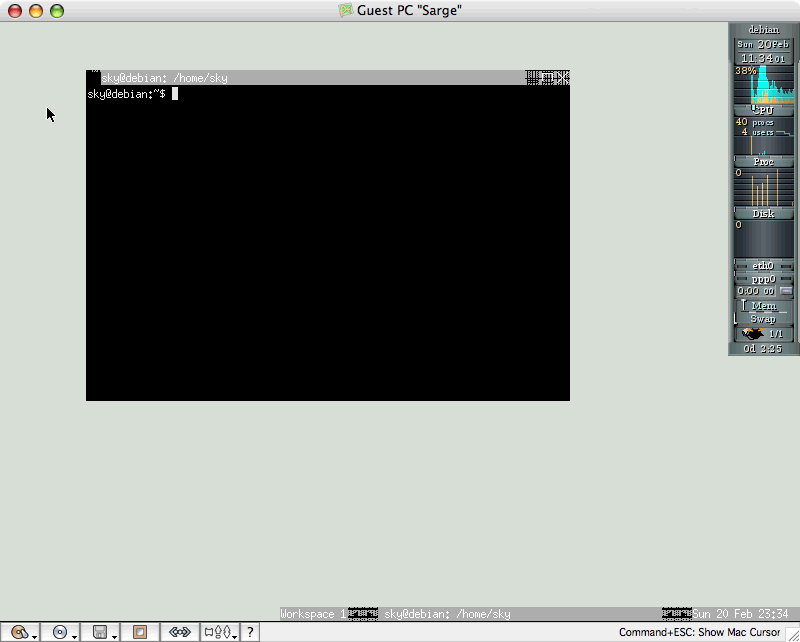
To make our Linux more interesting, let's start by installing some services like a web server. In 7 minutes, Apache is installed and started (automatically at the end of the installation). When I open the server's homepage in Safari on macOS X, the page appears instantly, with no server-side latency—this is truly the first time Guest PC demonstrates remarkable speed.
A small, friendly, and amusing note: the halt function to shut down the system works!
6 / Other Information
One of the most interesting features of Guest PC is the ability to open multiple virtual PCs simultaneously. However, you will need enough memory to run both PCs. This feature will appeal to network administrators who can distribute services across different virtual machines to enhance network security.
As a final test, we launched the two PCs (connected to the same local network), and we were able to open the default page of the Linux web server on Internet Explorer under Windows 2000.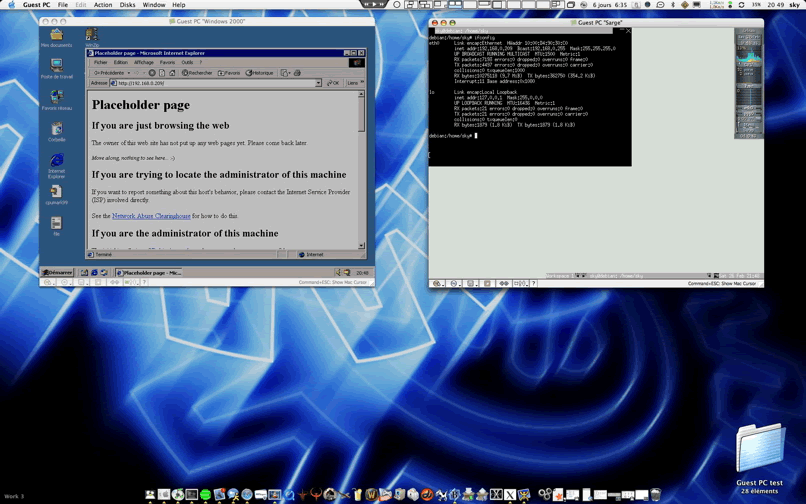
Despite choosing the hard drive size at installation, Guest PC does not create an image of the specified size; it keeps the image as small as possible. Our installed Windows 2000 thus occupies only 843 MB instead of the planned 4 GB, and Debian, 640 MB. This allows you to plan large disks for the PCs you create without wasting unnecessary space.
The mouse management when switching back and forth between the PC can sometimes get stuck, especially if you use a virtual display system on macOS. While not particularly problematic, it does cause a few seconds of delay when returning to the PC. This bug will likely be fixed in a future version of the application.
A 9-page PDF guide is available in the help section, which can assist novice users by detailing each part of the software.
7 / Support
The software benefits from good support from the development team, as evidenced by the first update, released just 2 weeks after the initial release.
One can hope that future updates will fix the issues of slowness and unreliability that sometimes occur, and even hope for new features to make it even more appealing.
8 / Pros and Cons
Pros:
- Like VPC, usage of the hard drive, CD, network, and processor is displayed in the bottom bar of the window.
- Ability to run multiple PCs simultaneously, provided you have enough memory and CPU.
- The full-screen mode (though limited).
- The possibility of using disk images (ISO).
- The use of the mouse between the PC and the Mac after installing the Guest PC additions (even though some early bugs persist in this feature).
Cons:
- The price of $69.99 seems a bit high, even if it is cheaper than its direct competitor, VPC, in its equivalent version (without Windows).
- No support for USB or FireWire for external device usage.
- CD support but no DVD support.
- No drag and drop for copying files between the Mac and the PC.
- No saving of the powered-on PC.
- Execution speed is lower than that of its main competitor.
9 / Conclusion
At a time when the need to use a PC emulator is felt less and less due to the potential and capabilities of macOS, Lismore Software System takes a big risk by inserting their new software into the jungle of x86 processor emulators.
This new emulator seems promising, unfortunately, it is a bit expensive compared to the performance it provides. It might be interesting to test the emulator on a G5 to see if it benefits from 64-bit optimizations. Due to its youth, the emulator is not the most polished, but the team is doing their best to improve it. However, it will delight users who need to run multiple virtual PCs at the same time, or those who do not support Microsoft products and prefer to have support compared to free or nearly free software available online!
⚠️ This guide is flagged as obsolete.
Related software
Reply on the forum
A question or a hands-on report? Open the discussion on the forum.