Emulation Playstation sous OSX
What You Need to Understand
Many of us think that simply inserting the PlayStation game disc and launching our preferred emulator will allow us to fully enjoy the game on our computer, just like we would with the home console. Unfortunately, that's not the case: emulation is not an exact science, and applications are fallible.
While in most cases, we won't have much to configure for our game to work, some will be more stubborn and require us to tweak the emulator's settings, while others simply won't be emulable at all.
Many parameters need to be taken into account when emulating a game. First, configuring your Mac. A PPC and an Intel will not allow running the same emulators or versions of emulators, nor will they support certain instruction sets during emulation. It's clear that the second criterion is the emulator and its version. While the latest version is often the best, regression risks exist, so it's not uncommon for a game that was emulable in an older version to no longer be supported by the latest one. Some of these emulators require a BIOS file to function, and multiple versions may exist. Again, certain BIOS types are better supported by emulators than others, often providing better compatibility for games. Finally, the game's region can be crucial. Indeed, some emulators have no trouble with a Japanese or North American NTSC version but will be unable to emulate the European PAL version.
Configuring PCSX
Before anything else, we assume you already have a good understanding of the emulator. If not, read this article written by Sky and describing the use of PCSX, the essential PlayStation emulator for Mac OS X.
The most widely used emulator under OSX is PCSX. It comes in two ports. The first, the oldest, is compatible with both PPC and Intel for the latest version. The second port, named PCSX-Reloaded, is reserved for Macs with an Intel processor.
As mentioned above, most games do not require any specific configuration to enjoy them to the fullest. However, some games can be quite stubborn and will require applying certain settings to enjoy them.
While some versions of PCSX-Reloaded simulate a BIOS for compatibility with different games, we will always use the BIOS 1000, supposedly from the early Japanese versions of the console.
We will start with the latest port, which is PCSX-Reloaded and is only compatible with MacIntel.
The version used will be build 78288 provided by Speedofmac on an Intel Core 2 Duo 2.1GHz with 2GB of DDR2 SDRAM at 667 MHz under Mac OS X 10.6.8 and an Intel GMA X3100 graphics card with 144MB of shared VRAM.The majority of games will pose no difficulty in being emulated, such as Final Fantasy IX and Star Ocean: The Second Story in their American versions, for example.
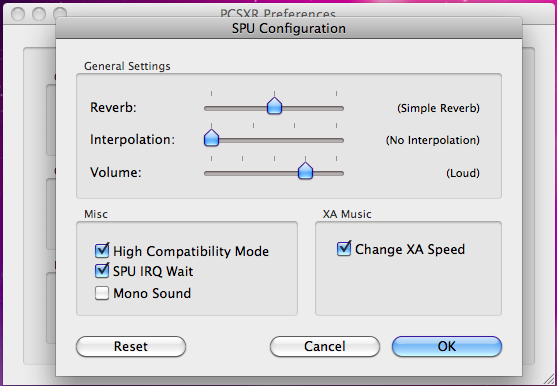
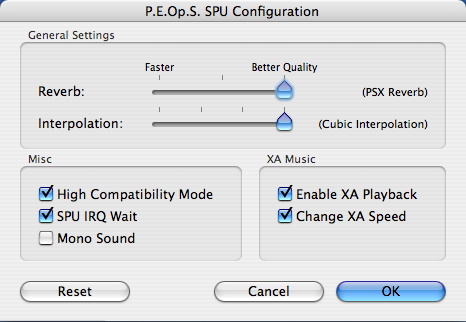
Others may have minor audio issues, which is the case with Final Fantasy VII PAL, requiring the activation of the "change XA speed" option in the audio plugin configuration as shown below.
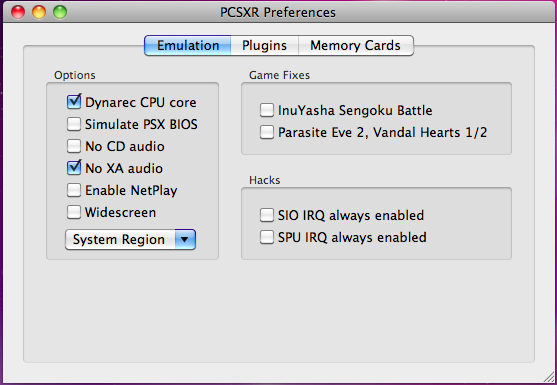
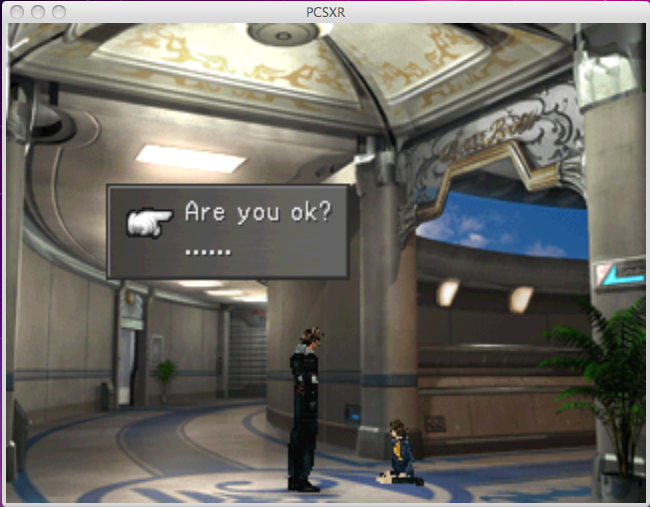
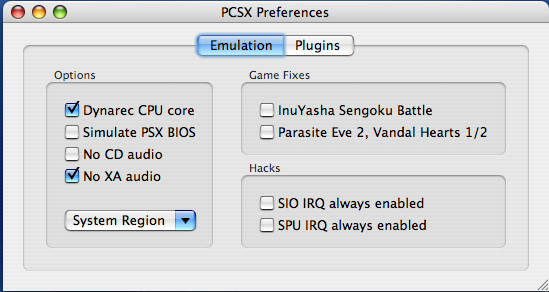
For Final Fantasy VIII, only NTSC versions will be supported provided you make an additional modification in the emulator configuration by enabling the "dynarec cpu core" (function explained later in the article), and if desired, "no XA audio".
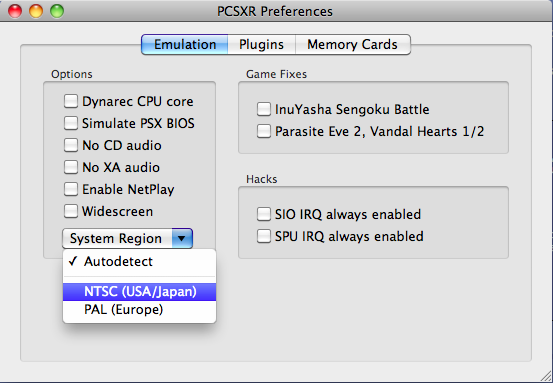
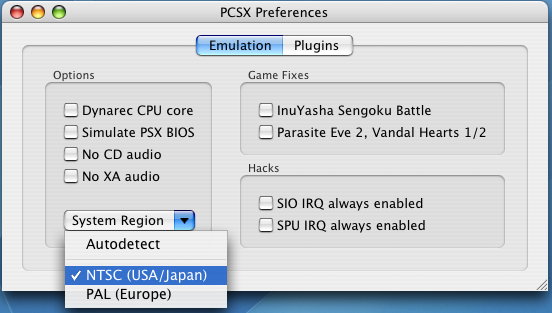
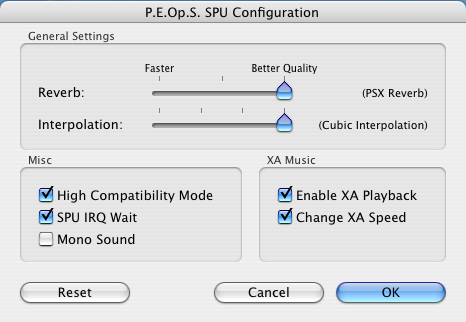
Finally, for stubborn games like Chrono Cross, you must ensure that dynarec is not enabled and that the supported region is NTSC, but additionally, for the audio part, set the plugin by enabling "reverb" and maximum interpolation.
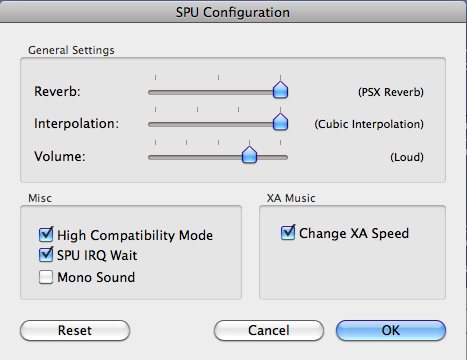
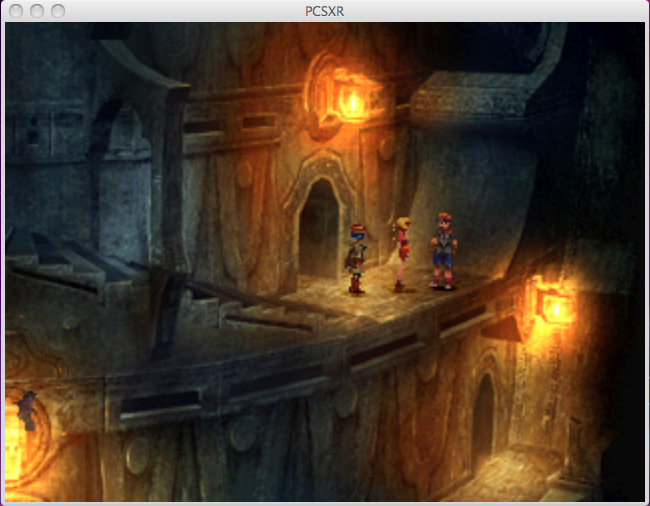
Let us now focus on PCSX 1.6, which is a Universal Binary version, meaning it is compatible with both PPC and Intel processors.
Once again, many games work without any modification to the original configuration, but quite a few others still require a small adjustment.
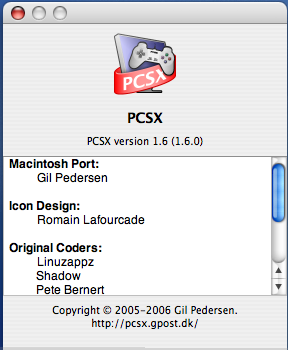
We then open the preferences. Normally, the dynarec is enabled without affecting the emulation. "Dynarec" stands for "dynamic recompiler" and is generally abbreviated as "drc". This dynamic recompiler feature is very useful as it allows recompiling on-the-fly the original machine's code into instructions for the current machine. This concept is therefore widely used in an emulator and is the basis of a virtualizer. In our specific case, unfortunately, it is often the cause of emulation issues for some of our PCSX games, especially for Intel architecture users.
You disable it as follows to play certain titles.
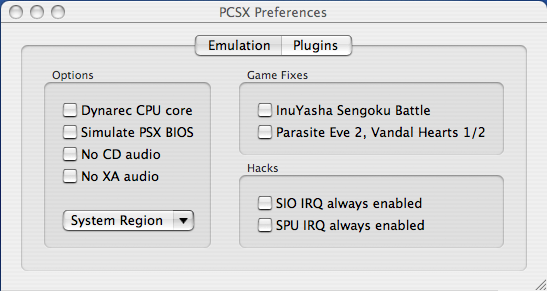
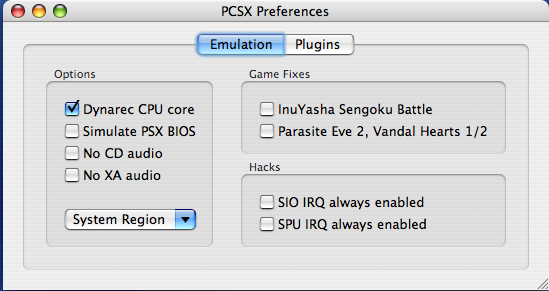
You can also disable audio track emulation if you wish, and/or if the game does not have any.
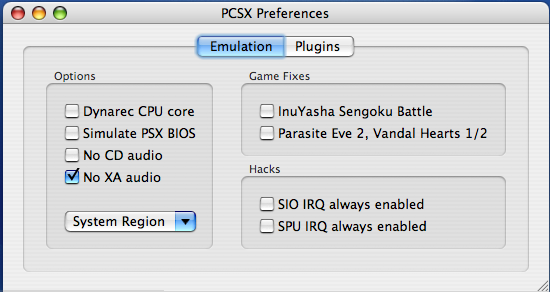
You then move on to the second tab.
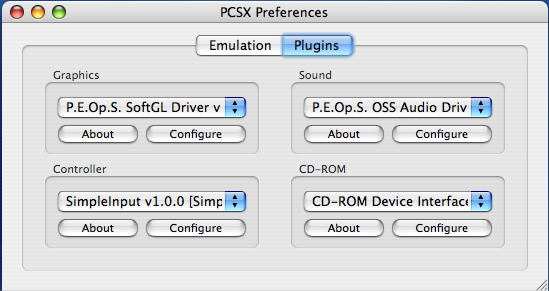
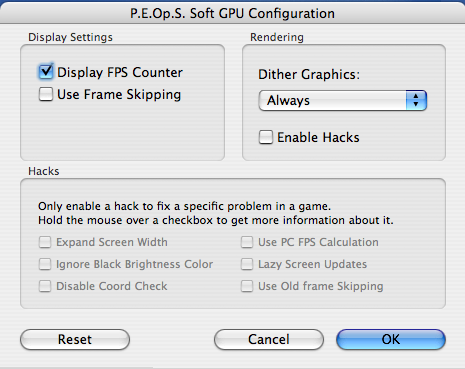
First, configure the graphics engine plugin (GPU).
Finally, configure the sound engine plugin (SPU).
Your emulator is then ready for the following games:
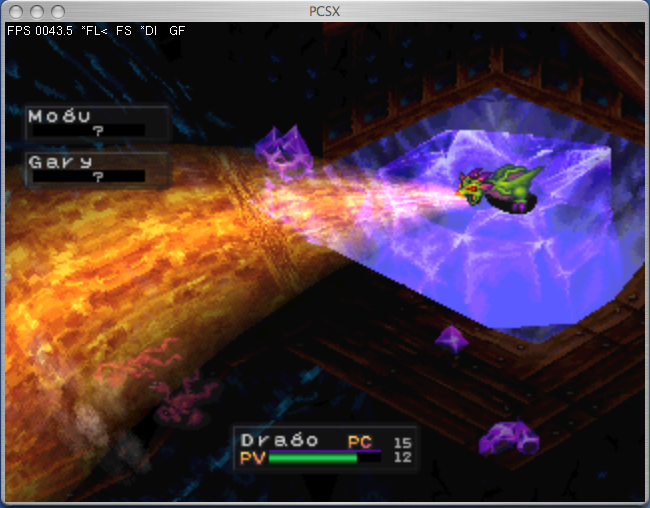
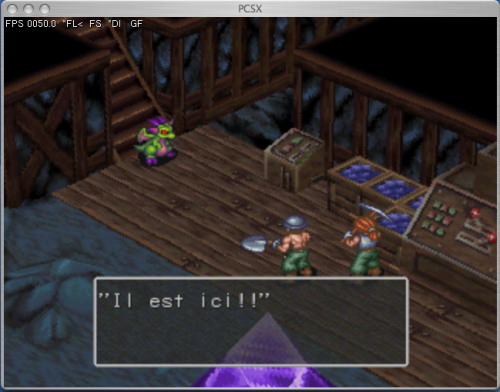
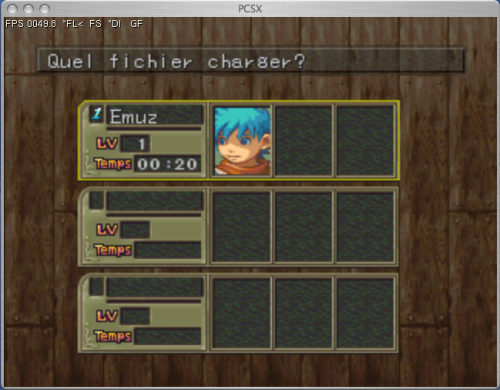
Breath of Fire (PAL):
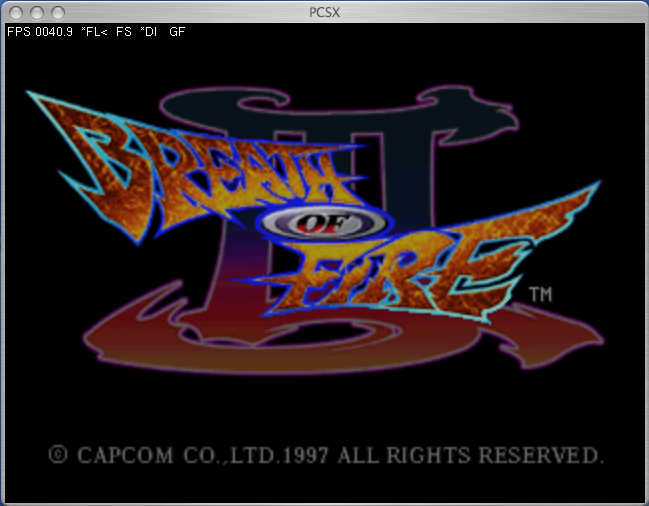
This role-playing game developed by Capcom appears to be fully supported.
The graphics, in an isometric 3D view, are quite charming, and the gameplay system remains traditional.
Final Fantasy VII (PAL):
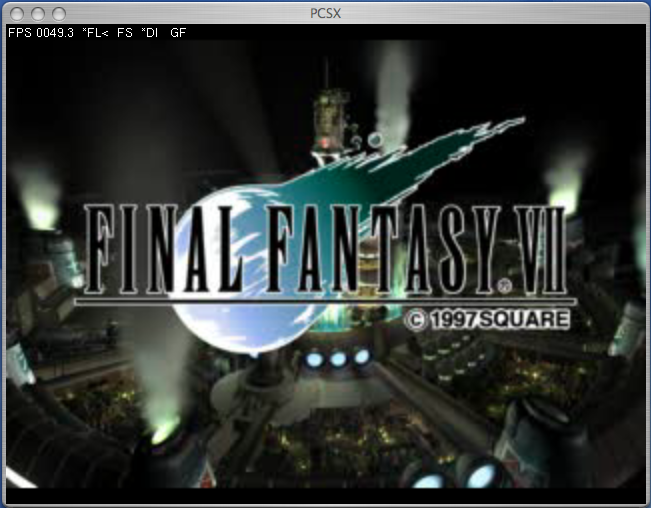
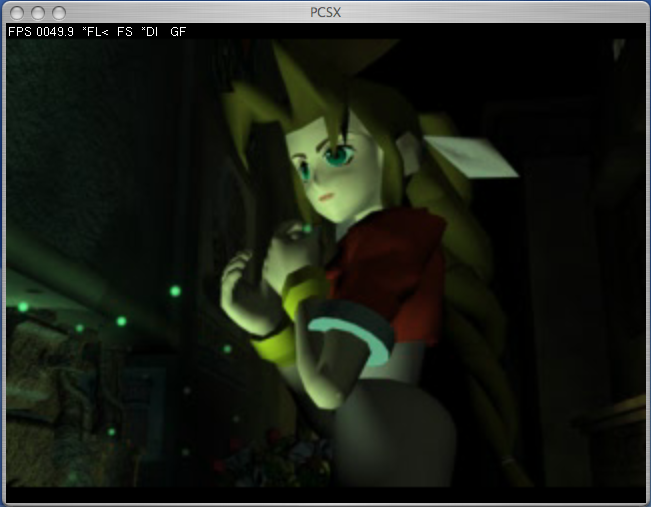
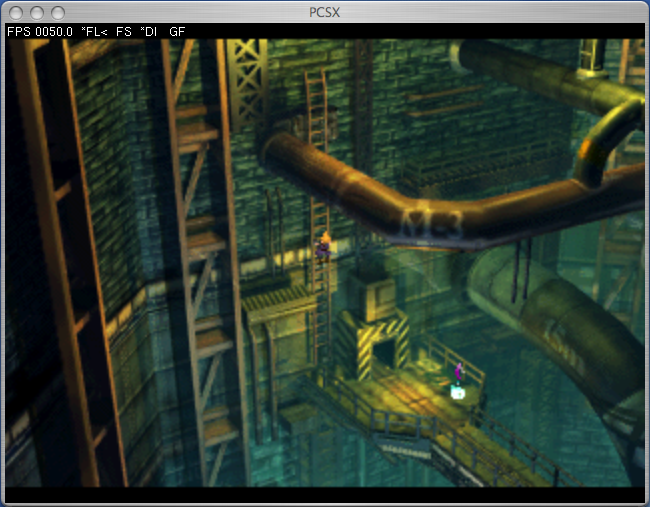
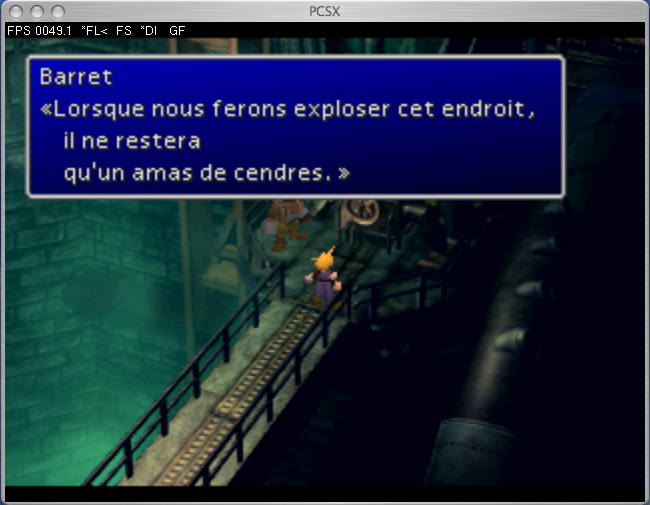
Likely the most emulated PlayStation game in the world and the one that introduced the series to the general public. No one could miss this worldwide hit by Squaresoft. Saves and freeze states work perfectly.
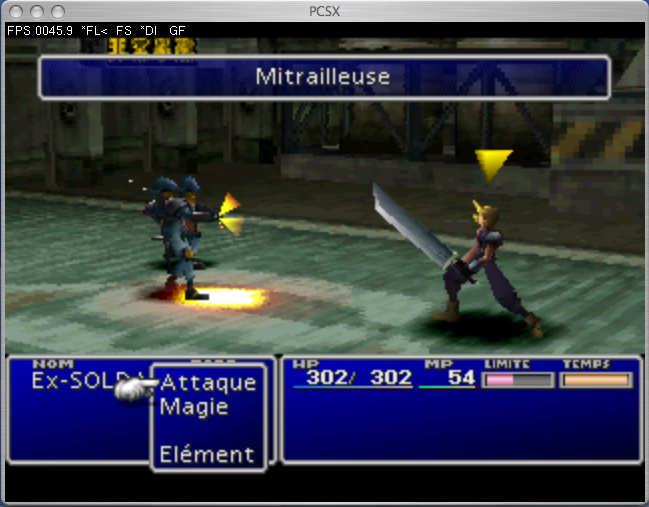
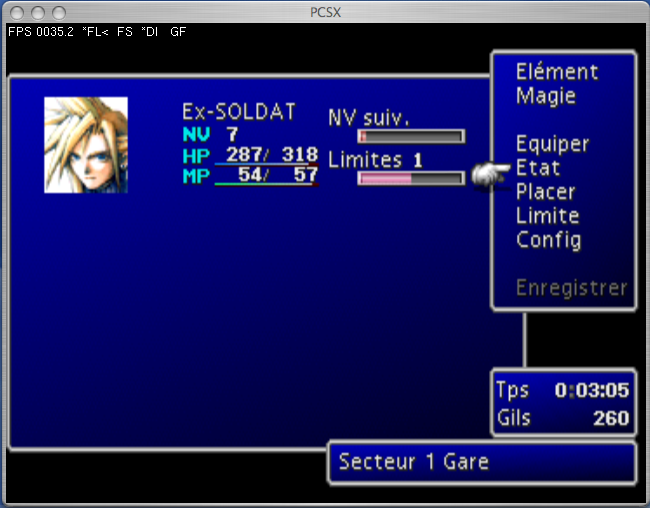
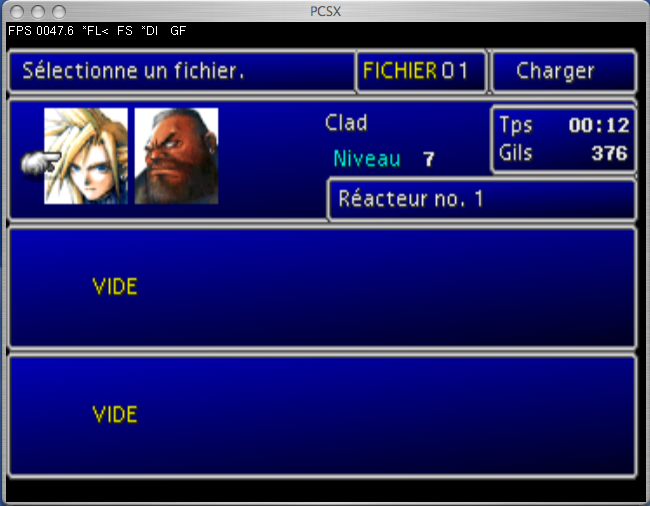
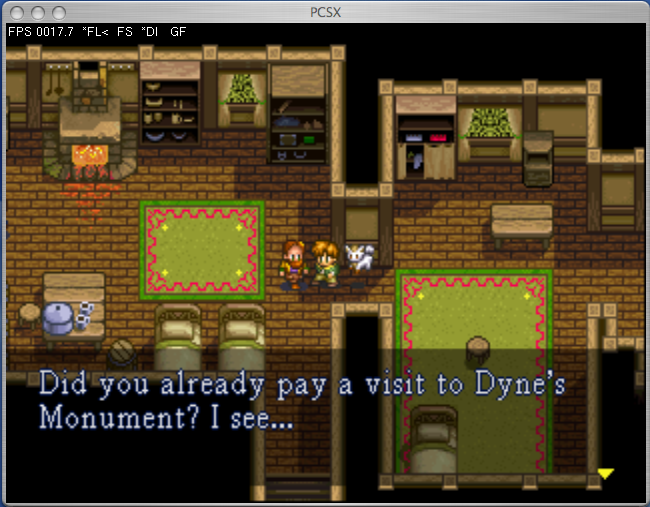
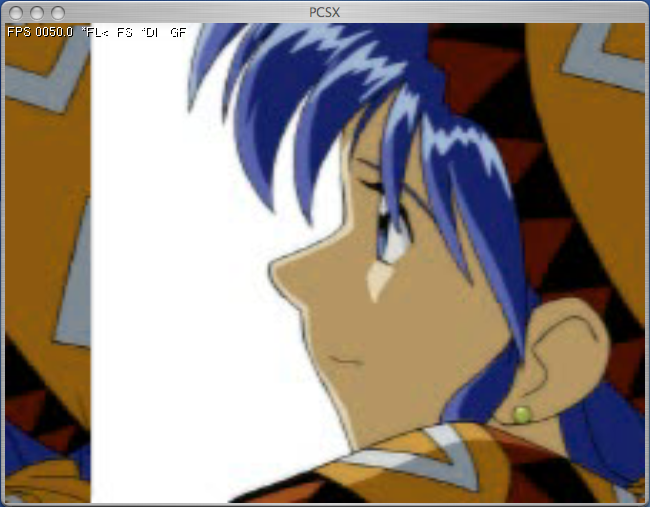
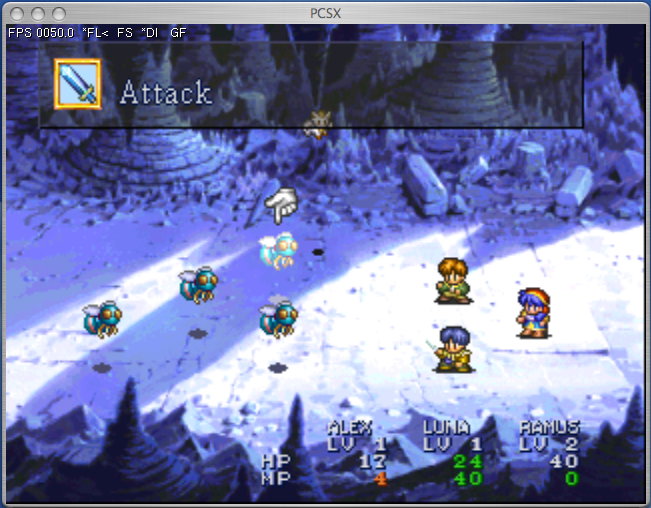
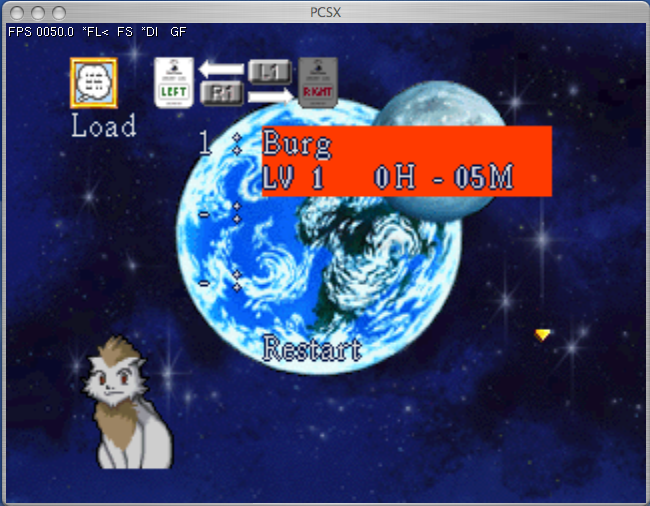
- Lunar: The Silver Star Story (NTSC-US):
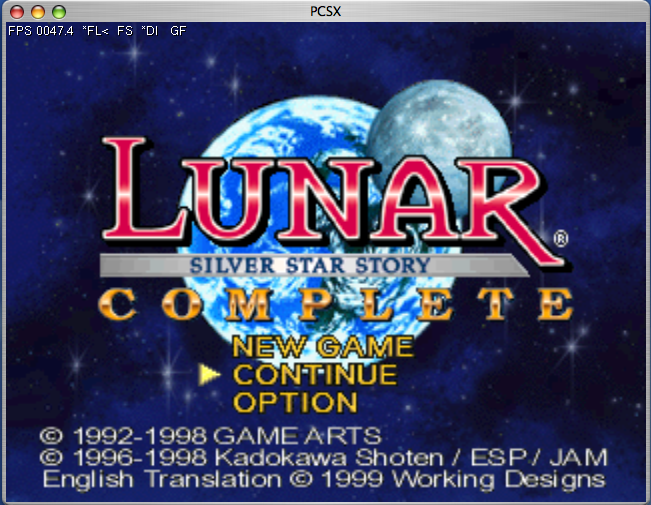
A classic Japanese role-playing game styled like a manga, quite pleasant, with a top-down view.
Fully supported except for the display delay in animations.
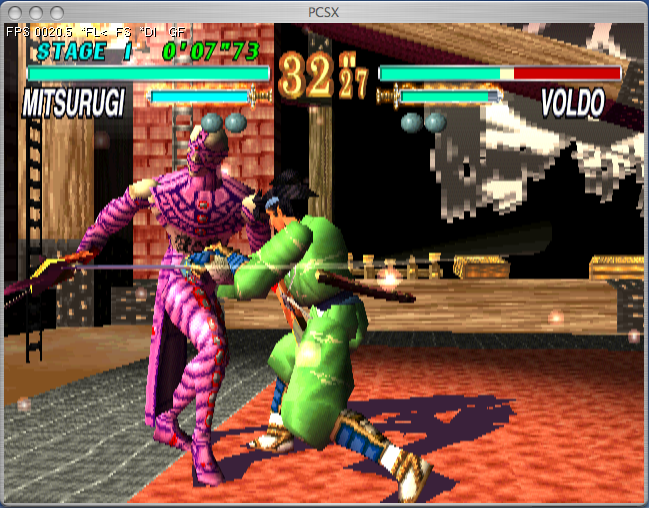
- Soulblade (PAL):
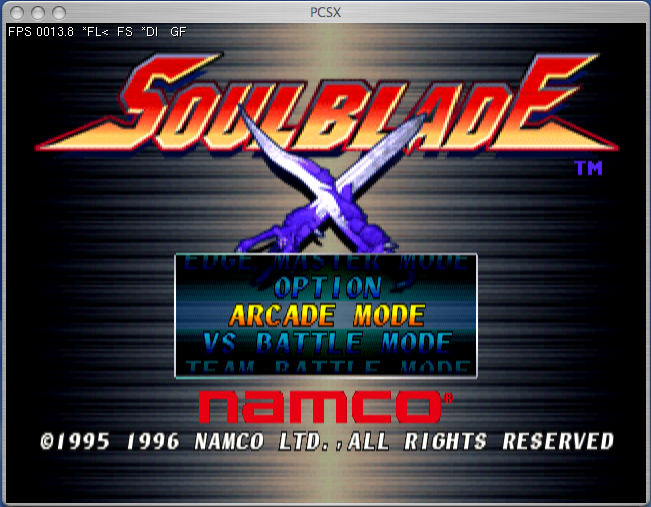
Here is a well-known and appreciated fighting game for its well-done solo mode and dynamic 3D combat system while remaining technically refined. Be cautious with menus where emulation can sometimes be too fast, while combat may experience slight slowdowns.
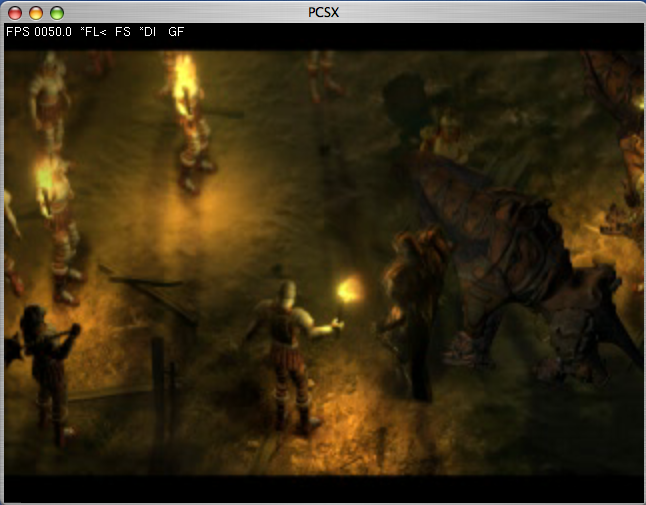
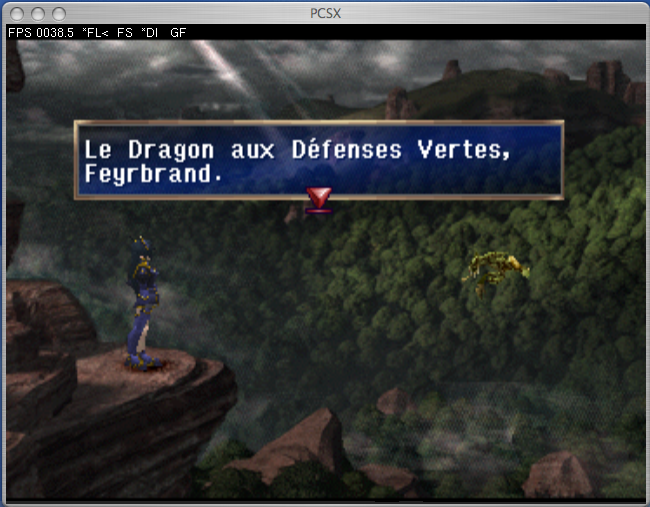
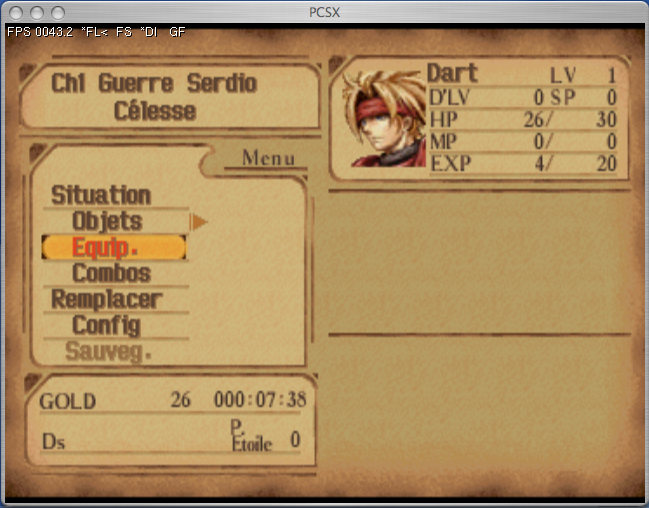
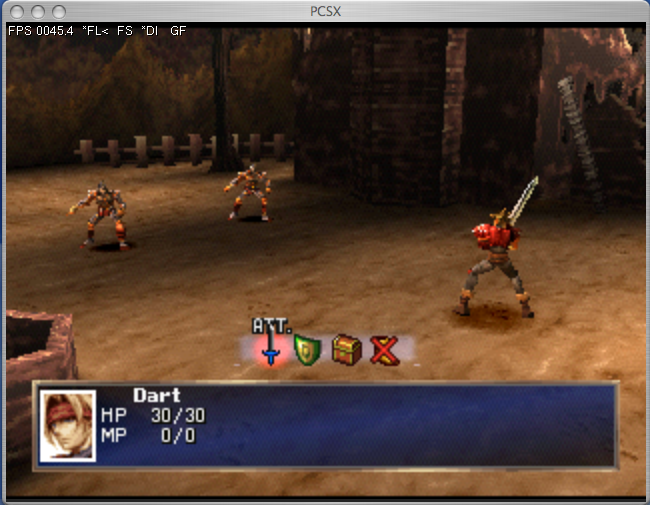
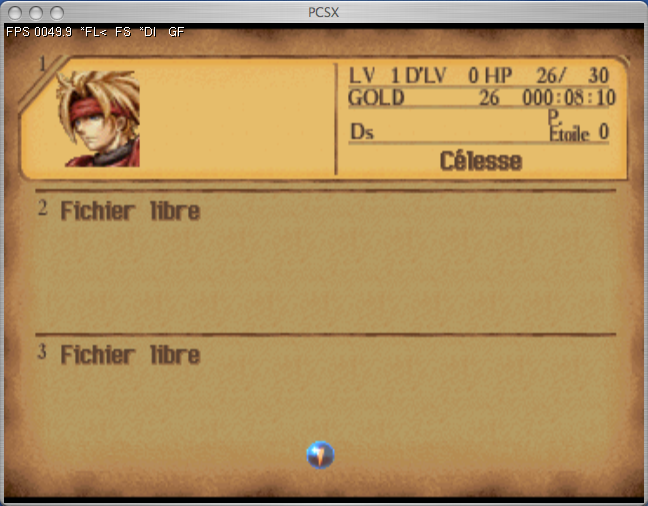
The Legend of Dragoon (PAL):
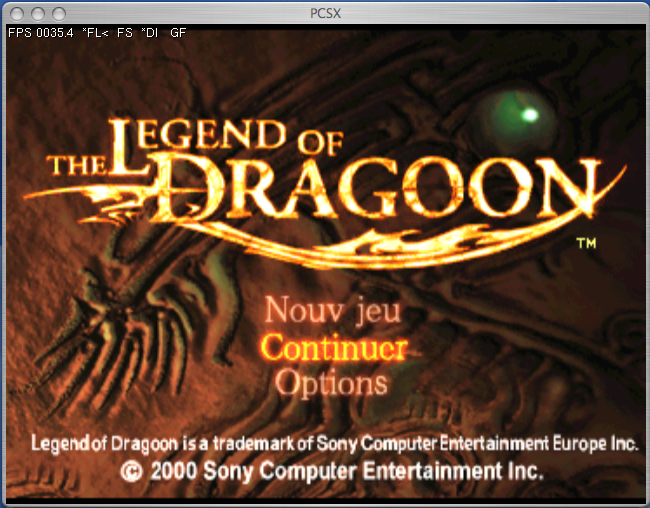
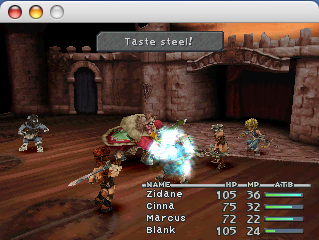
A role-playing game cherished by Sony, packed with cinematic content. You explore a medieval universe strongly inspired by heroic fantasy, with legendary monsters like dragons at its core. Everything seems well emulated.
- Valkyrie Profile (NTSC-US):
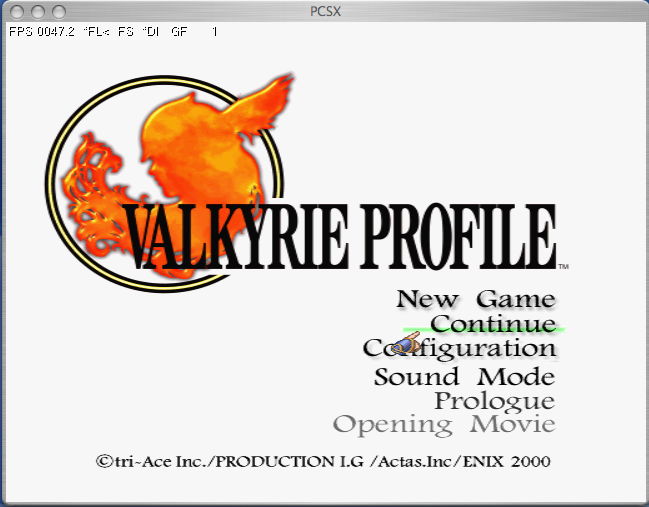
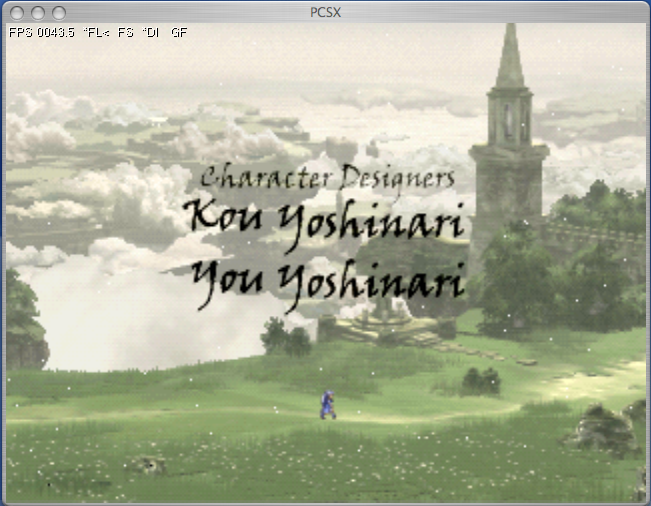
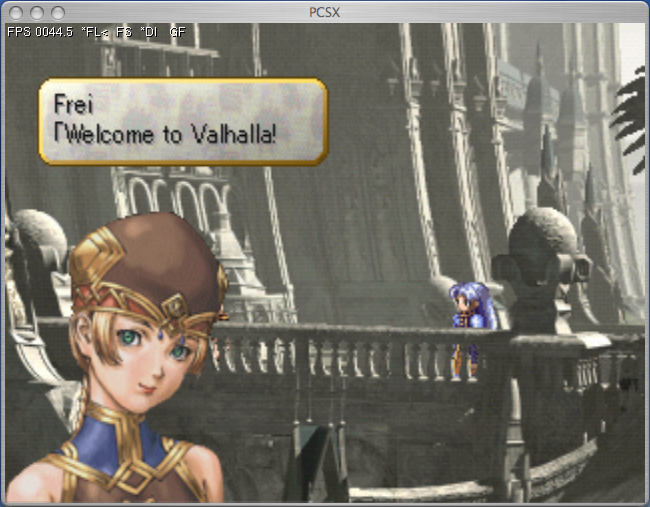
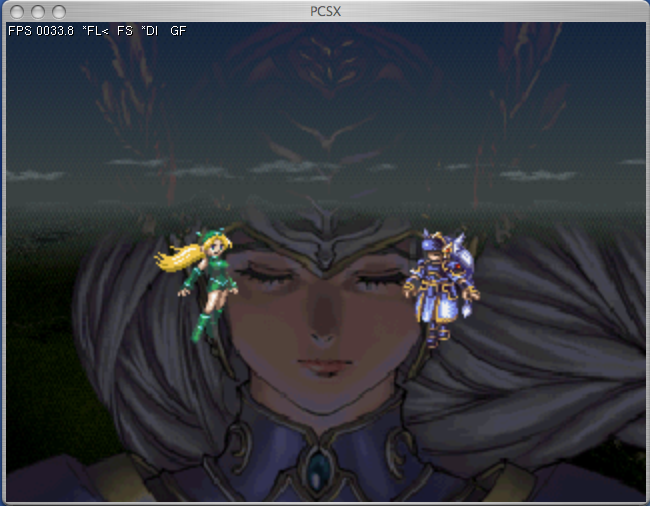
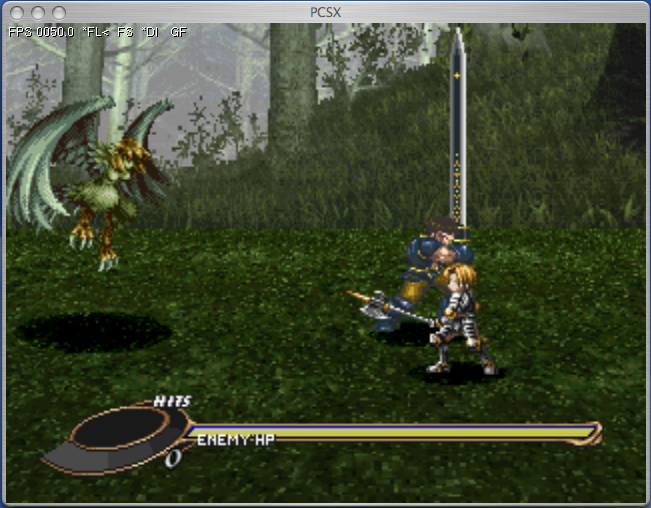
Here is a true gem that unfortunately only released in Japan and North America. You will discover a universe that is poorly represented in the video game world, even less so in this form, which is none other than Scandinavian and Germanic folktales. No issues during the emulation of this game, but you may experience some stuttering during combat.
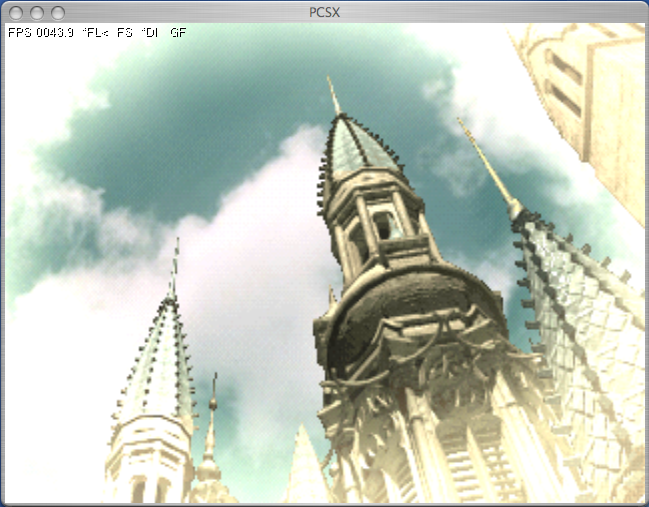
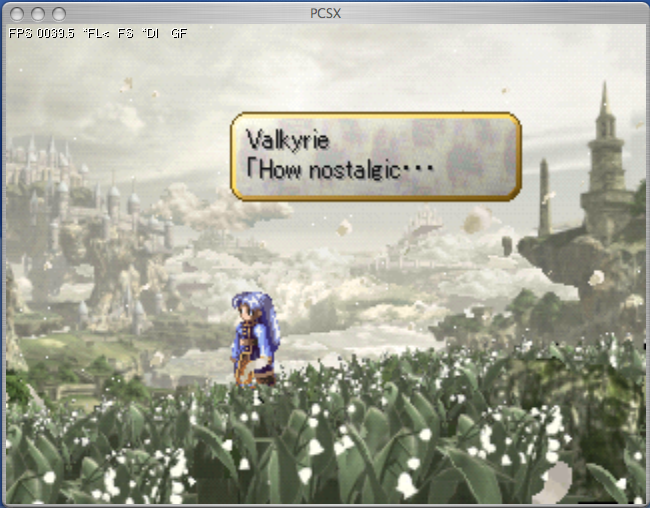
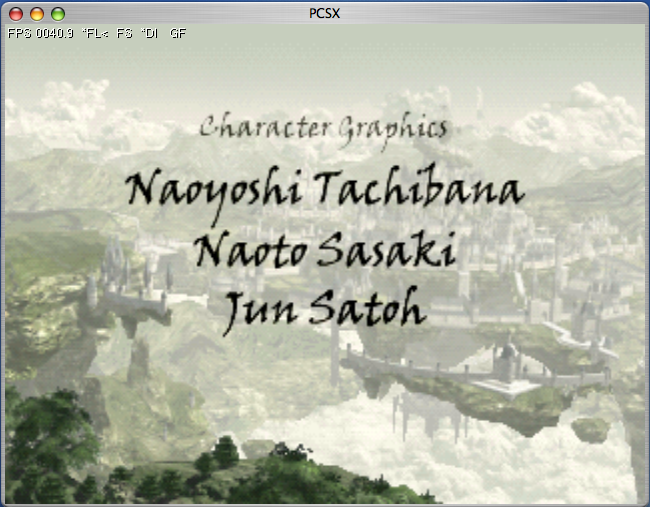
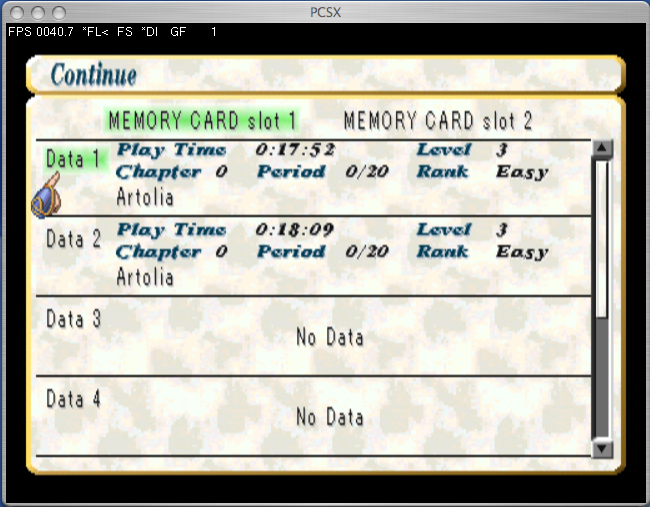
- Wild Arms (PAL):
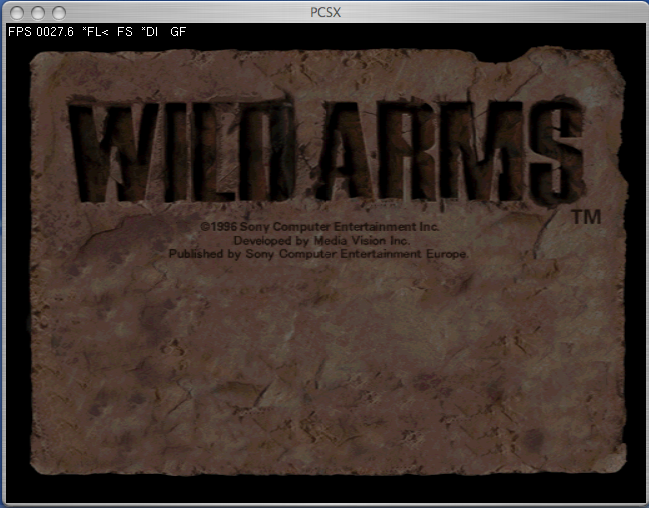
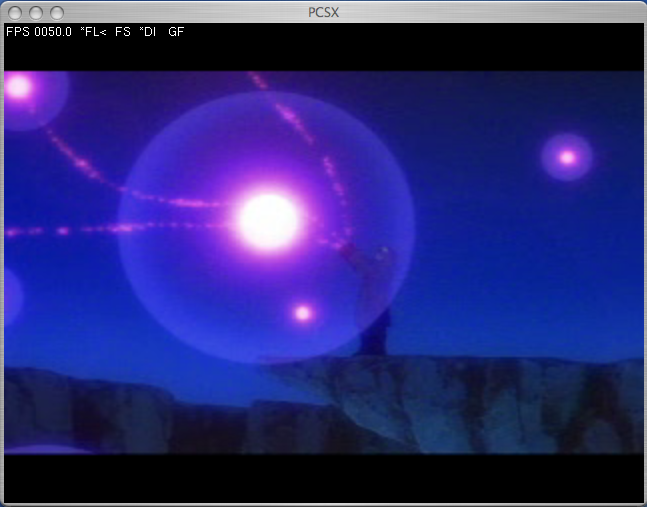
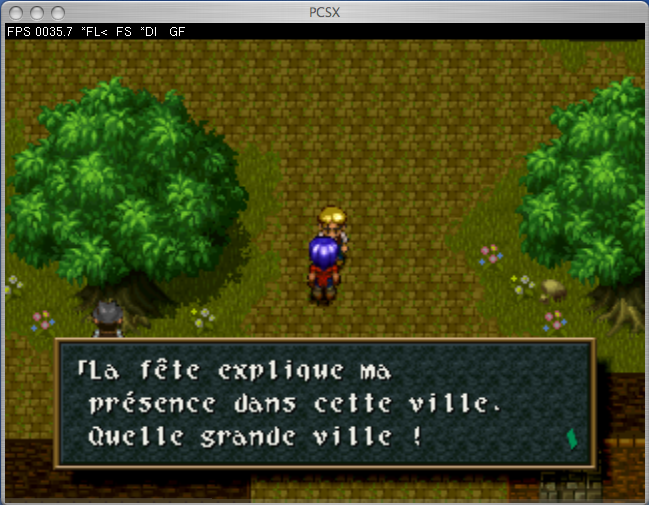
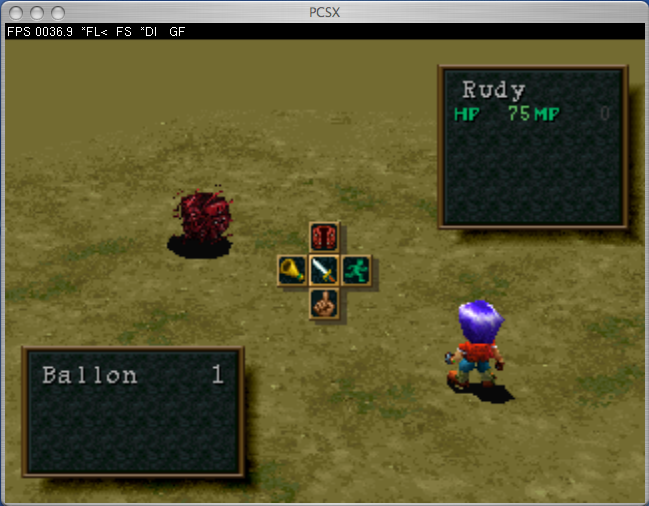
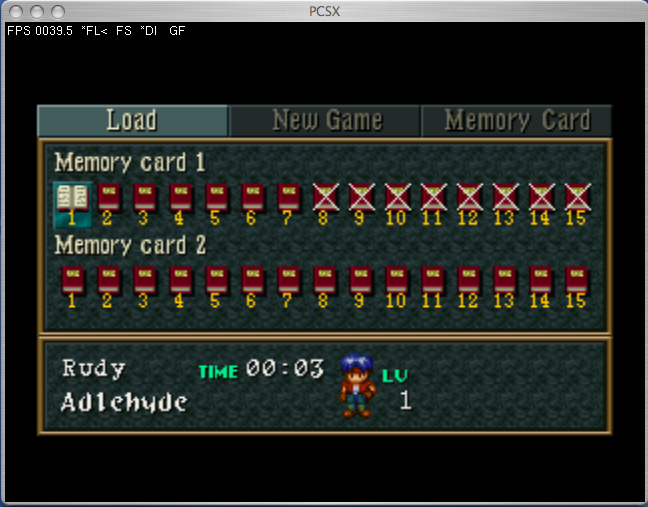
The first installment in the series with a Western ambiance, you will need to quickly press the button simulating Start when you reach this screen, otherwise you will return in a fraction of a second to the introductory cinematic. Apart from that, there are no apparent issues with the three possible quests.
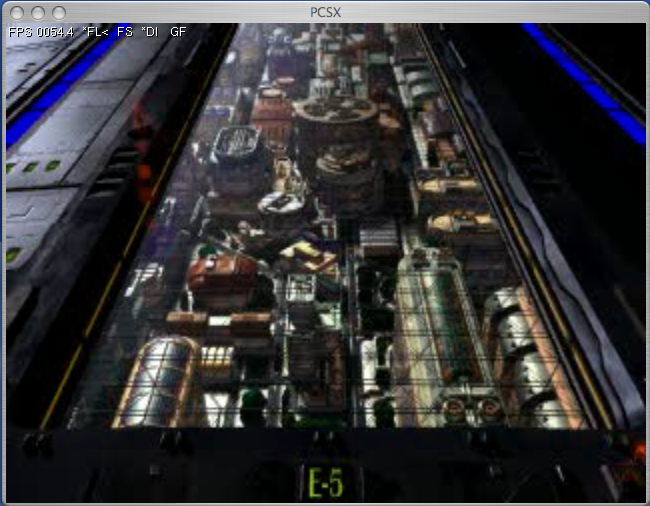
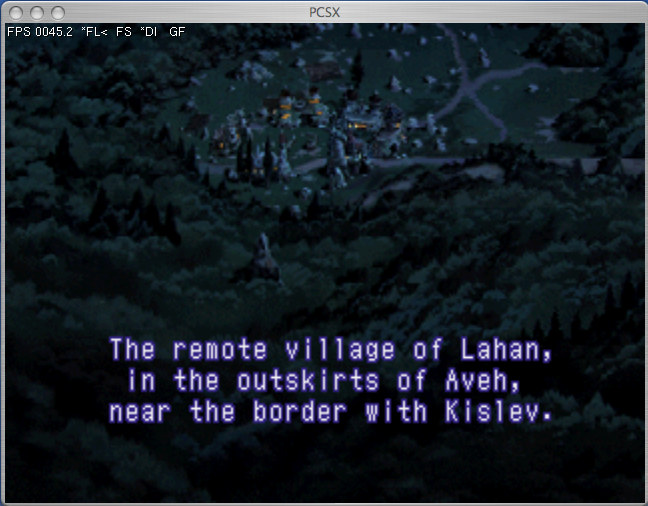
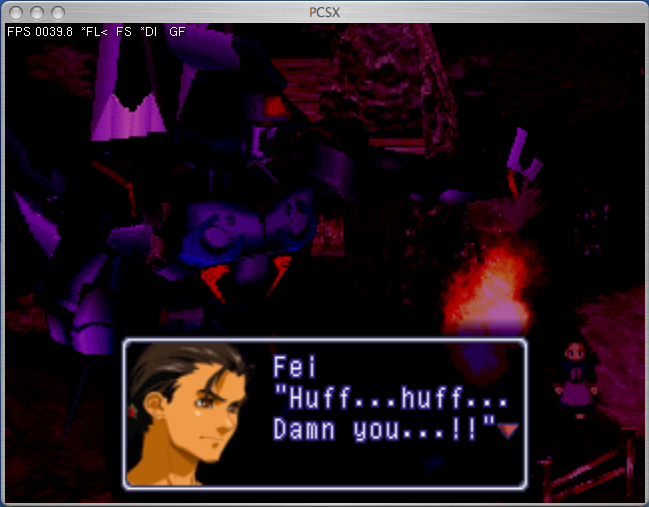
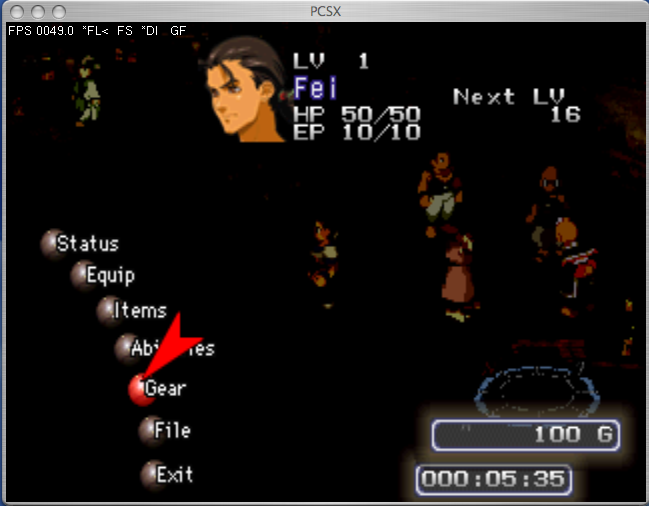
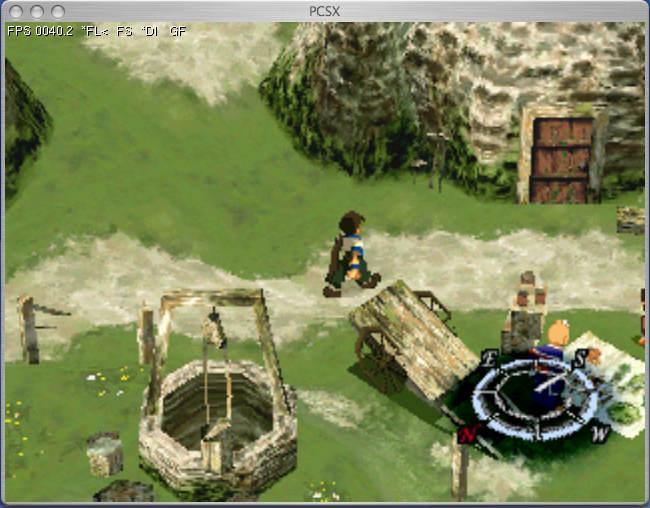
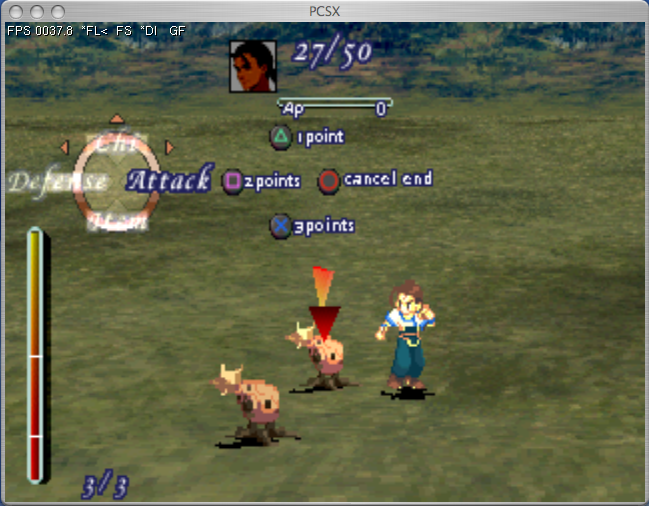
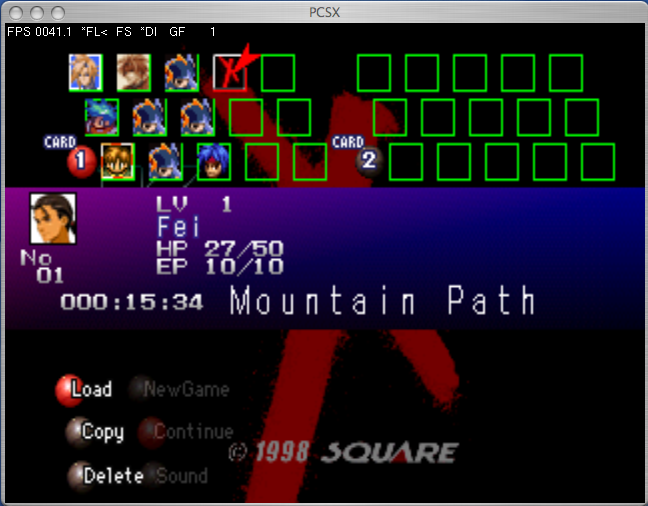
- Xenogears (NTSC-US):
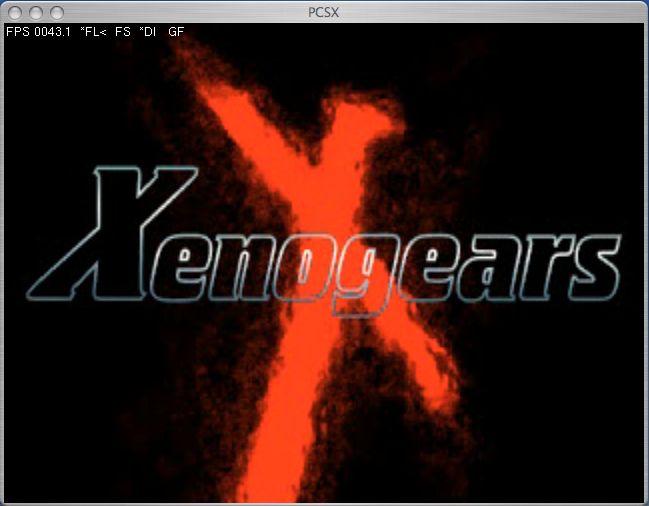
Another hit from the PlayStation by Squaresoft that never saw release in Europe. You will play as Fei Fong Wong, quite skilled in piloting mechs. The story is well constructed and offers many hours of gameplay. The game's emulation appears to be very good.
- Notes:
These games are just examples.
For those who wish to enjoy the experience of Chrono Cross, you will need to make the same adjustments described above for PCSX-Reloaded, namely forcing the region detection to NTSC and modifying the audio plugin settings by setting reverb and interpolation to maximum and enabling the "change XA speed" option.
Chrono Cross (NTSC-US):
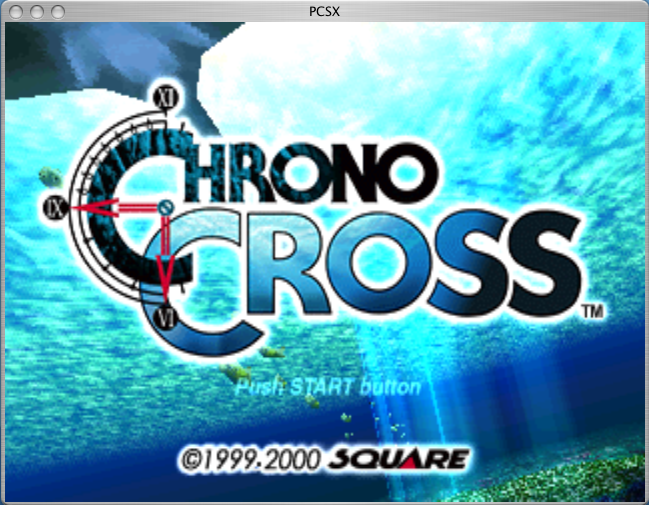
A true hit of the console, even though some prefer its older brother on SNES, namely Chrono Trigger
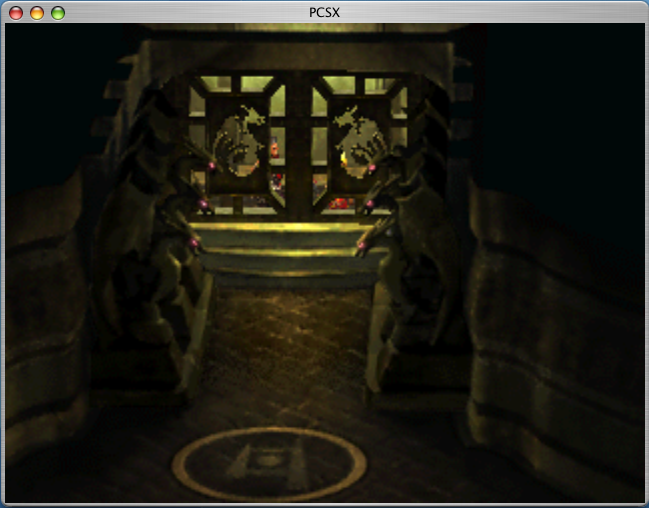
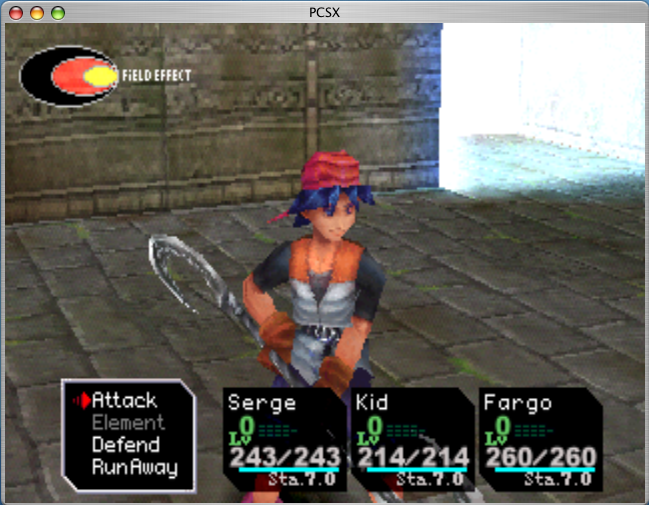
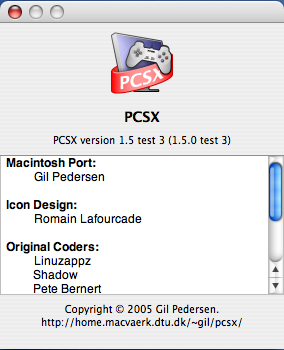
Let’s move on to the configuration of the old version of PCSX for PowerPC Mac users, version 1.5test3, to emulate the NTSC-US version of Final Fantasy VIII on your PowerPC.
Check your PCSX version.
Keep the same configuration as previously described, except that you will need to enable dynarec (and for FF8, there is no need to support XA audio).
For some games, you will need to enable XA audio to get sound and music.
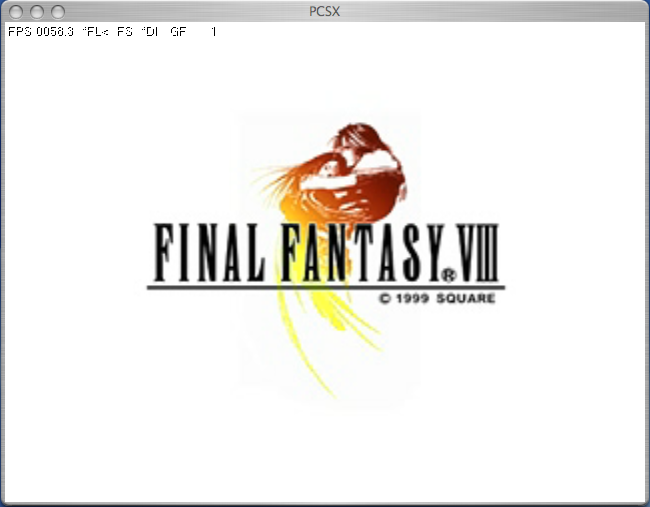
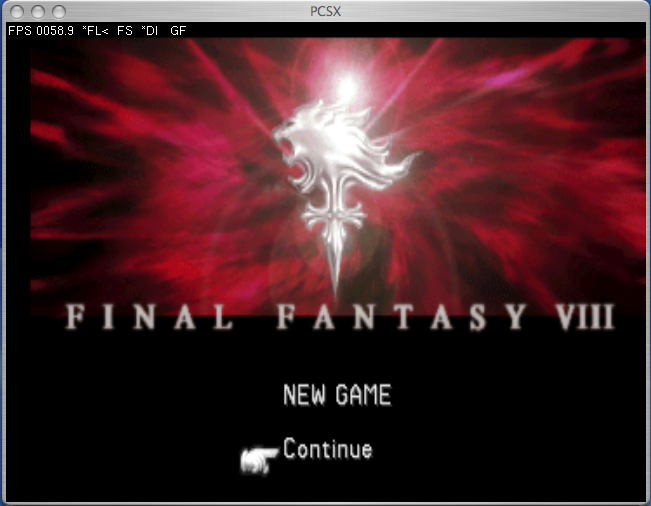
And there you have it: your North American game is now playable at a satisfactory speed. A very beautiful game and a magnificent sequel from Squaresoft that generally pleases fans of the series. Emulation works well.
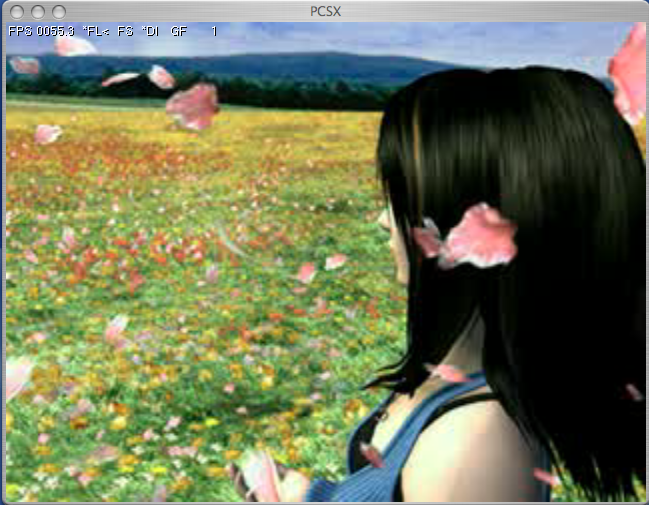
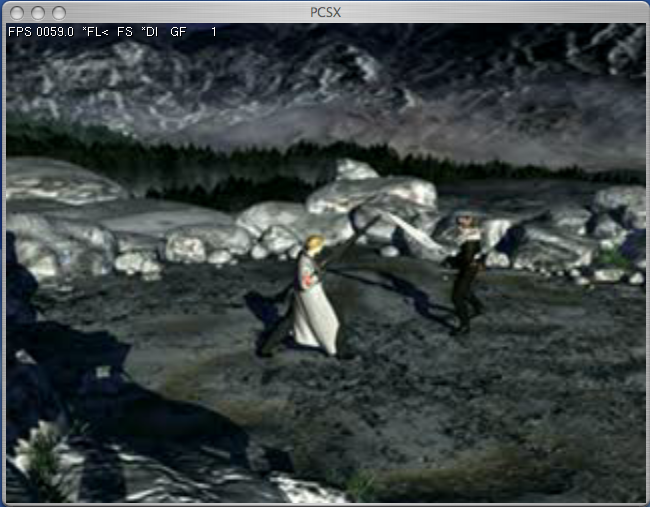
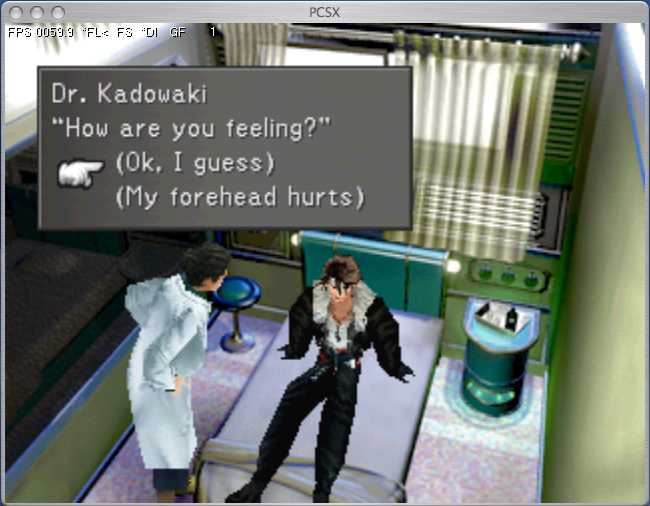
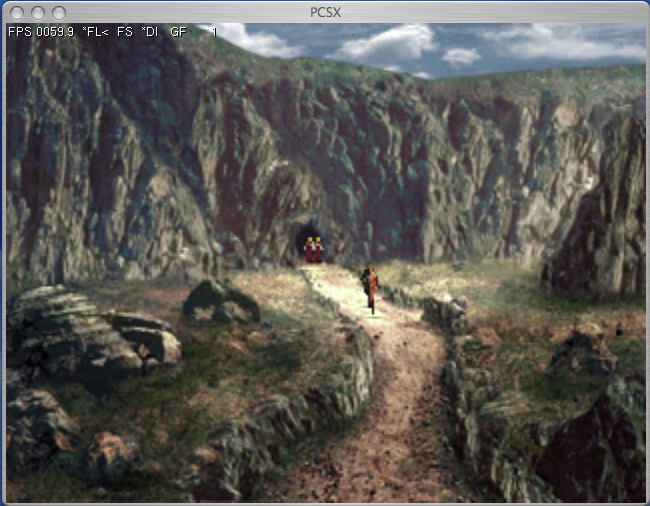
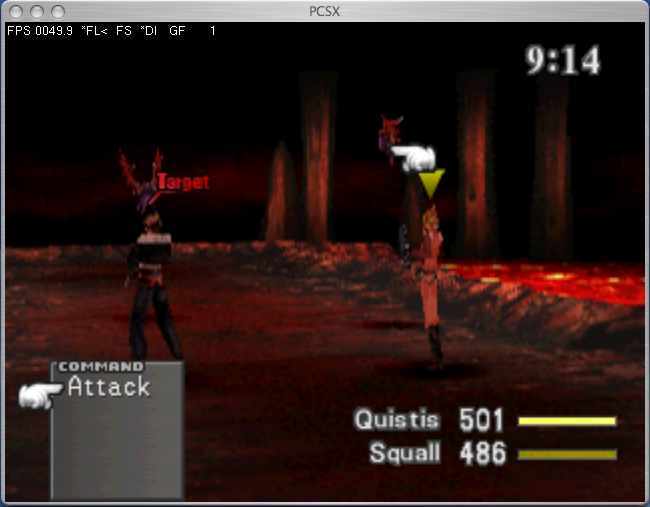
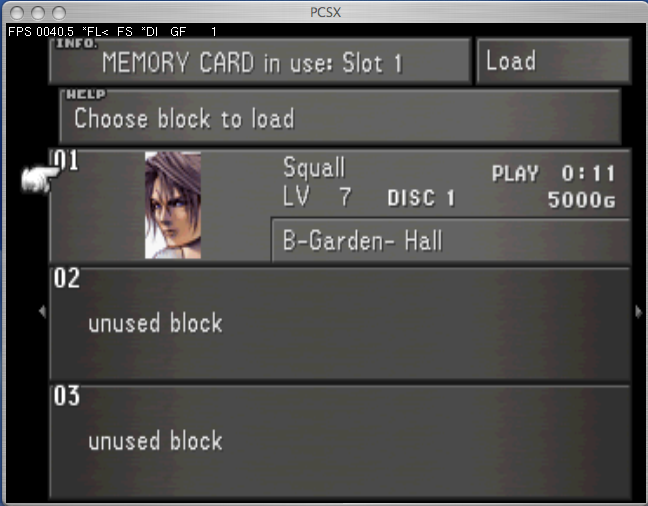
- Note: This North American version of Final Fantasy VIII is also fully supported by the Flarestorm2 emulator, whose configuration options are described below.
Flarestorm2 Configuration
Flarestorm2 is a now abandoned emulator originally designed for the PPC processor, which is not easily accessible but allows, among other things, emulating the North American NTSC version of Final Fantasy IX. For this, we will use the build dated 20040225, which is not the latest but seems to be the only one that correctly supports saves.
The first step is to properly install the emulator. To do this, you must copy the Flarestorm2 binary into the Applications folder (see below the orange arrow) and the LIFramework folder into the system Frameworks folder (see below the red arrow). This last copy requires that your account be an administrator. Your password will likely be requested.
If this is not the case, you will need to manually adjust the permissions of the Frameworks folder from its information panel (if everything goes well, you should have the folder copied correctly, as shown in green below).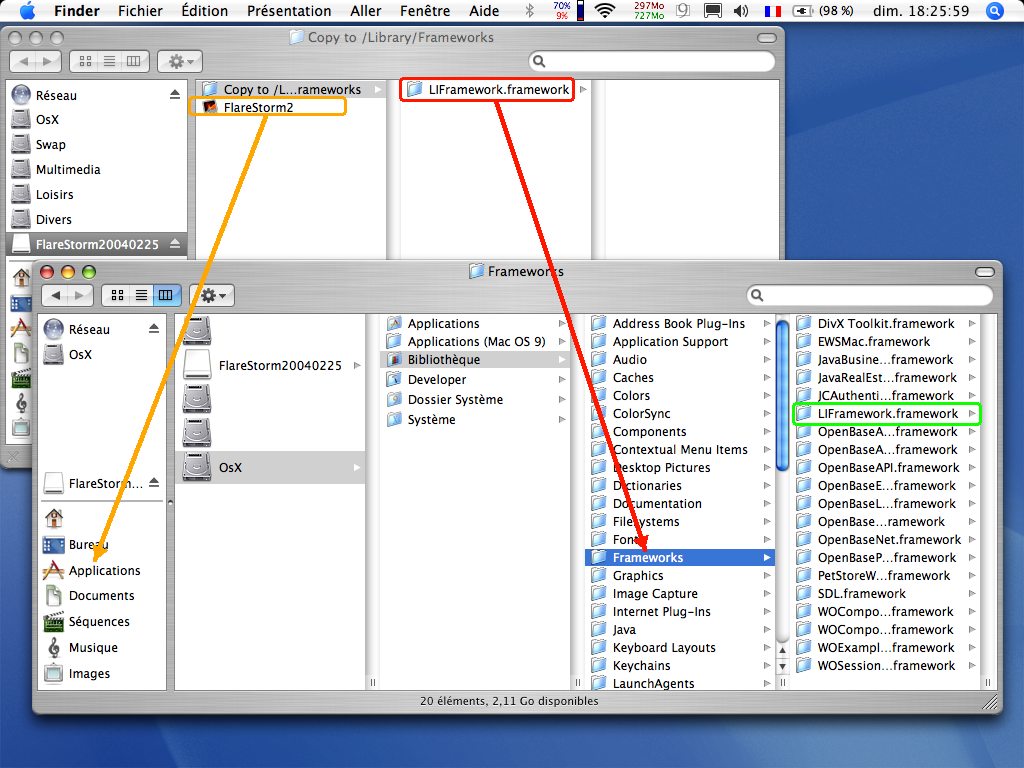
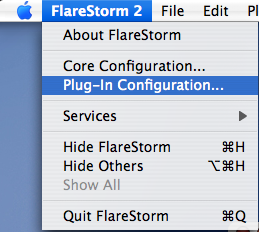
Once this crucial first step is completed, we double-click on Flarestorm2 included in our Applications folder. We now need to configure it to enable sound. To do this, open the plugins panel via the appropriate menu.
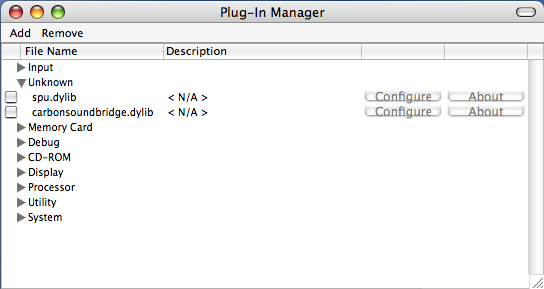
Next, in the Unknown tab, we will select carbonsoundbridge. I remind you that the tests were conducted on a PPC G4, and it appears that the SPU plugin is not supported, likely also the case with an Intel or G5 processor.
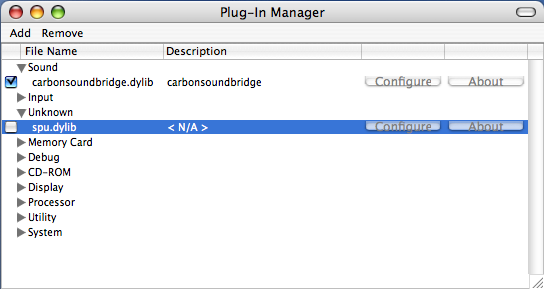
Normally, the plugin should disappear from the Unknown tab to reappear in a new tab called Sound.
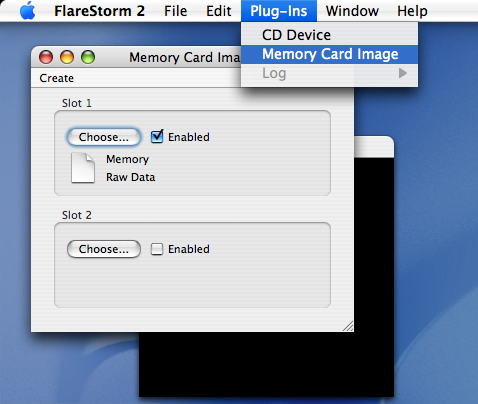
That’s all you’ll need for now. However, it will be interesting to create a Memory Card and then select and activate it.
Now we are ready to enjoy our NTSC North American version of Final Fantasy 9.
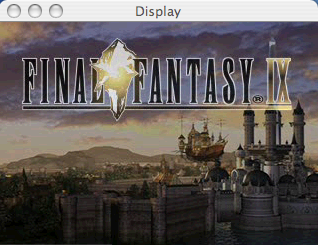
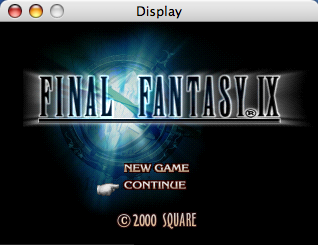
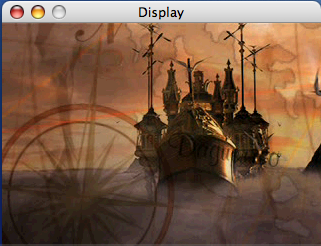
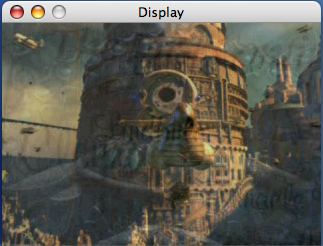
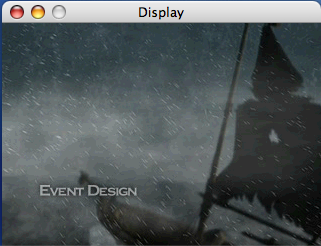
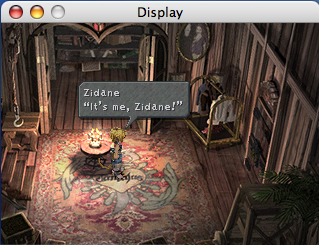
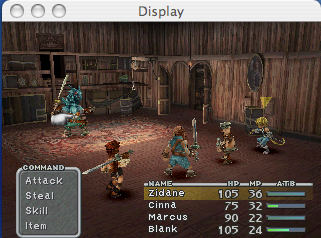
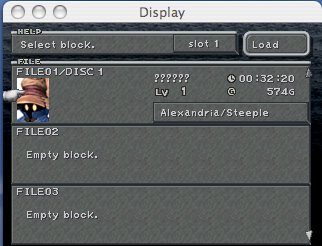
Save management with this 20040225 version seems to work very well, which is not the case with the latest one. For state saves (freeze state), there are no known issues regardless of the version. You will then be asked for the freeze file name and the location where to save it. You will only have to use the Defrost function to reload this state save.
Be careful, however, as to perform a defrost, you will need to stop the emulation if it is active, then run once the loading is successful. If you do not follow this instruction, Flarestorm2 may get stuck indefinitely in the semoule and you will only be able to force its shutdown.
Moreover, it is not uncommon for Flarestorm2 to experience some crashes, so you should not hesitate to save regularly (though not every 30 seconds) just in case. That said, in some cases, upon reopening, Flarestorm2 may offer to return automatically a few seconds before the crash (which has always worked in my case).
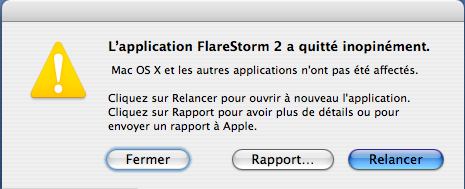
Now you are free to customize Flarestorm2's configuration yourself according to your preferences using its many plugins.
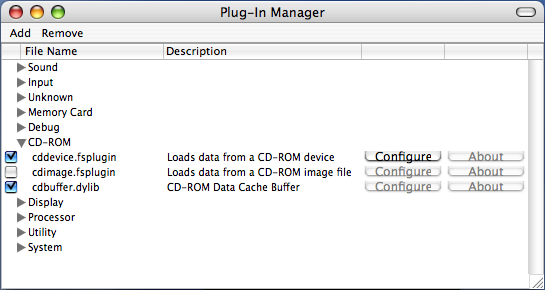
You can enable support for disk images.
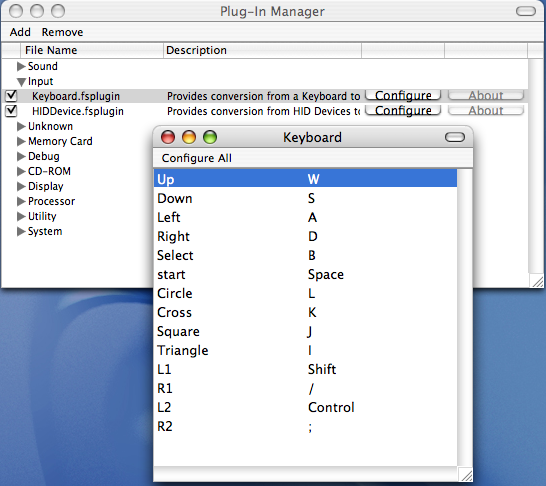
Controllers appear to be supported, and keyboard key mappings can be modified.
You can play in fullscreen mode using the FullScreen and OpenGLFullScreen plugins.
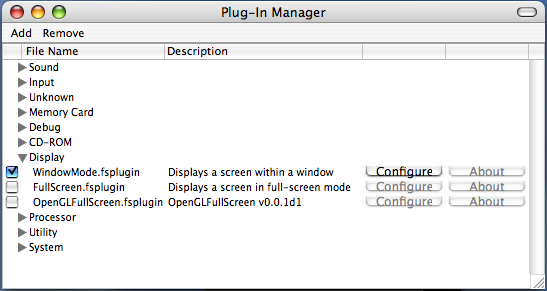
To avoid any issues, only keep the plugin you wish to use checked.
Here is what the FullScreen plugin looks like
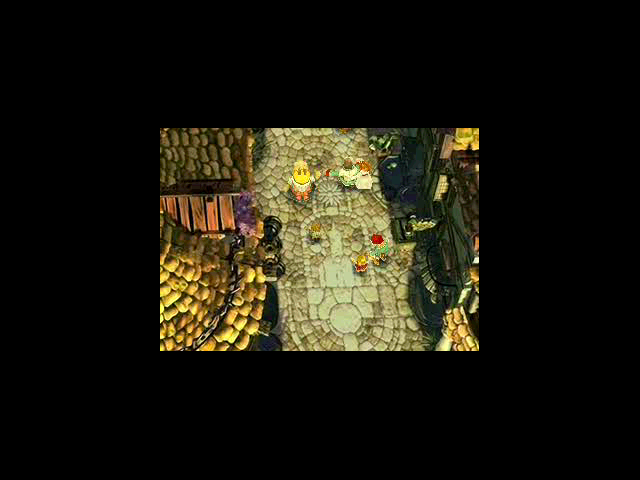
Here is the rendering with OpenGL.

Note that this screenshot was taken with the default configuration of the plugin; you can refine it according to your Mac's power to achieve better quality while maintaining good emulation speed.
To return to the initial configuration, simply delete the Flarestorm2 plist file located in the user preferences folder.
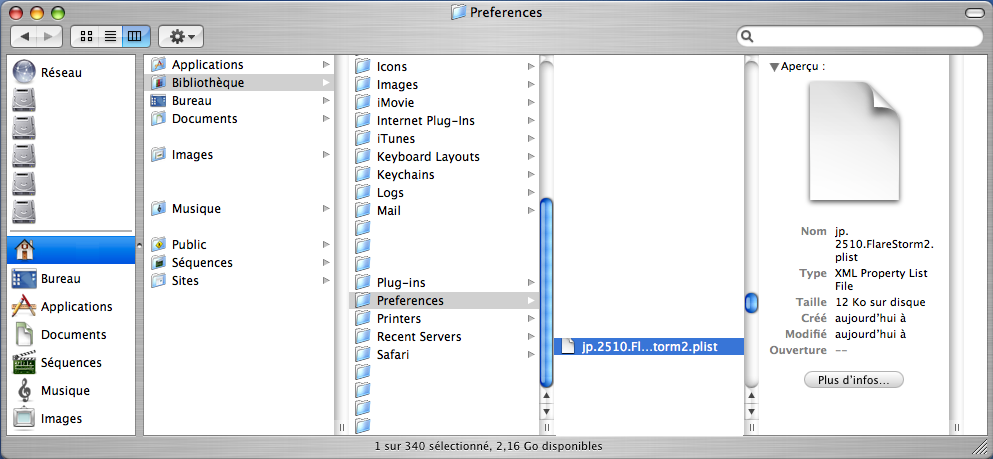
In case of major issues, such as audio not returning, the only solution is to reinstall the emulator.
While Final Fantasy VII PAL French version is emulated by Flarestorm2, this is not the case for the PAL French versions of Final Fantasy VIII and IX; only the North American NTSC versions are supported.
Other NTSC North American games are emulated, such as the role-playing game Star Ocean: The Second Story, which supports save files.
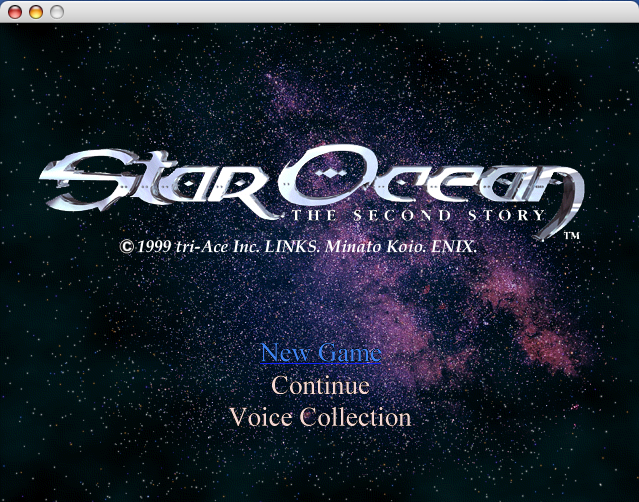
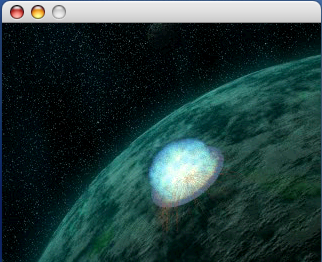
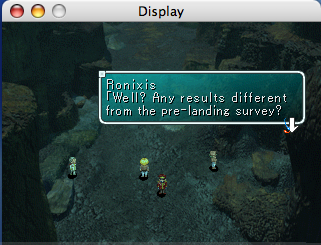
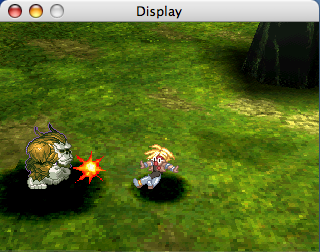
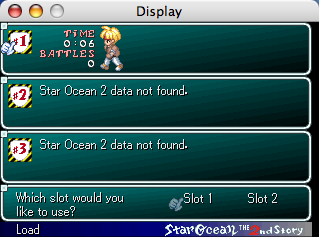
Note also that some PAL French versions of games are supported by Flarestorm2, such as Saga Frontier 2.
Conclusion
A single emulator or emulator version is not enough to support 100% or even 99% of PlayStation games at the moment. We therefore need not hesitate to try different game localizations with different emulators and their versions, as well as test different configurations.
I repeat that the list of games is not exhaustive and that we have proposed here only the most requested games in terms of emulation success. Similarly, the tests were conducted on only two Macs, one Intel and the other PowerPC, so do not hesitate to provide feedback if you have found specific configurations to run a game that did not seem to work with one of these pre-established configurations.
There is a compatibility list here. Do not hesitate to contribute by adding the results of your tests with games that have not been tested or whose results are better than currently listed.
⚠️ This guide is flagged as obsolete.
Related software
Reply on the forum
A question or a hands-on report? Open the discussion on the forum.