Dreamcast Emulation, Tutorial for lxdream.
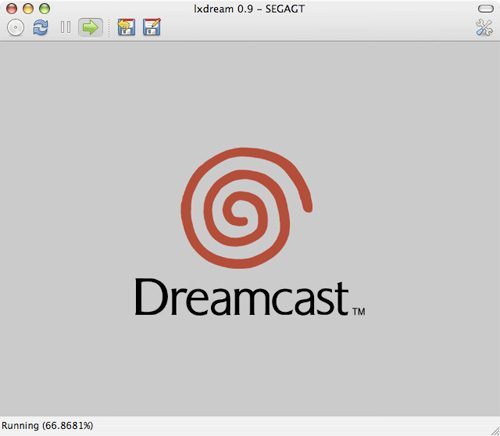
lxdream is certainly the most promising emulator of this year 2008. Its author, Nathan Keynes, is working hard on this project, which evolves quite rapidly. We believe that an "usable" version will soon be available. Even though the current version of lxdream (0.9) does not yet allow playing under good conditions, here is a short tutorial for the most curious among you.
Start by downloading the latest version available on the site. You can also compile the latest intermediate version yourself from the sources provided by the SVN server. For the daring, here is how to do it:
1/ Compilation (optional)
You must have Apple's Developer Tools as well as Fink (see steps 1 and 3 of this article) installed on your machine. Open a terminal, then type:
fink install svn; fink install pkgconfig; fink install libpng3; fink install glib2Install all the proposed packages.
This action installs the libraries necessary for compiling lxdream as well as a command-line Subversion client. There are several graphical applications that allow managing the same thing.
To compile the latest version of lxdream.
Create a folder at the desired location, type cd followed by a space, then drag this folder into the terminal, and finally press return to validate this command.
Type:
svn co http://www.lxdream.org/svn/lxdream/trunk lxdreamThis action asks the SVN client to update the sources located in the lxdream folder. Enter the folder to then compile these sources:
cd lxdream
./configure && make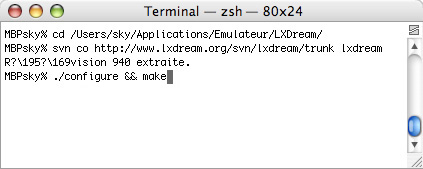
Once the work is done, you will find in the lxdream folder the freshly built lxdream.app application.
2/ Configuration
Downloaded or compiled, launch the obtained application. The user interface of this emulator is quite simple and clear.
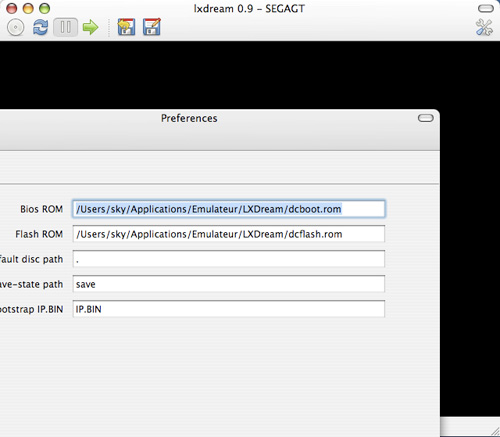
Some action buttons at the top of the window cover all the necessary functions.You need to start by configuring the Dreamcast emulator. Click on the preferences access button located at the top right of the application.
Click on the first field, then drag the Dreamcast BIOS file (named dcboot.rom, dc_bios.bin, ...) into it.
Click on the second field, then drag the Dreamcast flash file (named dcflash.rom, dc_flash.bin, ...) into it.
Click on any other field to validate the last modification.
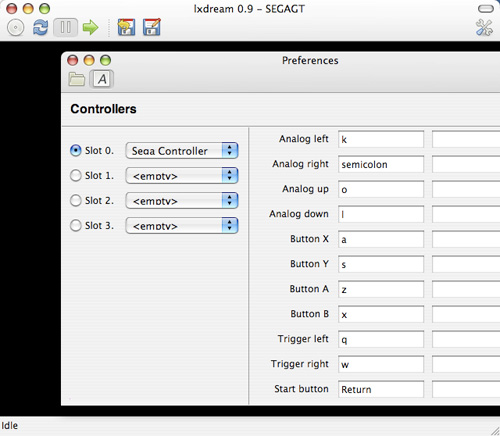
Configure the keyboard keys in the second tab of the preferences interface.
In case of issues, you can access the preferences file, always via the terminal. Type:
open -a TextEdit ~/.lxdreamrcThe file opens with TextEdit, and you can manually change the preferences content. This is, of course, not recommended, but it may help resolve certain problems.
3/ Launching a Game
By clicking on the CD-ROM icon in the main interface, you can choose the game disc image for the Dreamcast to launch. Prefer games in GDI or CDI format; the emulator is normally compatible with NRG images, but we were unable to test this feature.
MDF/MDS or ISO formats are not supported.You can then launch the game with the "Run" button, whose icon is a green arrow.
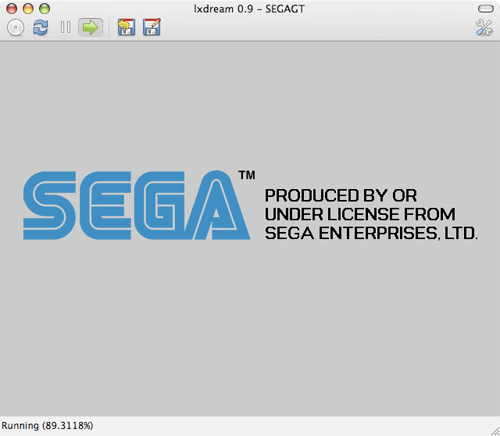
4/ Known Issues & Solutions
If the application displays an alert when selecting your image, it means it is not (yet) compatible with this version of lxdream.
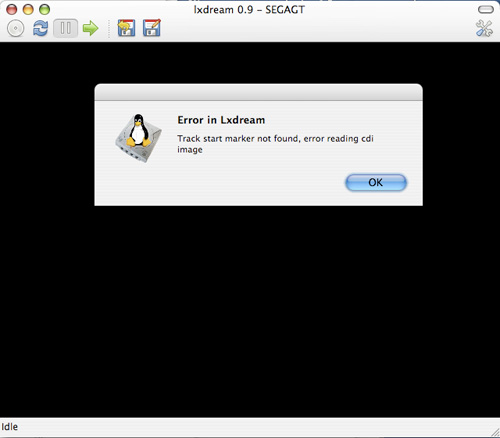
If lxdream displays the animated Dreamcast logo, it means your BIOS settings are correctly configured.

Once past the Dreamcast logo, if you arrive at the Dreamcast management interface, it means no image has been selected. Another possibility is that your image is not bootable or is not compatible with the current BIOS (NTSC-U, NTSC-J, PAL) in the case of an image in GDI format.
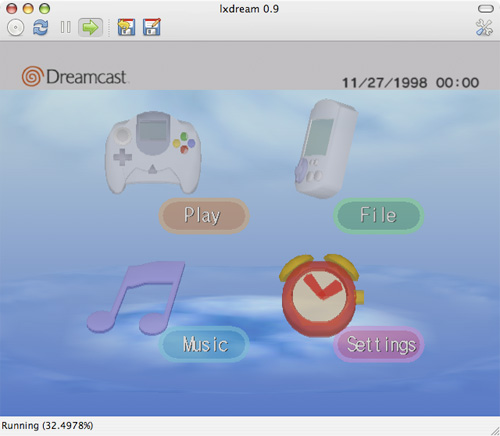
While playing a game, errors may occur, and the game will then be paused. Sometimes, you can restart the game by pressing the "Run" key.
If the game launches but crashes without displaying any error, it may be due to an incompatibility with the game. An incomplete compatibility list is available on this site. If your game is not on the list, you can still submit your report.
Le Mans 24 Hours:
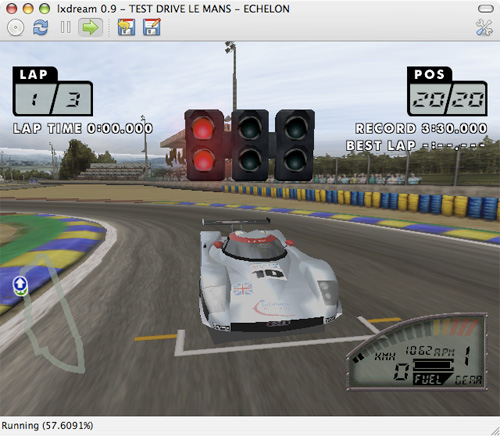
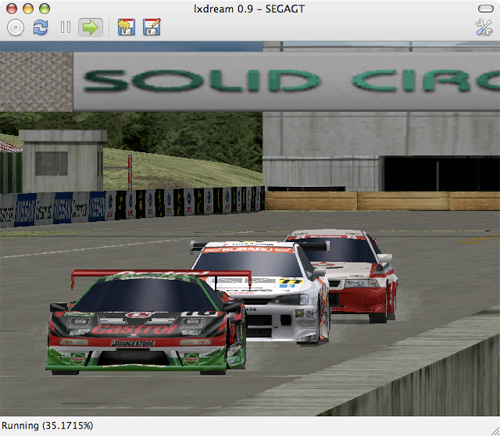
Sega GT:
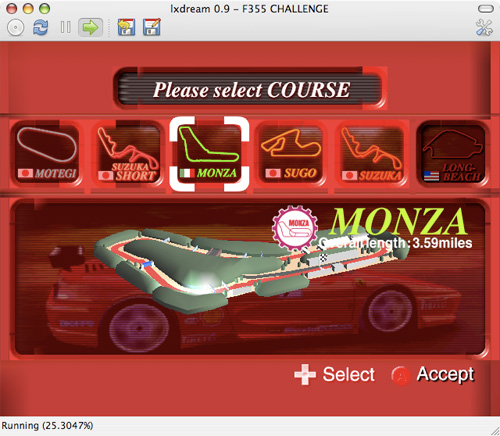
F355 Challenge:
⚠️ This guide is flagged as obsolete.
Related software
Reply on the forum
A question or a hands-on report? Open the discussion on the forum.