DOSBox - Tutoriel
Before anything else, we need to download DOSBox. Personally, I use Shawn Holwegner's port 0.61 available on his website.
To begin, it's best to prepare a directory. Mine will be named dosbox and will be located in my Games partition. I will now create a games directory within my dosbox directory and copy the DOSBox application into it.
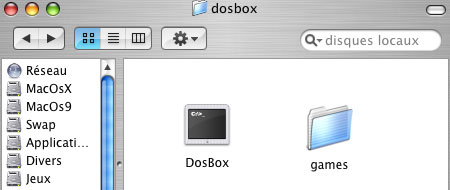
I then launch the DosBox application and here is what I get:
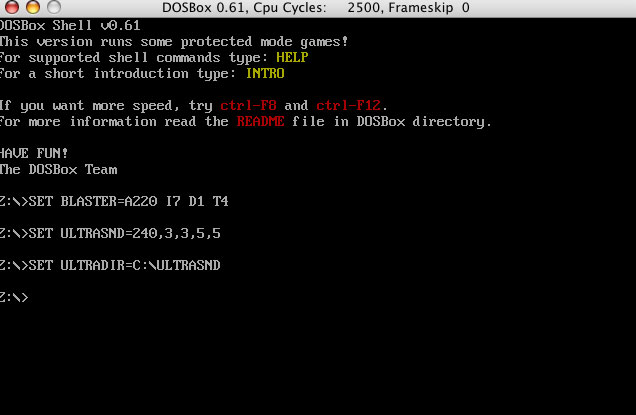
I noticed that most of the time, the keyboard is set to QWERTY. To switch it back to AZERTY, you need to type the command keyb fr.
I decide to mount the C partition that I will associate with my games directory. I therefore use the following DOS command:
MOUNT C "/Volumes/[Partition]/[Directory1]/.../[DirectoryN]"Note: [Partition] is the name of your partition or hard drive if you haven't partitioned it (for me, it will be Games, see below)
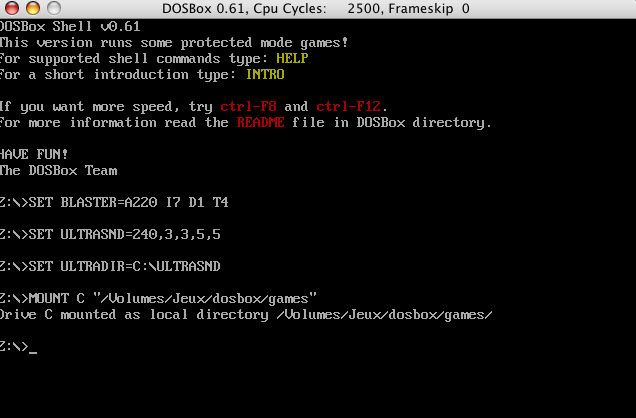
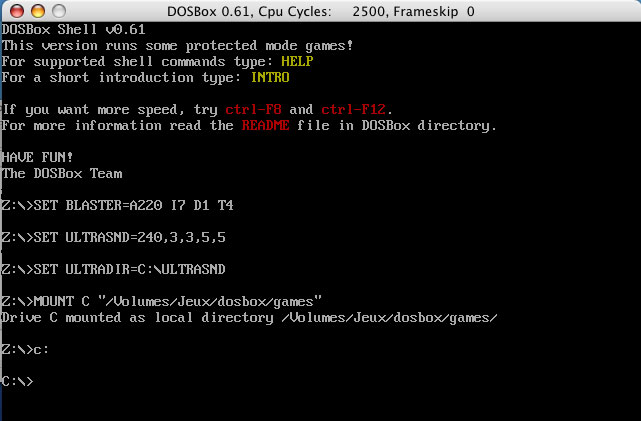
You can access your C drive using the command c:. In my case, this places me in the games directory.
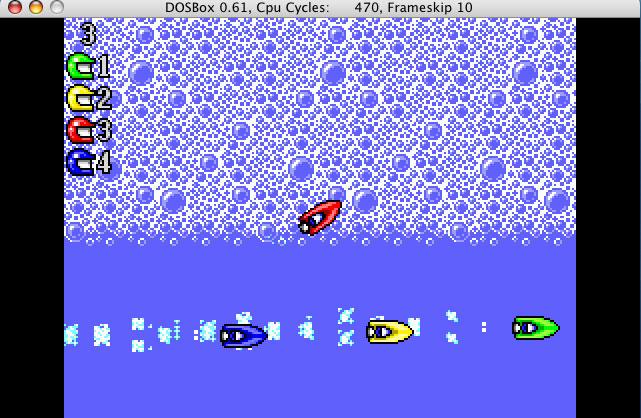
In the Mac OS X Finder, move the folder containing your game data into the one corresponding to your C under DOSBox. For example, I copy my MICROM folder (the Micro Machines game) into the games folder.
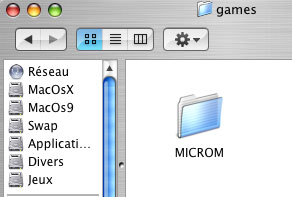
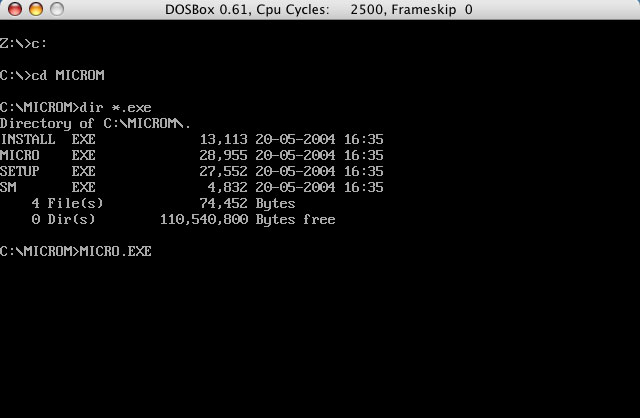
All that remains is to navigate to the game directory within DOSBox using cd [Directory], then launch the executable (.exe, .com, or .bat) that starts the game or its installation.
Your game might be on a floppy disk or a floppy disk image. If you have a floppy disk drive on your Mac, insert the game disk, or mount the floppy disk image on your desktop.
Use the following command: MOUNT A "/Volumes/[FloppyDiskName]" -t floppy. Then navigate to the floppy disk directory with A: and launch the game or game installation as previously described.
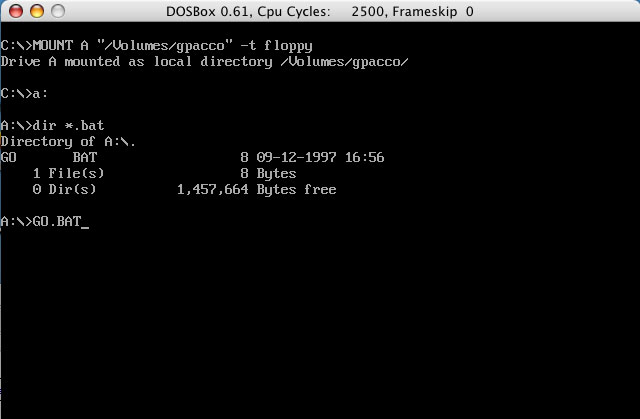
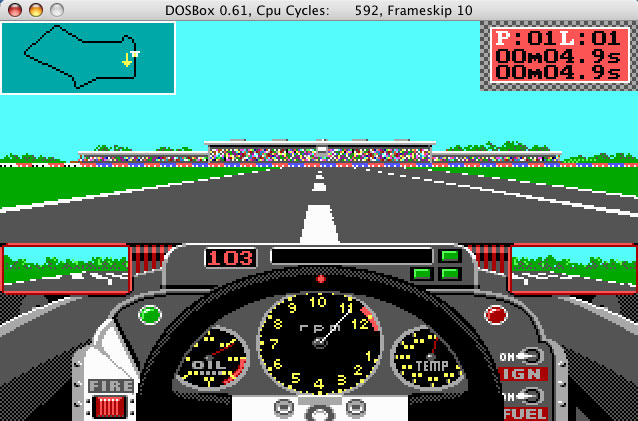
For CDs or CD images, proceed as with floppy disks, except that the floppy parameter becomes cdrom. Hence the command MOUNT D "/Volumes/[CdRomName]" -t cdrom. Type D: and launch the installation or game.
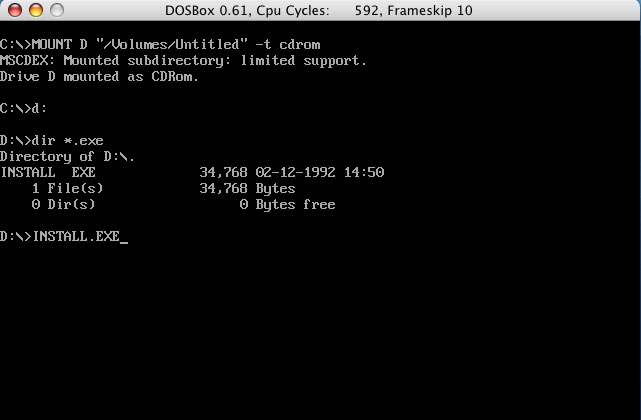
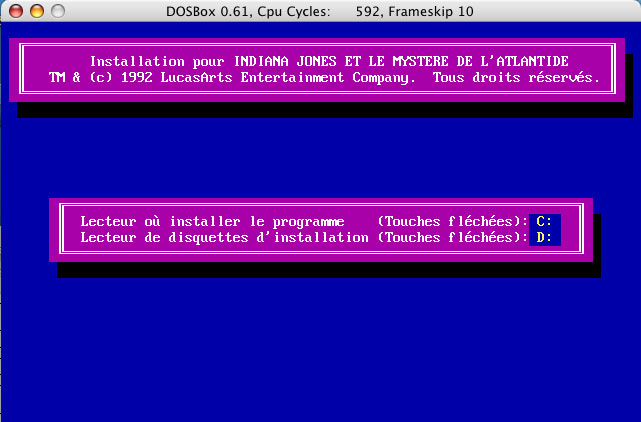
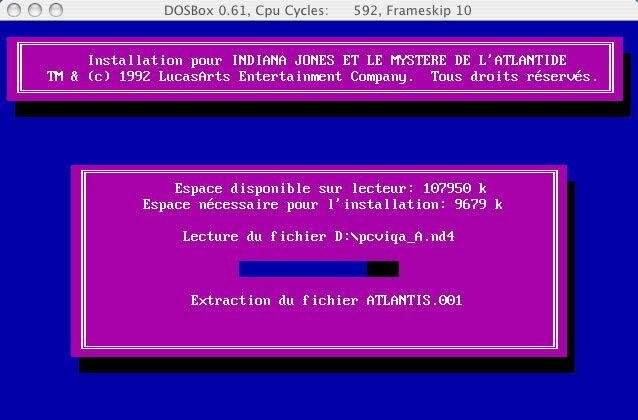
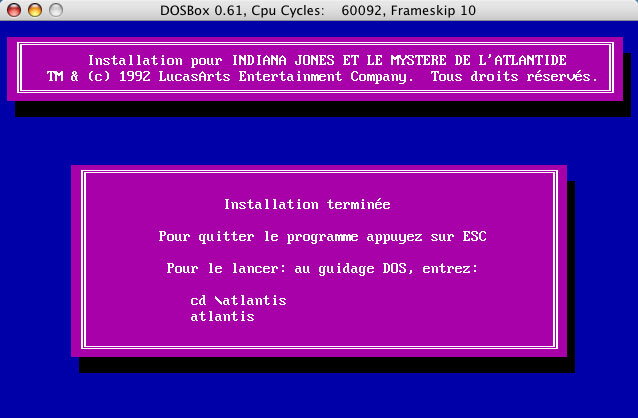
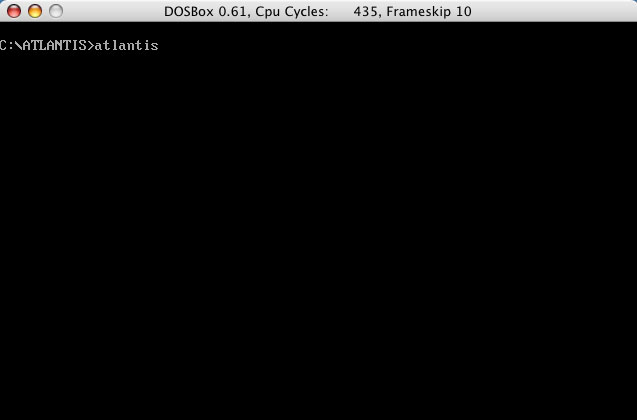
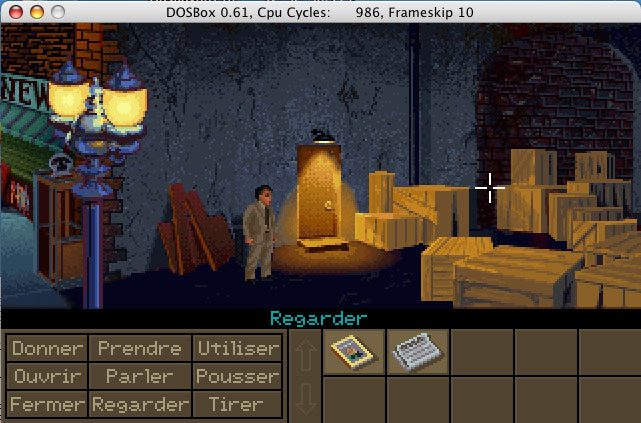
Note that macOS may not display the actual names on your desktop for PC floppy disks or CDs you insert. The actual name to use with DOSBox is the one displayed by your terminal.
To find out, open a terminal and type ls /Volumes. Then look at the actual name the terminal displays for the volume.
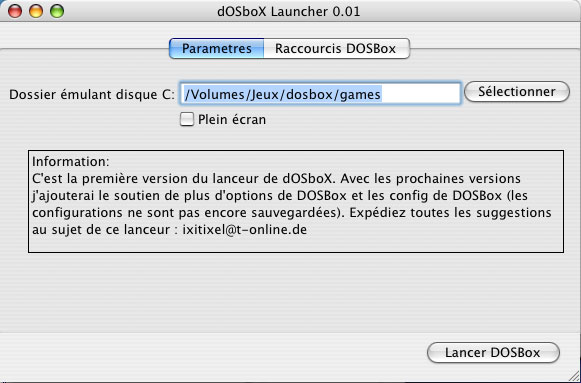
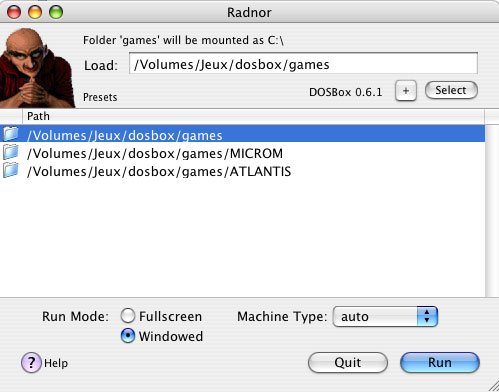
Let’s now talk about the different launchers for DOSBox. There was DOSBoxLauncher (http://www.ixitixel.privat.t-online.de/ link dead) and Radnor (http://sveinbjorn.vefsyn.is/radnor link dead). These two launchers mainly allow you to specify the folder you want to mount as C in DOSBox. They also include the emulator.
The last one, Radnor, lets you specify multiple ones and thus choose the one you want when launching DOSBox.
For those who might have a small memory gap with DOS commands, here’s a quick recap that could be useful:
cd [Directory]: go to the specified directory.cd ..: go back to the previous directory.rename [File1] [File2]: rename File1 to File2.copy [File1] [File2]: copies File1 and names it File2.delete [File]: deletes the specified file.mkdir [Directory]: creates the specified directory.rmdir [Directory]: deletes the specified directory.dir: displays the contents of the current directory.dir *.exe: displays all elements in the directory ending with ".exe". This works with *.bat or *.com to search for game executables or installers.dir/p: displays the directory contents on multiple screens.
The Enter key displays the next item, and the space key shows the screen containing the list of following items.cls: clears the screen.help: displays help (available commands with DOSBox).exit: quits the command-line session (exits DOSBox).
Note: the DOS separator to specify a path is the backslash '\', but with DOSBox it remains the slash '/' like macOS X for convenience. Also, for laptop users, you will need to press the "fn+à" combination to type a slash in DOSBox or modify the conf file. Similarly, you will likely need to press the "fn" key to use the F1-F12 keys.
Finally, here is a brief reminder of the main keyboard shortcuts for DOSBox (in plain terms for those who don't understand English):
[alt]+[Enter]: switch between fullscreen mode and windowed mode and vice versa.[ctrl]+[F7]: reduce the number of non-displayed frames per second.[ctrl]+[F8]: increase the number of non-displayed frames per second.[ctrl]+[F9]: quit DOSBox.[ctrl]+[F11]: reduce the number of CPU cycles.[ctrl]+[F12]: increase the number of CPU cycles.
Once comfortable with the emulator and its settings, here are some useful tips from Sky to modify the DOSBox configuration file using its folder named dosbox.conf, the DOSBox configuration file".
Related software
Reply on the forum
A question or a hands-on report? Open the discussion on the forum.