Getting Started with Redream
About a dozen years ago, we tested Lxdream. It was, at the time, the most powerful Dreamcast emulator.
Today, LxDream is unfortunately no longer updated, and our salvation now comes from Redream, another Dreamcast emulator.
Unlike LxDream, you don’t need to compile Redream to use it. It still comes in the form of an application to launch from the terminal.
This article aims to help you launch your first games on this new-generation emulator.
Installation
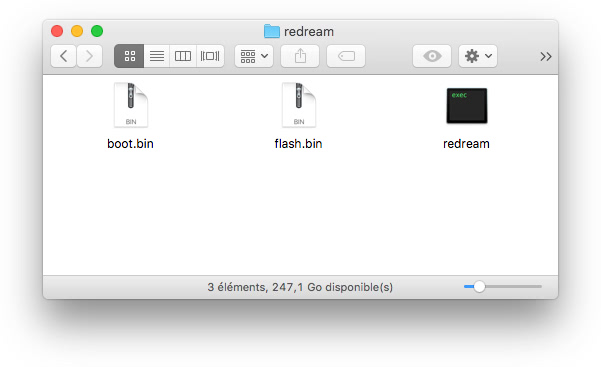
Once downloaded, place the application in a dedicated folder. Then place the boot.bin and flash.bin files, which you will have previously found online, in the same folder. These files are easily found with a simple search on any search engine.
Once you have your three files, it’s time to open the application for the first time.
Quick Start
To do this, open the Terminal application located in /Applications/Utilities, then drag the application into it, drag in a ROM in CDI or GDI format, and finally validate.
Normal Start
The classic startup allows you to access the application’s interface and its settings. This is necessary to get started with Redream properly. You will also be able to save a library of your games to find them more quickly the next time.
Let’s open the application without assigning a game. To do this, open a terminal, drag the application into it, and validate.
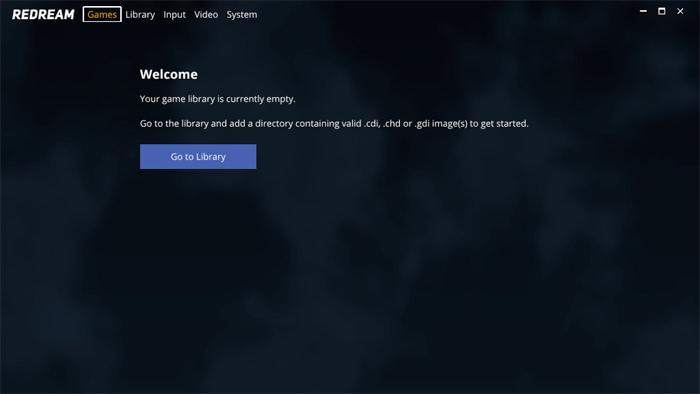
The application will open from its own interface. It features 5 tabs. The first tab will display your games, the second will allow you to add folders for your library, the Input tab lets you manage the keyboard or your controllers, and finally the Video tab lets you configure the two settings dedicated to video, while the System tab handles the few settings dedicated to the Dreamcast system.
Keyboard Settings
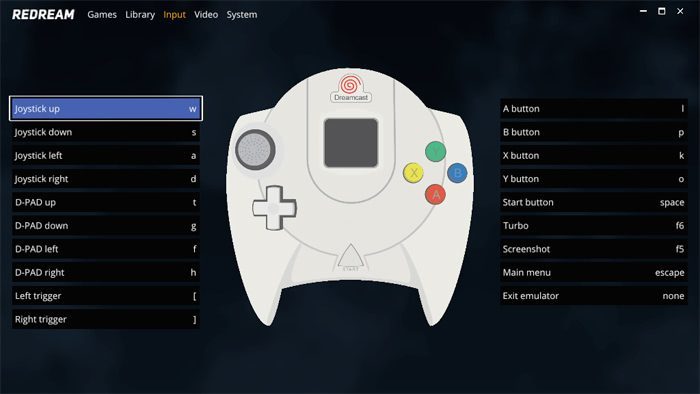
For convenience, I start with the keyboard configuration, as the default settings are configured for a US keyboard. To modify it, simply go to the Input tab, port 0, and click Customize binds.
You can then configure your keyboard as you wish.

Note that if you connect a DualShock 3 controller, it will be automatically configured. The DualShock 4 controller is not fully recognized and will display as a Wireless Controller, but it seems to be correctly configured as well.
Video and System Settings
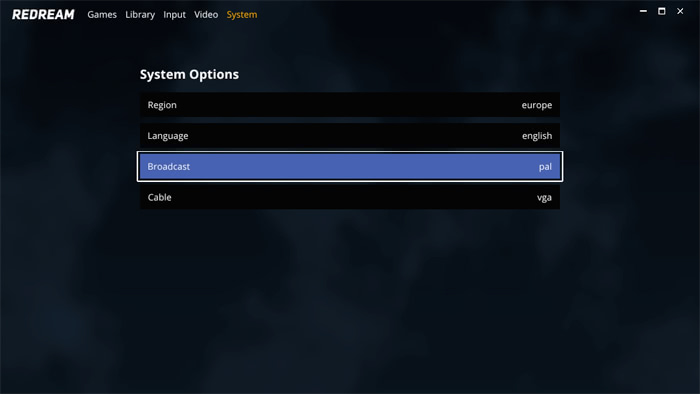
Video settings are quick to adjust: choose fullscreen, then select 4:3 display or stretch. On the system side, you can choose the region, default language, and NTSC or PAL display. It may be necessary to adjust the region and NTSC or PAL display depending on the game you want to launch and its origin.
Library Configuration
In the Library tab, click the Add Library button. Navigate to your folder containing Dreamcast ROMs, then click the Add "your folder" to library button.
The application will then automatically add the available games from that folder to your library. It will search through subfolders, so don’t worry if you have a GDrom organized into multiple elements and neatly stored in a folder.
You just have to select the game you want to play to launch it.
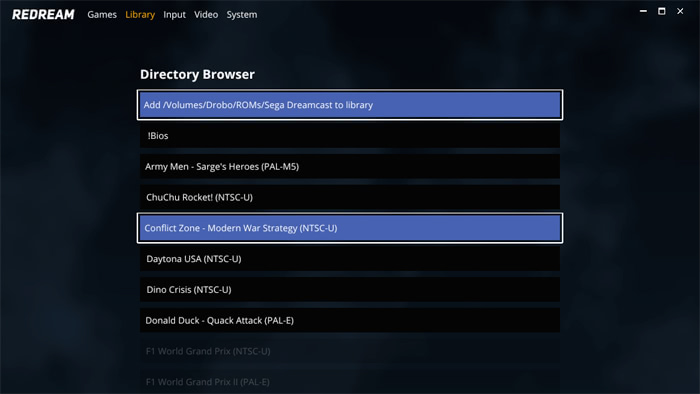
Every time you launch the application, it will check the available games in the folders you have indicated.
Compatibility
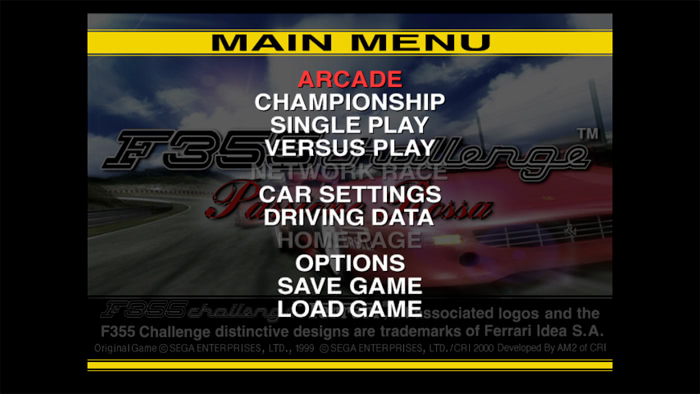
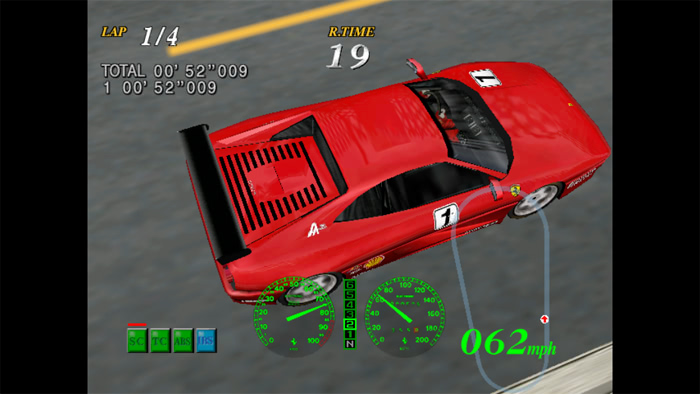
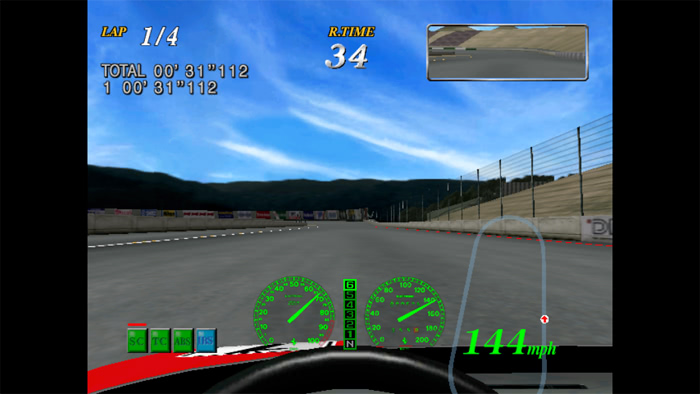
Redream's compatibility is excellent, far superior to what was known with LxDream. The application's website features a long compatibility page covering all games released on the console. You can also share your experience, in French, on our platform MECL.
Lite Version or Premium Version
While Redream was originally an open-source emulator, it is no longer the case since January 2018. The sources have become proprietary, and the developers hope to compensate for their work with their Premium version (5$). Fortunately, Redream still offers a free Lite version, allowing you to run all supported games. The Premium version adds HD texture support and our support for the game developers.
Related software
Reply on the forum
A question or a hands-on report? Open the discussion on the forum.