Discovering Emulation on macOS with OpenEmu
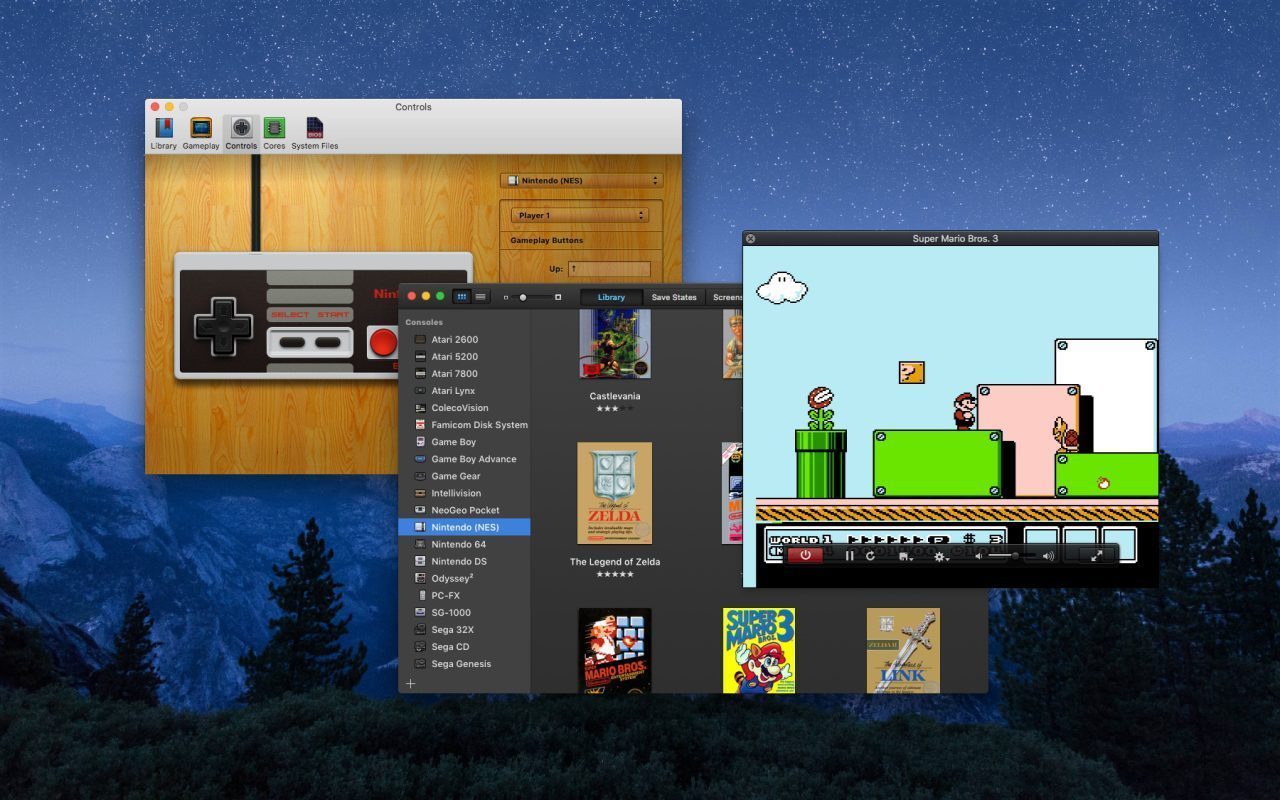
You've always wanted to relive the games of your childhood but don't know where to start? How does it work?
This article is therefore aimed at those who have never dared to touch emulation and who would like to get started simply and effectively in this field on their Mac.
Emulation Principle
Emulation is a simple principle that consists of replacing a defined hardware platform with a program. This program must be capable of reproducing all the commands that are usually executed by the hardware.
Thus, for each "hardware" you want to emulate, you will find a different program capable of running the applications dedicated to it. For example, snes9x is a Super Nintendo emulator and is capable of reproducing the functioning of a Super Nintendo on your Mac (and other platforms where the application is available).
But on Super Nintendo, we had cartridges. How do you connect these cartridges to your Mac? Obviously, we won't connect these cartridges directly to the Mac; instead, we will use ROMs that the emulator can read.
A ROM is an export of the cartridge content in the form of a computer file. With the appropriate hardware, you could create your own dumps of your old cartridges to obtain the corresponding ROMs. In practice, the easiest way is to find them online through a simple search on your preferred search engine. However, legally, you can only own dumps of cartridges that you own, as a backup.
You may find several versions of the same game for the same platform, each labeled with additional letters. These indicate the quality of the dump and the version of the ROM. You will find more information in our dedicated article on ROM nomenclature.
Emulation aims to reproduce the behavior of hardware as faithfully as possible.
As a result, it is never perfect, and the more recent the hardware, the more complex it is, and the more difficult it is to emulate. While emulating a Super Nintendo is now extremely efficient, almost perfect, emulating a PlayStation 2, at the time of writing this article, is still experimental, with only a few games being emulatable, and these are, of course, the simplest ones, using the least advanced functions of the console.
Getting Started with OpenEmu
Why OpenEmu?
OpenEmu is an emulator that supports many well-known gaming consoles. By default, it is a simple interface with many cores, each dedicated to emulating one or more platforms. These cores come from existing emulators, so you could choose to use each emulator independently or use OpenEmu, which allows you to gather all these emulators within a single application.
Moreover, OpenEmu is a "modern" application; it integrates perfectly with macOS, both in its features and design. Like most modern applications, it comes with an integrated update system. Finally, it has a fully French interface, which we find very pleasant and easy to use.
Which Platforms Does OpenEmu Support?
As I mentioned earlier, the multi-core system allows emulating a wide variety of platforms. Here is the list:
- Atari 2600
- Atari 5200
- Atari 7800
- Atari Lynx
- ColecoVision
- Famicom Disk System
- Game Boy
- Game Boy Advance
- Game Gear
- Intellivision
- NeoGeo Pocket
- Nintendo (NES)
- Nintendo 64
- Nintendo DS
- PC-FX
- SG-1000
- Sega Master System
- Sega Megadrive
- Sega Megadrive 32X
- Sega Mega-CD
- Sega Saturn
- Sony PSP
- Sony PlayStation
- Super Nintendo (SNES)
- TurboGrafx-16
- TurboGrafx-CD
- Vectrex
- Videopac+
- Virtual Boy
- WonderSwan
Not bad at all? There are enough platforms to start well in the world of emulation.
You may not know all these platforms? No worries, and honestly, neither do I! But above all, OpenEmu allows you to select the ones you wish to see in the main interface from the Library tab in its preferences.Library Configuration in Preferences
You can thus keep only the platforms that interest you.
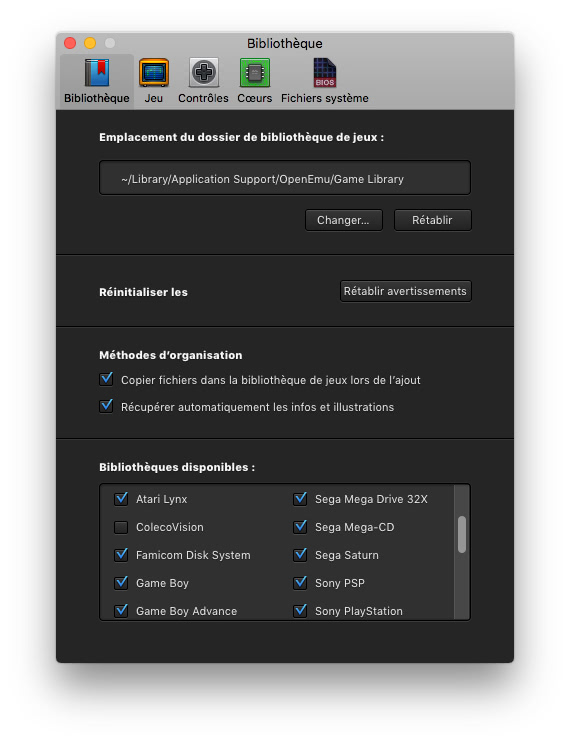
Now that you have selected the platforms you want, you need to enable the corresponding cores. Some cores will only manage one platform, while others will manage several. This is the case of Mednafen, which manages more than a dozen.
Still in the application's preferences, in the Cores tab, you can install those that are necessary depending on the desired platforms.
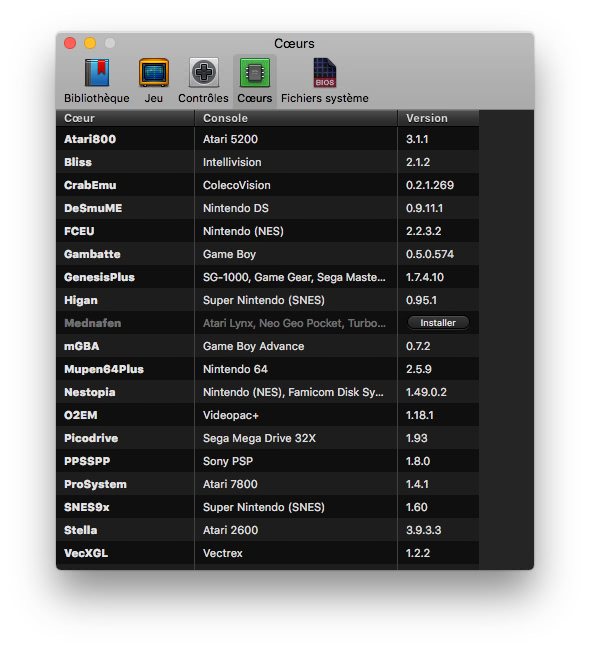
To do this, simply click the install button at the end of the line. The software will take care of the rest.
To check that you have all the cores necessary for using your platforms, just look in the Libraries tab if an exclamation mark appears next to the platform; it means you are missing a core.
Adding ROM Files
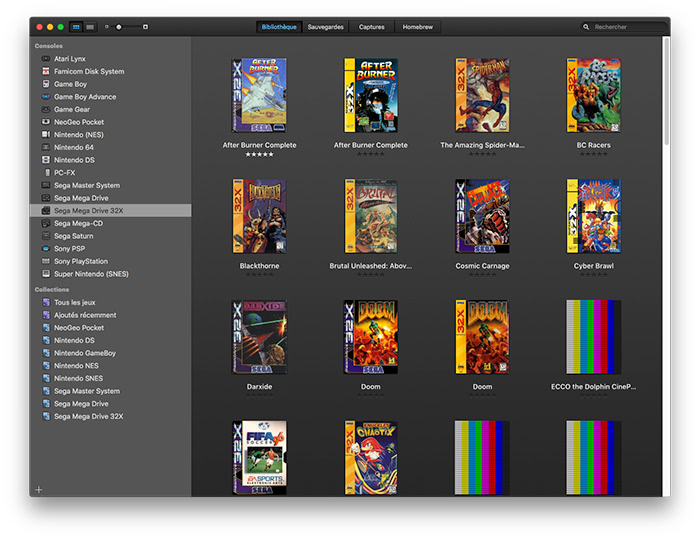
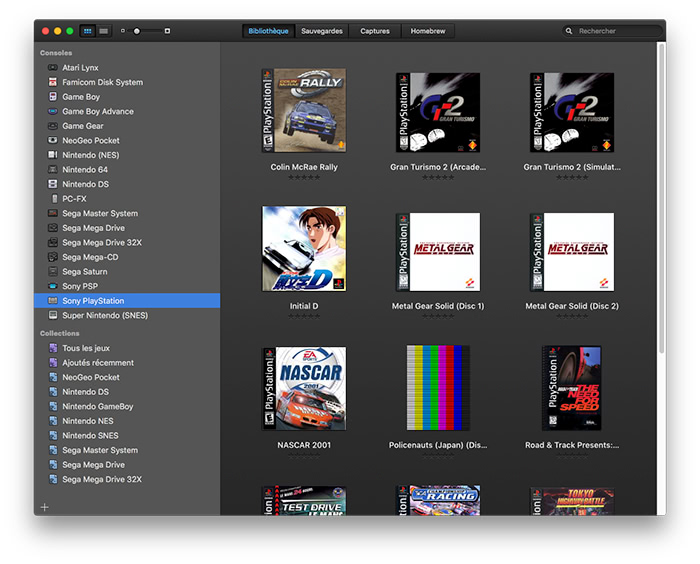
To start emulating a game, you will need the corresponding ROM and simply drag and drop it into the main interface. OpenEmu will add it automatically. If you add several at once, you will see a progress bar indicating the status of your import.
If you left checked the option "Retrieve game info and artwork automatically," OpenEmu will add nice images to your ROMs. Unfortunately, this won't work for all of them, but it will be enough to make your interface even prettier and find your favorite games more easily.
Among the few features that OpenEmu offers, you can star your favorite games to find them more easily. Or you can also use the search for the same purpose.
Add BIOS Files
On some machines and for certain emulators, using a BIOS may be necessary. A BIOS is a dump of the internal program of a machine. Generally, BIOS files are required for more modern machines, such as the PlayStation. For older machines, BIOS files are not necessary or remain optional. For these machines, since BIOS files are often very simple, the cores usually handle emulating the few functions they contain.
BIOS files are installed from the last tab in the preferences named System Files. These files are available on the internet, like ROMs, with a simple search.
Configure a Controller
While OpenEmu allows playing games using the keyboard, one of its strengths is its ability to easily configure controllers. Thus, if a controller is recognized by macOS, it will be usable by OpenEmu.
Even better, OpenEmu can directly map the original controller to the one that is connected. Here is the result of a PlayStation 3 controller (an original Sony one) for Mega Drive emulation, without any configuration needed.
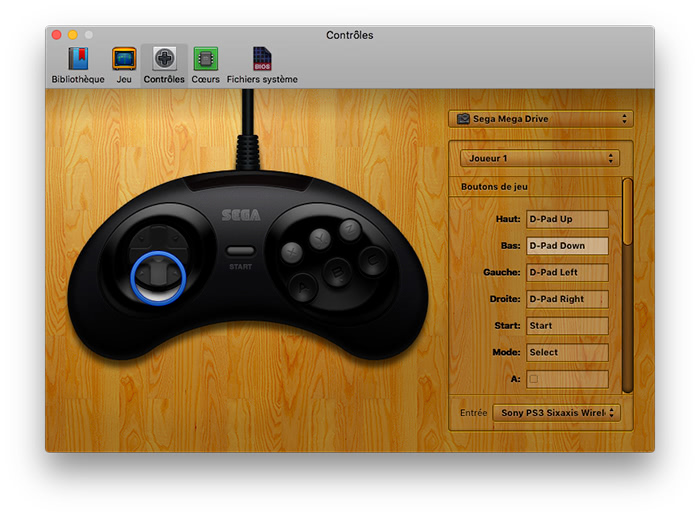
True plug'n play! The list of supported controllers is available on the OpenEmu GitHub.
Other Settings
There is one more preferences tab we haven’t covered. It is divided into two parts, with the first one being the most complicated for beginners. Indeed, choosing the filter in the display mode can seem very unclear. It is important to know that most consoles up to PlayStation 2 included adapted to the size of our CRT screens and generally represented a screen resolution much lower than what modern screens can offer.
To avoid having the game window too small, we use filters that allow us to virtually increase the display size of the game.
However, there are many filters available to achieve this, each with varying results, as none of them are truly perfect. It’s up to you to test and choose the filter you prefer. Obviously, if you decide to test all the filters, the best approach is to use the same game on the same platform.
The second part of the tab allows you to manage the game window, as you can launch games in fullscreen or not. Moreover, the previously chosen filter will greatly influence the rendering in fullscreen mode, meaning at your screen’s maximum resolution.
Launching a Game
Launching a game is simple: just double-click your choice in the library.
Managing Saves
During your sessions, OpenEmu will regularly save your progress, allowing you to resume your game from where you left off, via the "Saves" tab in the main interface. These saves are created by capturing the current state of the game in progress. This method also enables saving even if the original game did not support this feature.
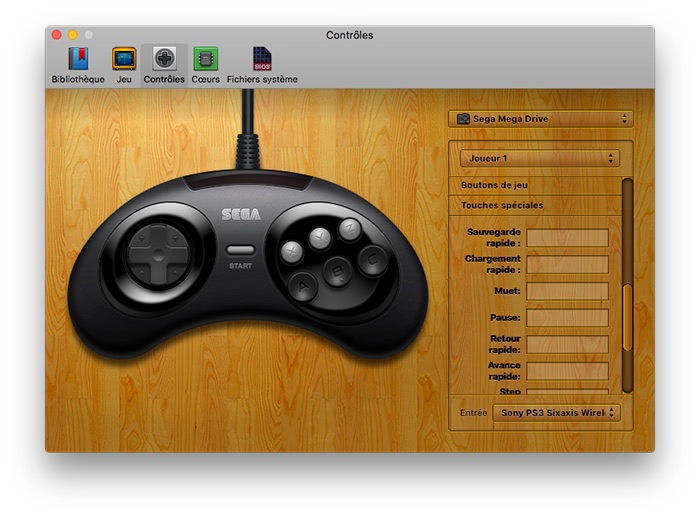
However, the best option remains configuring a key to manually save your progress whenever you wish. In the keyboard settings, below the console keys, you’ll find special keys that you can customize. This way, you can pause your game, such as Sonic or Mario World, and resume it later.
Exploring the Wonderful World of Emulation?
OpenEmu is perfect for running old console games, but it does not support all available emulation platforms. Many others are available, including on Mac, though the selection is unfortunately less extensive than on Windows.
OpenEmu is not the only multi-platform emulator. RetroArch is another option, often more advanced in terms of supported consoles and cores.
Unfortunately, it is also more complex to use. It will be ideal for those who reach the limits of OpenEmu. If you follow us occasionally, RetroArch is no stranger. Indeed, it is the software used to run RetroPie, which I mentioned to you a few months ago.
Related software
Reply on the forum
A question or a hands-on report? Open the discussion on the forum.